Read the direction.
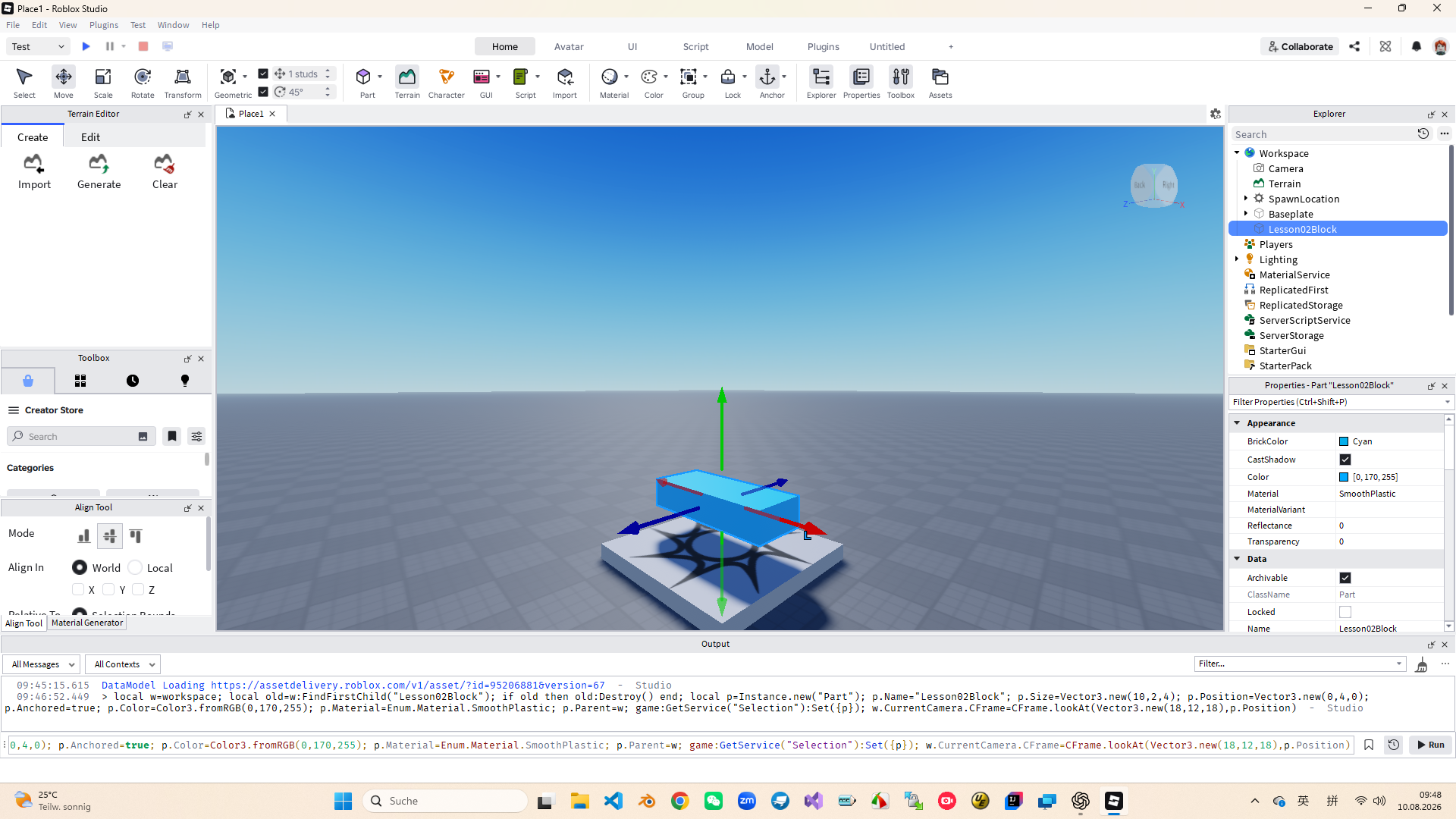
Use red, green, and blue to identify X, Y, and Z; confirm the highlighted handle before dragging.
 PixelCraft
Roblox Studio · Lesson 2
Starting from coordinate axes, adsorption and Properties, turn a Part into a three-dimensional level with a starting point, jumps, narrow bridges and slopes.
Course overview
In Lesson 1, students have been able to open Roblox Studio, insert Parts, and complete the first test. This lesson focuses on the most important methods of working in 3D space: first select the object, then operate along the correct coordinate axis, immediately check the values, and finally test it from the player's perspective.
After completing this lesson, the scene is no longer a bunch of random blocks, but a clear route from the starting point, through jump gaps, narrow bridges and ramps, and finally to the end point.
Use red, green, and blue to identify X, Y, and Z; confirm the highlighted handle before dragging.
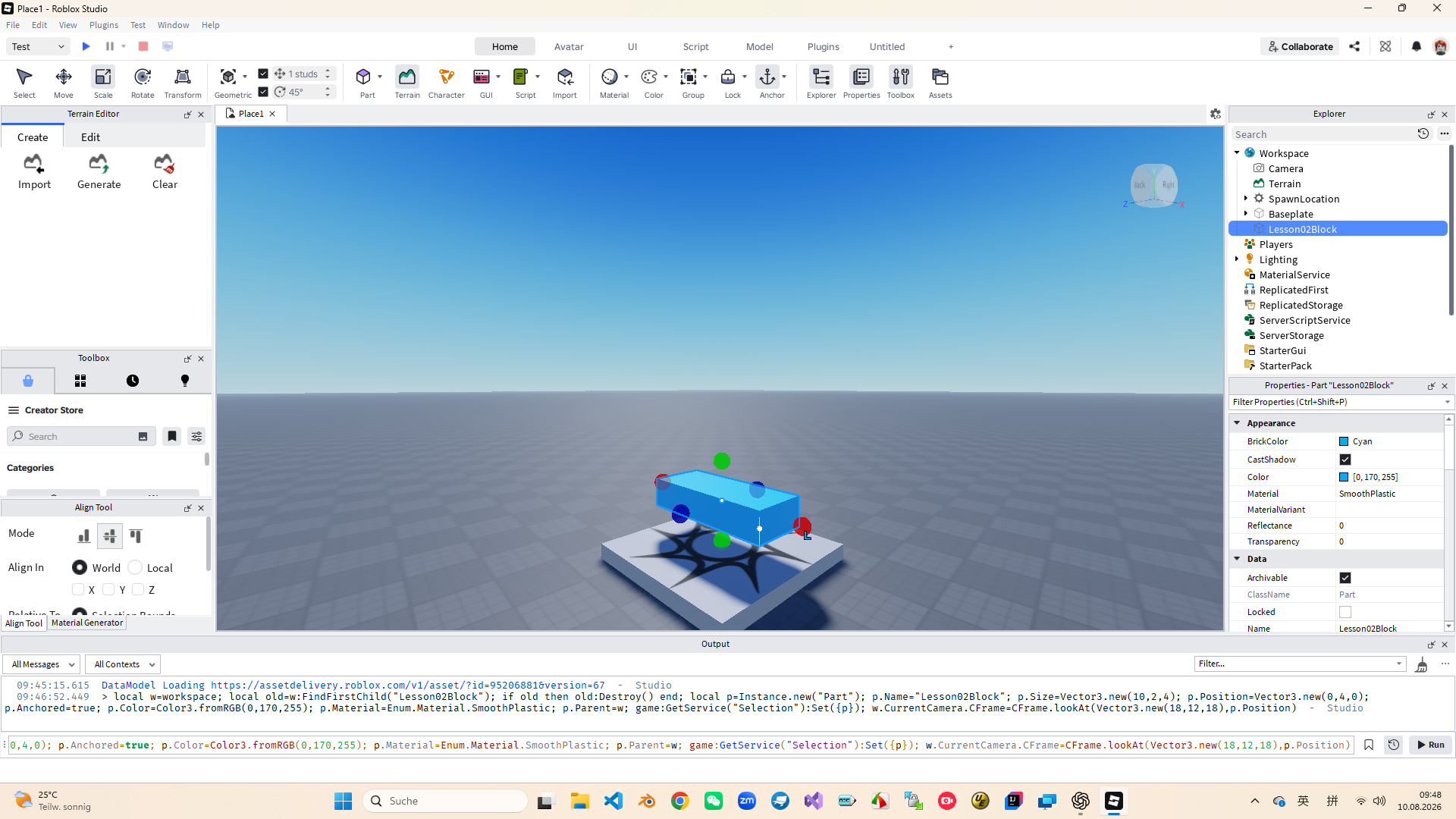
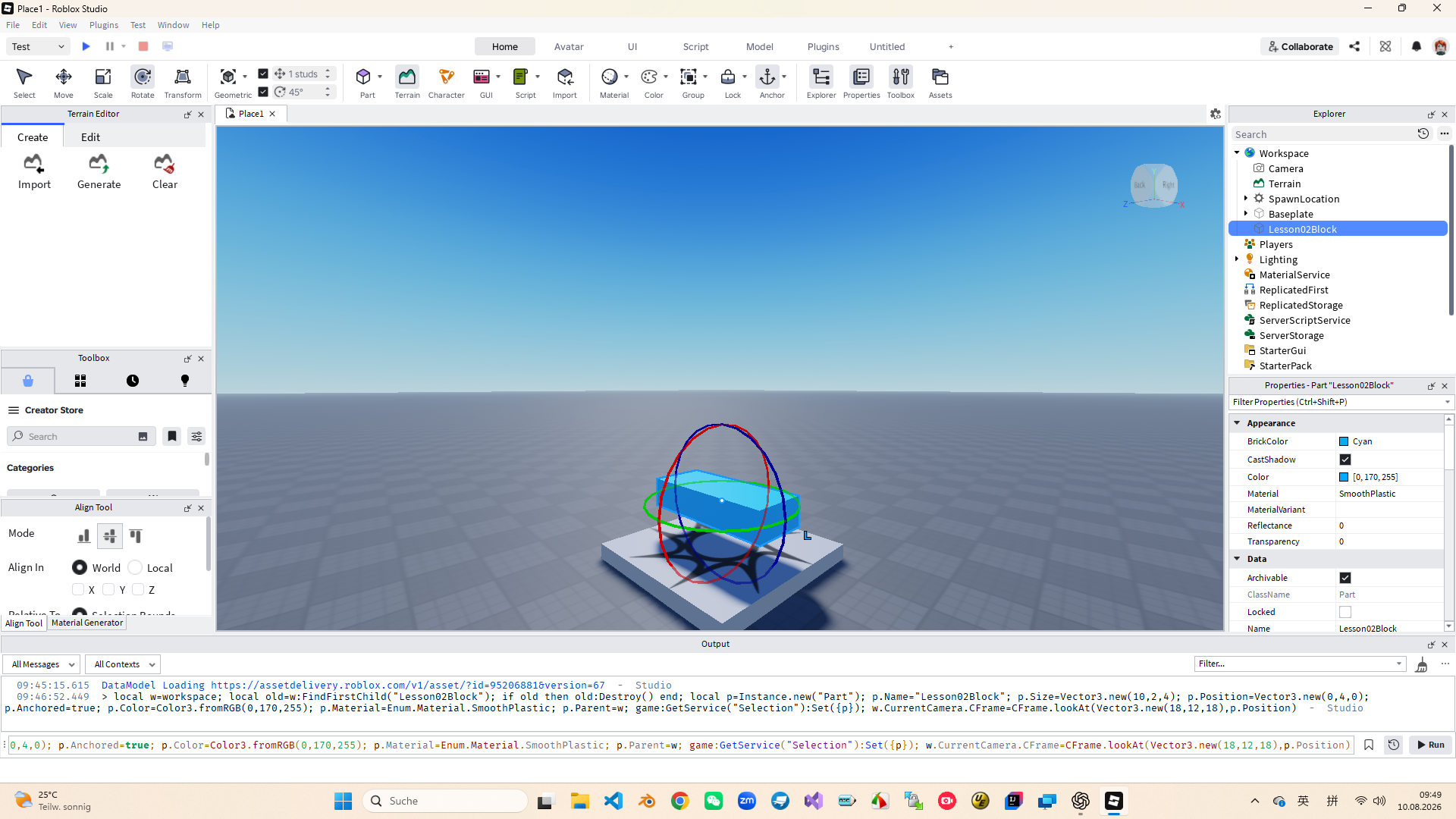
Move changes to Position, Scale changes to Size, and Rotate changes to Orientation.
Copy from a master platform, name, arrange, fix, and then test.
Learning route
Every time a small step is completed, it is tested. Say what you expect to see first, and then use Play and Output to check it. Don't rush to write all the code at once.
Save as "Initials_Lesson02" from Lesson01, retaining the recoverable version.
Identify the colours and directions of X, Y, Z and understand the fixed steps of adsorption.
Use Move, Scale, and Rotate to make the first standing platform.
Confirm Position, Size, Orientation; only change one component at a time.
Use Ctrl+D to copy, rename, and set the structure to Anchored.
Complete the route from the player's perspective, fixing only one type of problem at a time.
Move & snap
Move only changes the Part's Position, but does not change its size or orientation. After the object is selected, the red, green, and blue arrows restrict the movement of the object along the X, Y, and Z axes respectively. When making a platform, first use the green Y-axis to leave the ground; arrange the forward path along the blue Z-axis.
Adsorption determines how much it changes each time, while color only indicates the direction. When starting, set Move to 1 stud and Rotate to 15° so that platforms, stairs, and walls can be aligned more easily.
Scale & rotate
Scale changes Size. When making a platform, you usually adjust the width and length first, and then check the thickness at the end; a platform thickness of about 1-2 studs is enough for beginners. Also review Position.Y after scaling, as the object may grow larger around the center and penetrate the ground.
Rotate changes Orientation. The horizontal platform usually does not need to be rotated; when making a slope, use an angle of 15° to absorb it, make the slope gentle first, and then use Move to fine-tune the connection. Turning around the Y-axis will turn in the horizontal plane, usually without creating a slope.
Properties & anchored
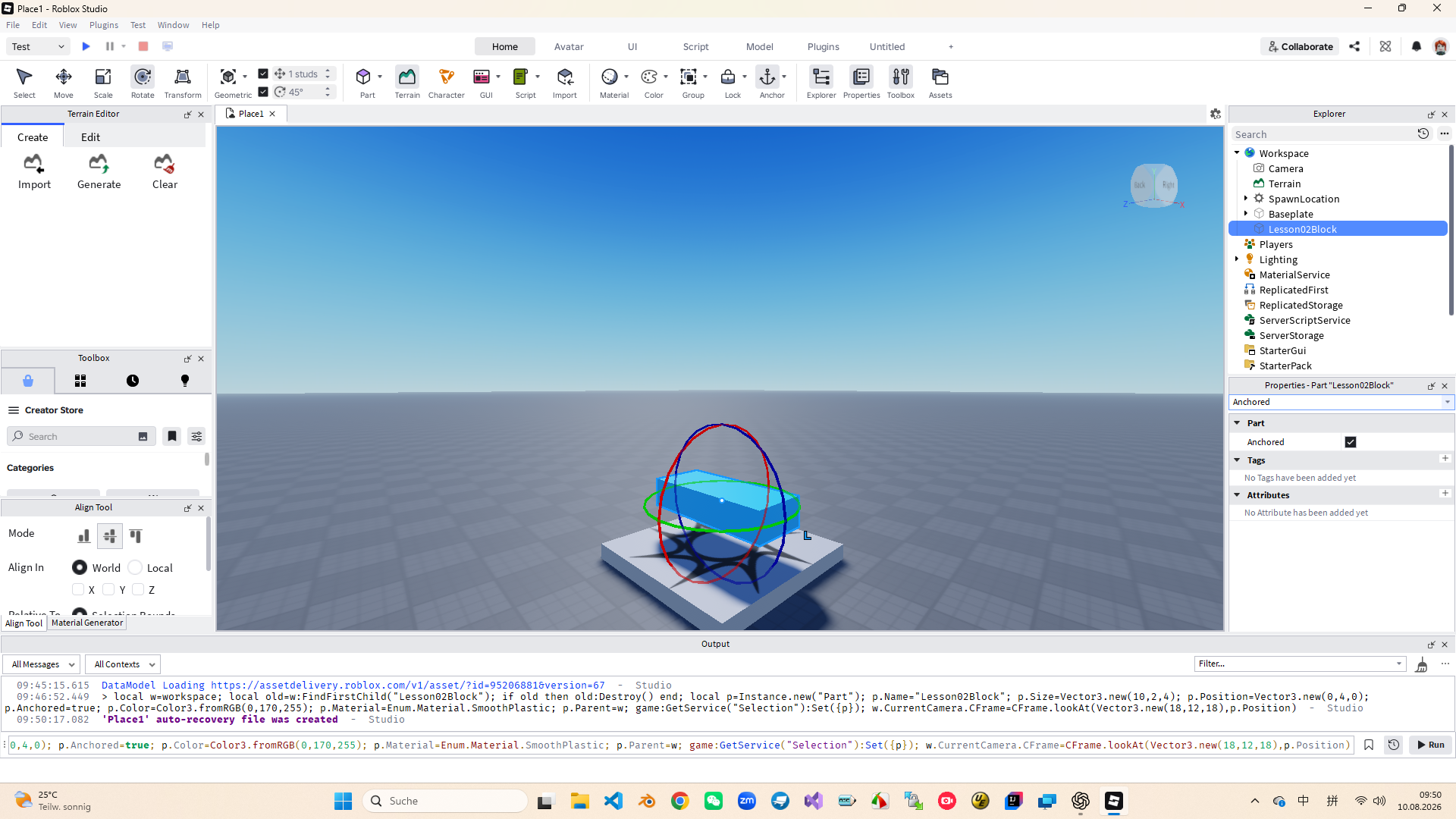
When Part is selected, focus on position, Size, Organization. Each element consists of three fractions: X, Y, Z. At a time, only one fraction is changed and the results continue to be observed before knowing which value has caused the change.
All major platforms should have Anchored=true. Otherwise they will be affected by gravity and fall after the Playtest starts. If the character crosses the platform, then check CanCollide; this is a different issue than Anchored.
Mini obby
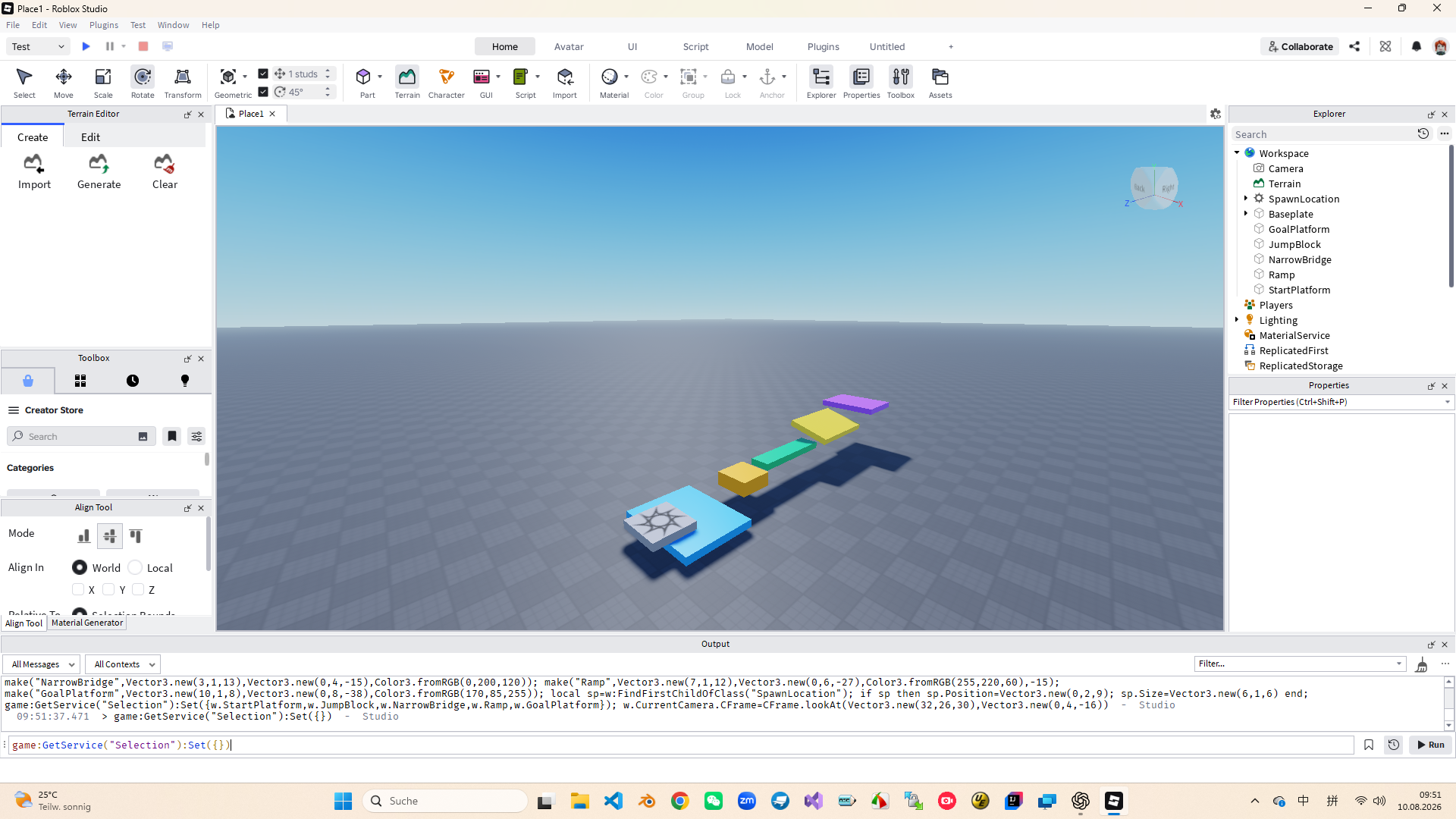
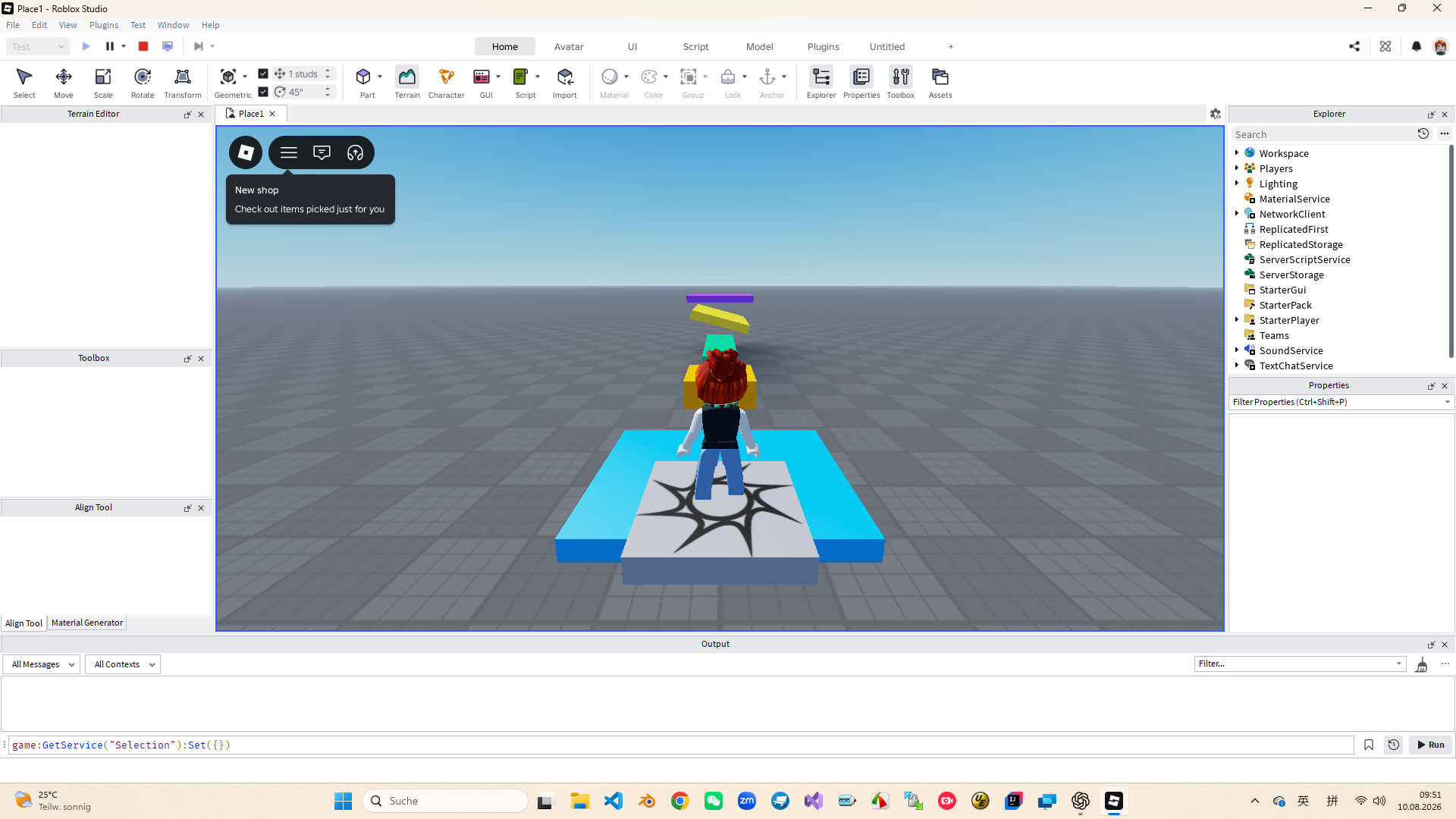
The comprehensive task starts from the StartPlatform, passes through the spaced JumpBlock, the slender NarrowBridge, the angled Ramp, and finally reaches the GoalPlatform. Color can help distinguish functions, but whether the route is continuous and legible and whether it passes the test is more important.
Playtest is not to prove that the work is perfect, but to find the first failure point as early as possible: the distance is too far, the bridge is too narrow, the slope is too steep, or the platform is not fixed. After Stop, change only one parameter and then test again.
Homework
Keep the birth point, end point and three obstacles, and draw the path from start to end.
Write a name and approximate size for each obstacle, and mark the axis that needs to be moved or scaled.
Write the angle for the slope (such as 15°) and circle the platform that must be Anchored.
Exit questions
Move changes Position; Scale changes Size; Rotate changes Orientation.
Red X, Green Y, Blue Z.
First check if Anchored is true.
Distances and angles that appear reasonable in the edited perspective may not be appropriate for the real player character.