Experience and Place
Understand the relationship between a complete game and a single runnable scene: Experience is like a book, and Place is like its chapters.
 PixelCraft
Roblox Studio · Lesson 1
This lesson is not a rush to write scripts, but to loop the real game: understand and Place, find Workspace, insert and name MyFirstPart, use Playtest to check if the character can enter the scene and finally secure Stop and save the version.
Course overview
Many beginners will be intimidated by the large number of buttons, English windows and toolbars when they open Roblox Studio for the first time. Lesson 1 only keeps a short and stable route: open Baseplate, get to know the core window, create a Part in the Workspace, name it MyFirstPart, run the test, and save as a canonical version.
This is a very basic but critical course. The later Lua scripts, organs, UI, task systems and multiplayers will rely repeatedly on the target levels, test habits and preservation habits established here.
Understand the relationship between a complete game and a single runnable scene: Experience is like a book, and Place is like its chapters.
Know where to place visible objects in the three-dimensional world, and develop the habit of naming them immediately after creation.
Test first, then Stop, then edit; save the local file and copy the version to avoid overwriting the unique result.
Learning route
The goal is not to "remember all the buttons," but to complete a first 3D project that can be opened, tested, and saved in 60 minutes.
Enter a blank Baseplate from the New Experience or Template area and confirm that you are currently editing a Place.
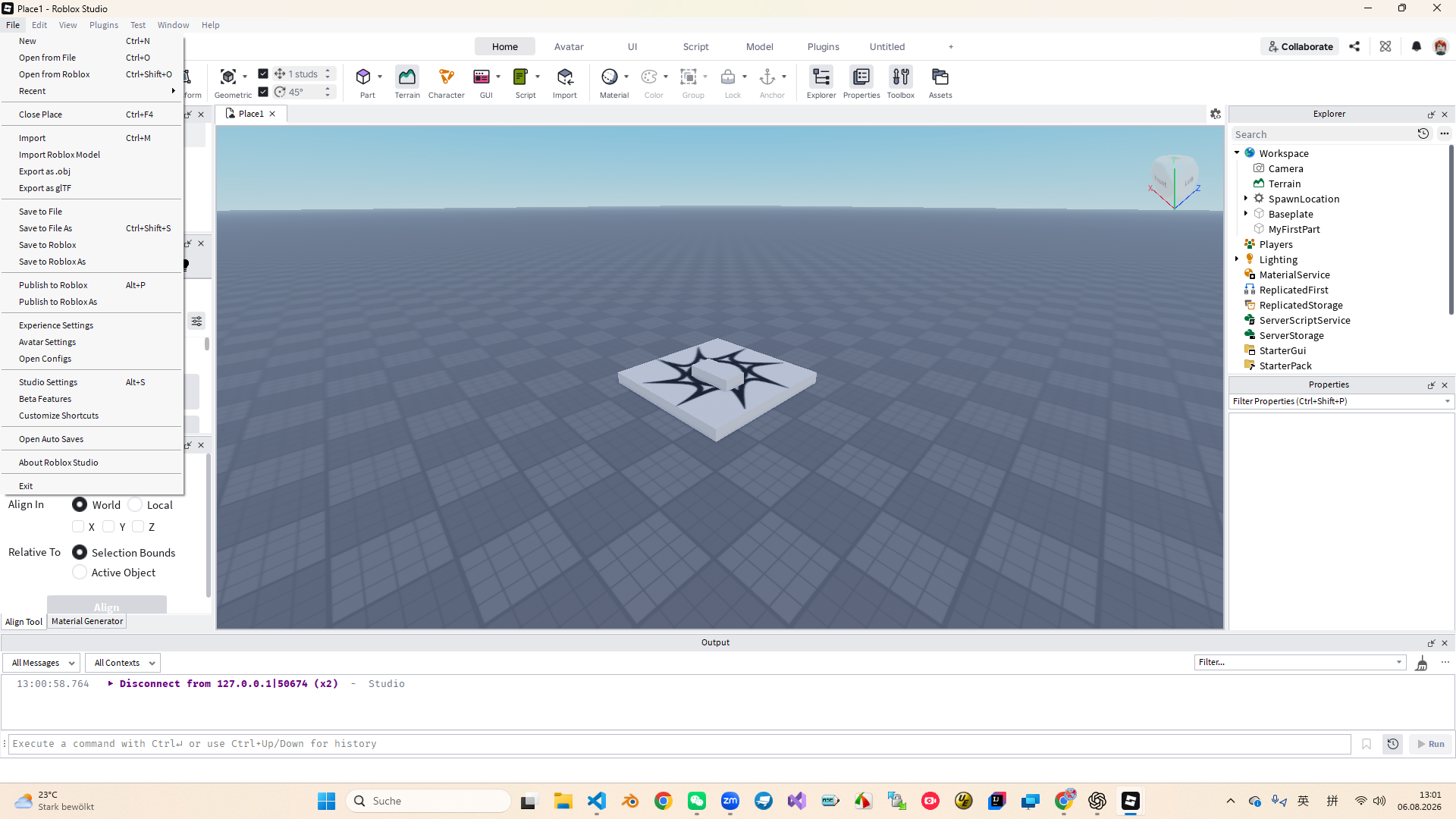
Expand Workspace in Explorer and point out the hierarchical relationship between Camera, SpawnLocation and Baseplate.
Click Home > Part only once and observe the synchronous changes of the 3D viewport, Explorer and Properties.
Rename the default Part to MyFirstPart. There are no spaces, and M, F, and P remain capitalized.
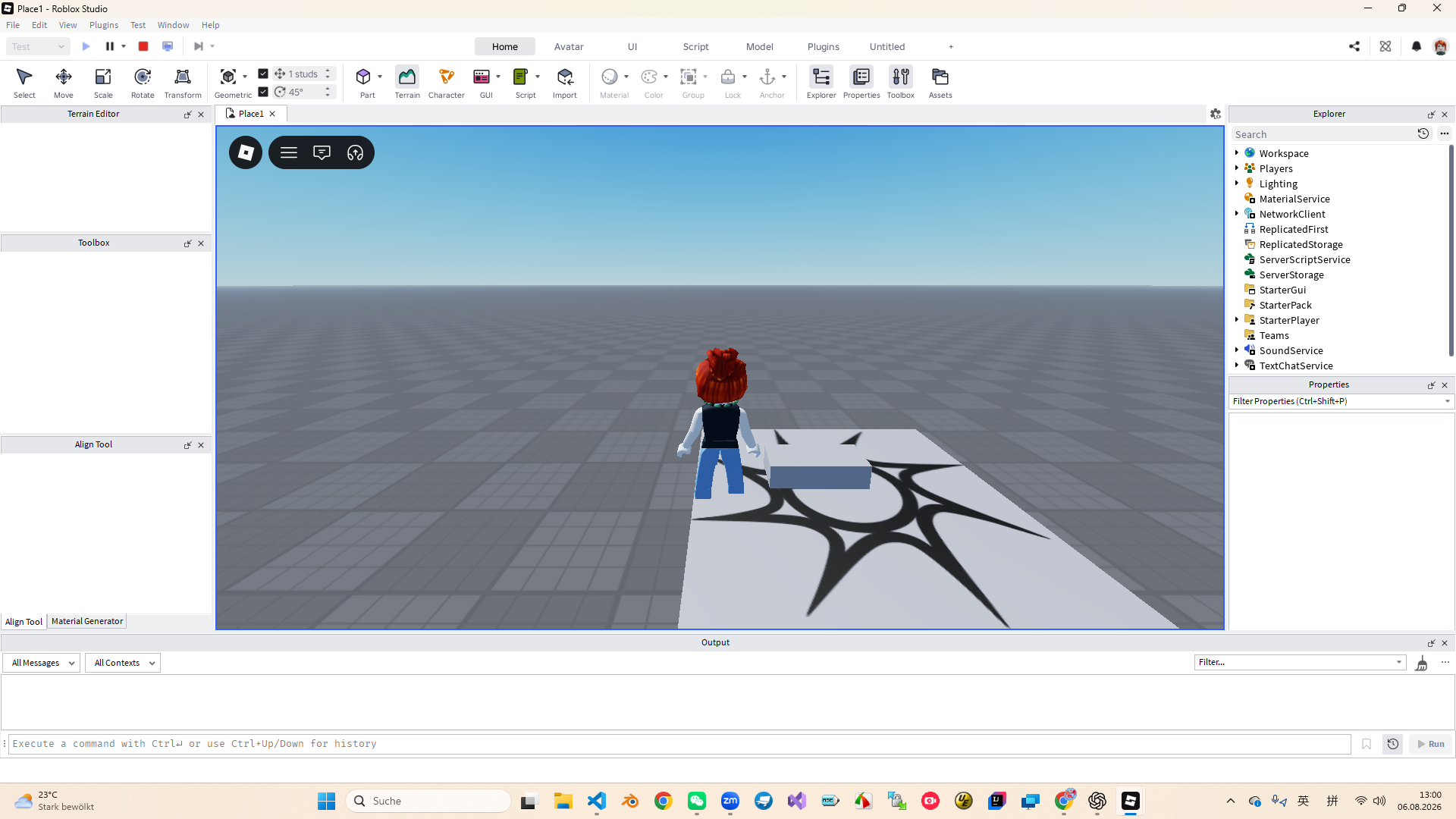
Use Play or Play Here to enter a temporary game session and control the character to approach or stand on the block.
Stop testing first, then Save to File As, save as "Initials_Lesson01".
Interface map
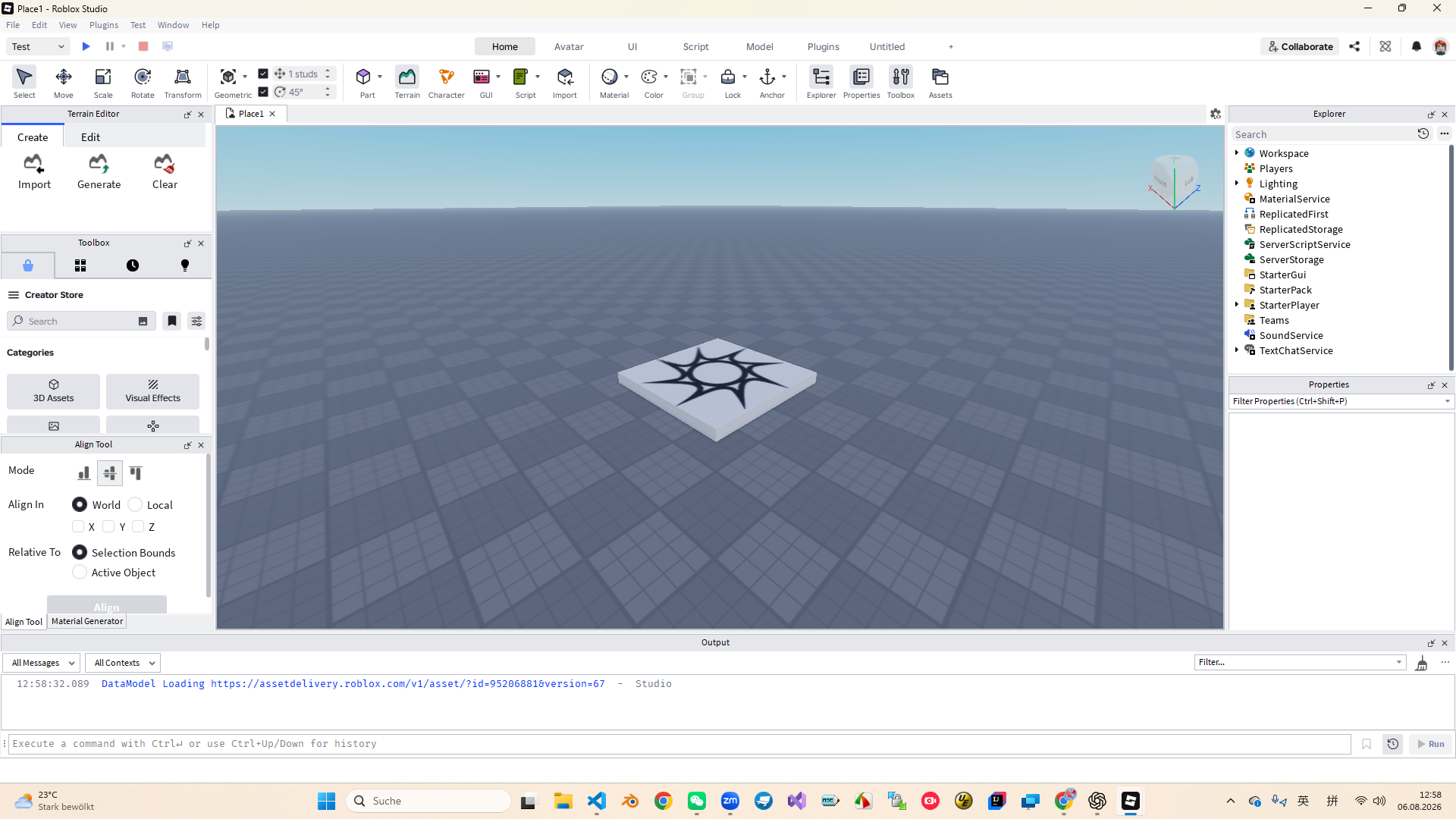
This lesson only requires mastering five windows: 3D Viewport, Explorer, Properties, Toolbox and Output. Plug-ins and layouts may vary from computer to computer, but these five core areas are basically the same.
| window | Main function | Tasks of this lesson |
|---|---|---|
| 3D Viewport | Observe and build a three-dimensional world. | Find the largest picture area in the center and rotate the viewing angle check box. |
| Explorer | Display the project object hierarchy, which is equivalent to the project directory tree. | Locate the Workspace and confirm that MyFirstPart is located below it. |
| Properties | View the Name, Color, Size, Position and other attributes of the currently selected object. | Select the object first, and then observe the changes in the property panel. |
| Toolbox | Find resources such as models, pictures, audios, etc. | Only use trusted resources under the guidance of an instructor. |
| Output | Display run messages, warnings, and errors. | In this lesson, we first learn to recognize its location. |
First object
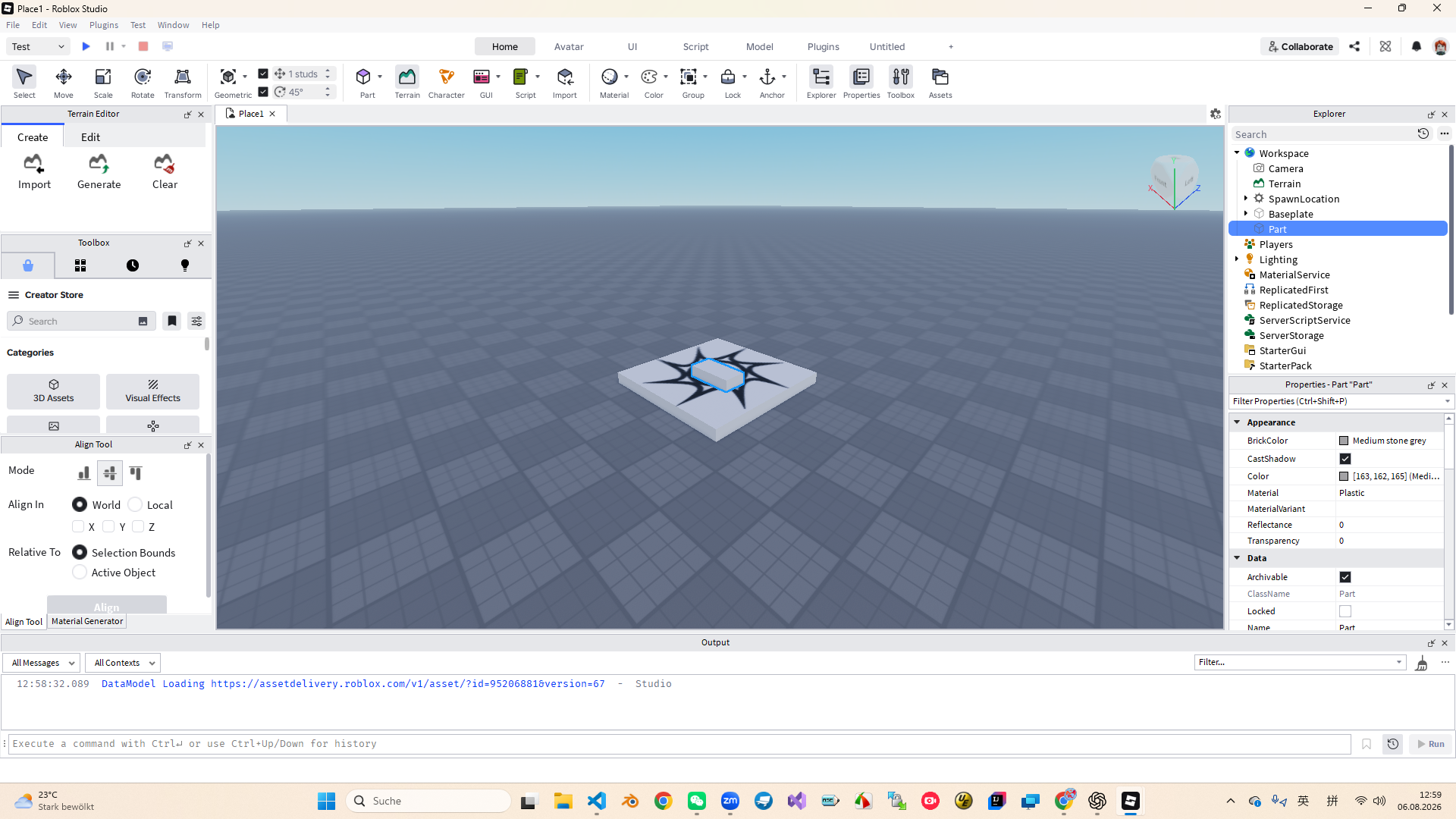
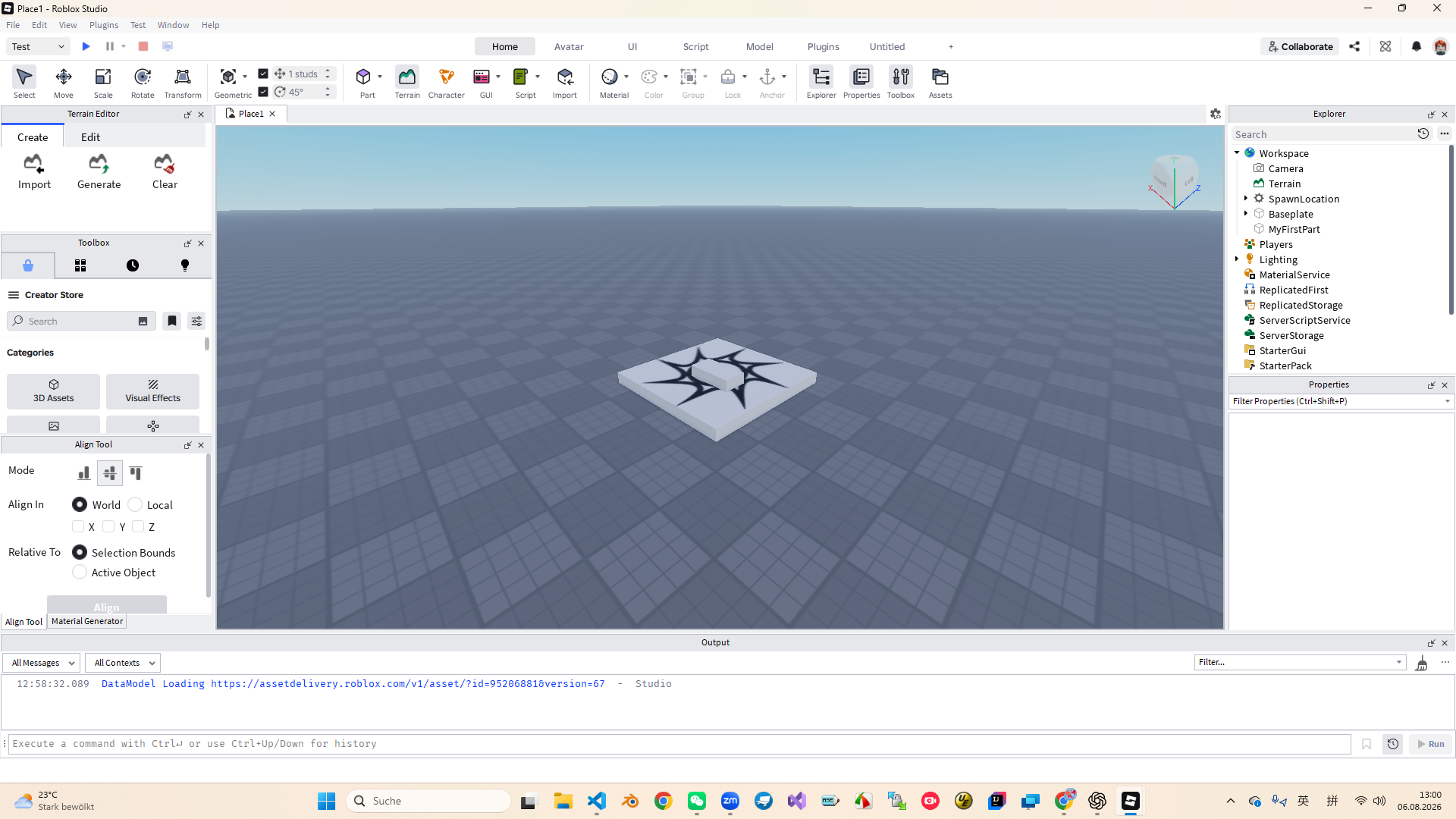
Part is the most basic three-dimensional building block in Roblox Studio. Platforms, walls, steps, obstacles and even mechanisms often start with Part. Naming the object immediately after creating it is a habit that must be developed before entering script learning.
Playtest
Playtest starts a temporary game session. Students should use W, A, S, and D to control the character toward MyFirstPart and observe whether the character can approach or stand on the block. You must click Stop after the test is completed before continuing to edit or save.
| button | Effect | How to use this lesson |
|---|---|---|
| Play | Begin testing from the default birth position. | Check the overall effect after the player enters the experience. |
| Play Here | Start testing from the vicinity of the current camera. | Quickly inspect the local area being edited. |
| Stop | Ends the test and returns editing status. | You must stop before continuing to edit or save. |
Save & version
After completing the test for the first time, immediately save it using a local file. The class uses "Initials_Lesson01", for example YM_Lesson01. Before making major modifications, save them as YM_Lesson01_v02 or v03 to avoid overwriting the only version that can run.
60-minute class plan
| time | Classroom phase | Student results |
|---|---|---|
| 0—5 | Introduction and presentation of works | I want to talk about the theme of the game I want to make. |
| 5—15 | Knows the Studio interface | Find 3D Viewport, Explorer, Properties, Toolbox, Output. |
| 15—25 | Teacher demonstrates insertion and selection Part | Answer which container the object is located in. |
| 25—40 | Complete the first simple scene | Complete MyFirstPart and examine the scene from multiple angles. |
| 40—50 | Playtest and Stop | Make the role stand on the square and safely stop testing. |
| 50—56 | Save and copy versions | Save "Initials_Lesson01" to understand the v02 version copy. |
| 56—60 | Export issues and review | Verify that the project is saved and that core concepts can be explained. |
Homework
The picture does not need to be exquisite, but it must allow others to understand at a glance where the player starts, where he wants to end, and what he will encounter on the way.
Space station, jungle, ice and snow castle, campus or future city are all acceptable.
Mark Start, Goal, and draw recommended routes with arrows.
Draw 3 obstacles, such as a jumping platform, a moving wall, a narrow bridge, or a rotating pole.
Exit questions
Experience is a complete game project; Place is a runnable scene in the experience.
Workspace stores objects that are visible or participate in physical operations in the current three-dimensional world.
Stop will end the temporary running session and restore the editing state to avoid misoperation in the test state.
Play tests from the default birth position; Play Here quickly starts testing from near the current camera.
The file name uses "Initials_Lesson01", such as YM_Lesson01.
Lesson complete
In the next lesson, you can continue to build levels based on this concept map: adjust the size and position of the Part, make platforms, obstacles, and target points, and start to get in touch with the most basic interaction rules.