Give the command a position.
Put ordinary Script into ServerScriptService, and the name indicates the purpose.
 PixelCraft
Roblox Studio · Lesson 3
Create the first ordinary Script in ServerScriptService, understand print(), Output, local variables and object references, and use short codes to safely modify Parts.
Course overview
In the first two lessons, students used Move, Scale and Rotate to create static scenes. Starting from this lesson, we write instructions for the computer to execute in sequence. The scripting language used by Roblox is called Luau; we often say Lua every day, but in the Roblox project, Luau is the more accurate name.
This lesson emphasizes a reliable cycle: write a small piece of code, click Play, read Output, click Stop, change only one question, and test again. Short codes, early testing, and reading the first error are habits that will be repeated in all subsequent scripting classes.
Put ordinary Script into ServerScriptService, and the name indicates the purpose.
print(), warn(), script name and line number together help us locate the problem.
Use local to save strings, numbers, Boolean values, and object references.
Learning route
Every time a small step is completed, it is tested. Say what you expect to see first, and then use Play and Output to check it. Don't rush to write all the code at once.
Save from Lesson02 and prepare an Anchored Lesson03Part.
Create Lesson03_FirstScript in ServerScriptService.
Seeing Hello, Roblox through Playtest in Output!
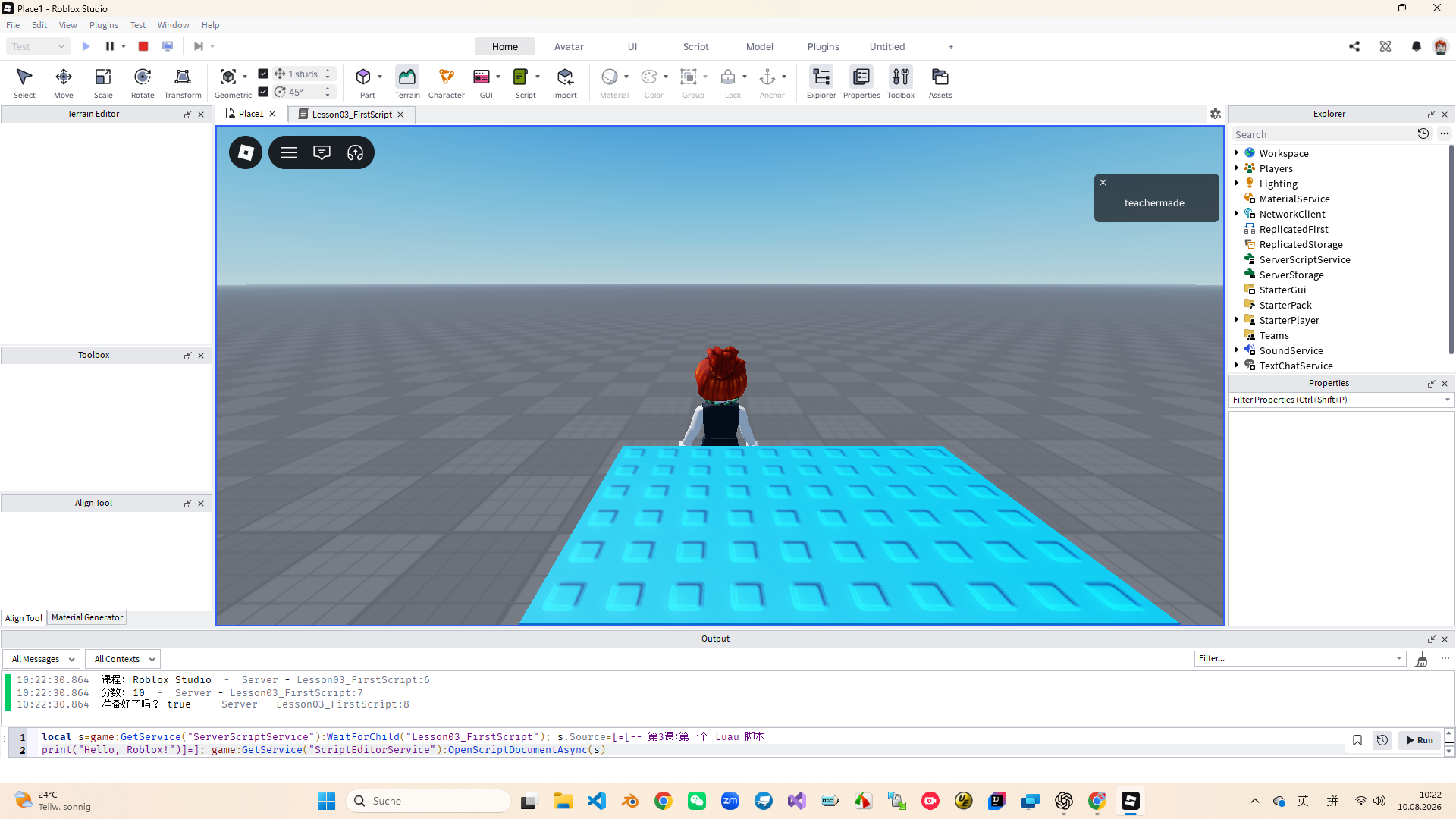
Save string, number and boolean respectively.
Use WaitForChild to find Lesson03Part, and then modify the properties.
Fix issues based on script name, line number, and error description.
First script
Ordinary Script is placed in ServerScriptService, with a clear location, and it is also convenient to identify server messages in Output. Rename it to Lesson03_FirstScript immediately after creation. Do not keep the default names such as Script and Script1 for a long time.
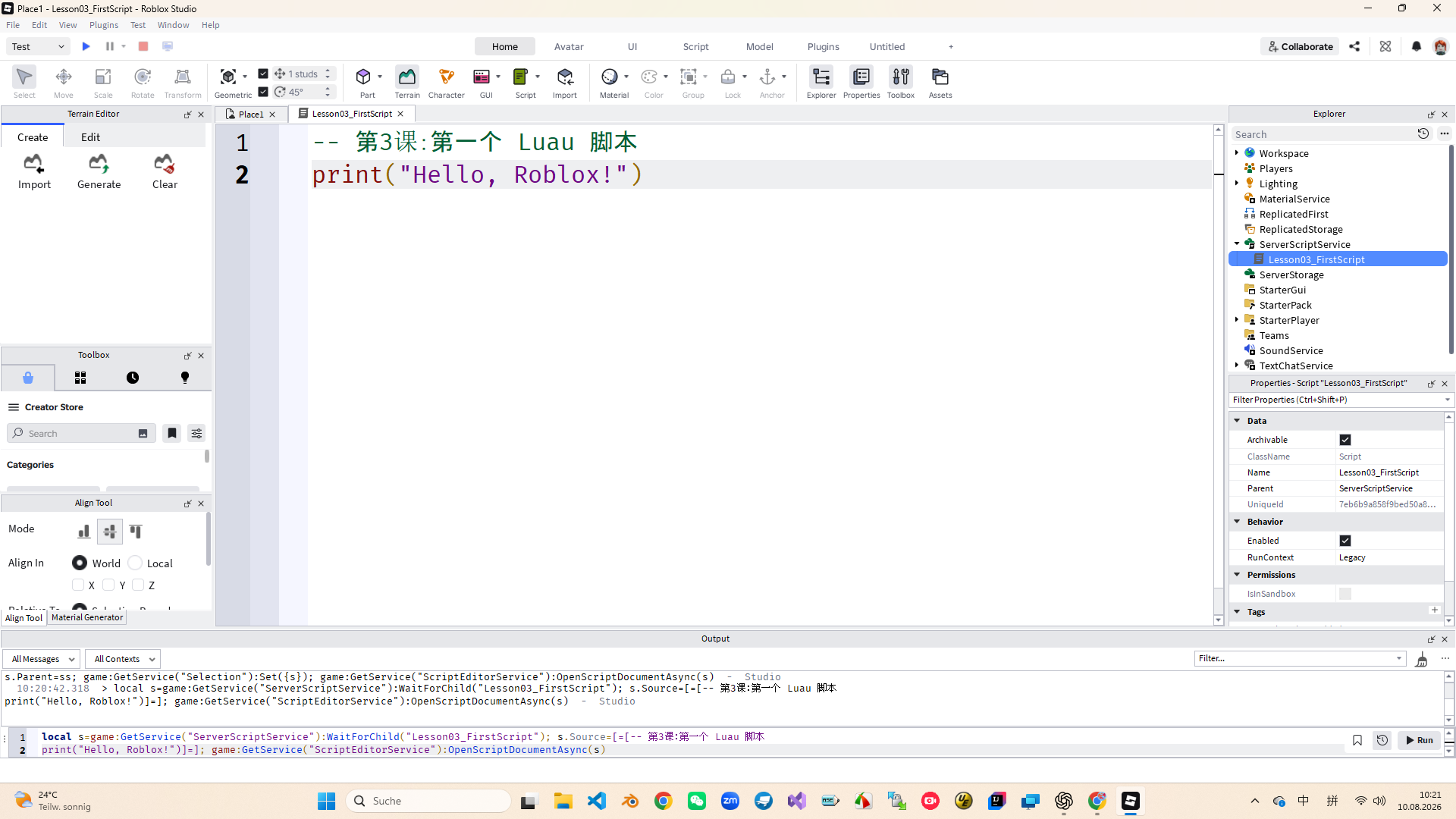
Double dash -- followed by a comment, which only helps people read, but will not be executed. print() will send the content in parentheses to Output. Even if the screen does not change, it can prove that the script has been run.
-- 第3课:第一个 Luau 脚本
print("Hello, Roblox!")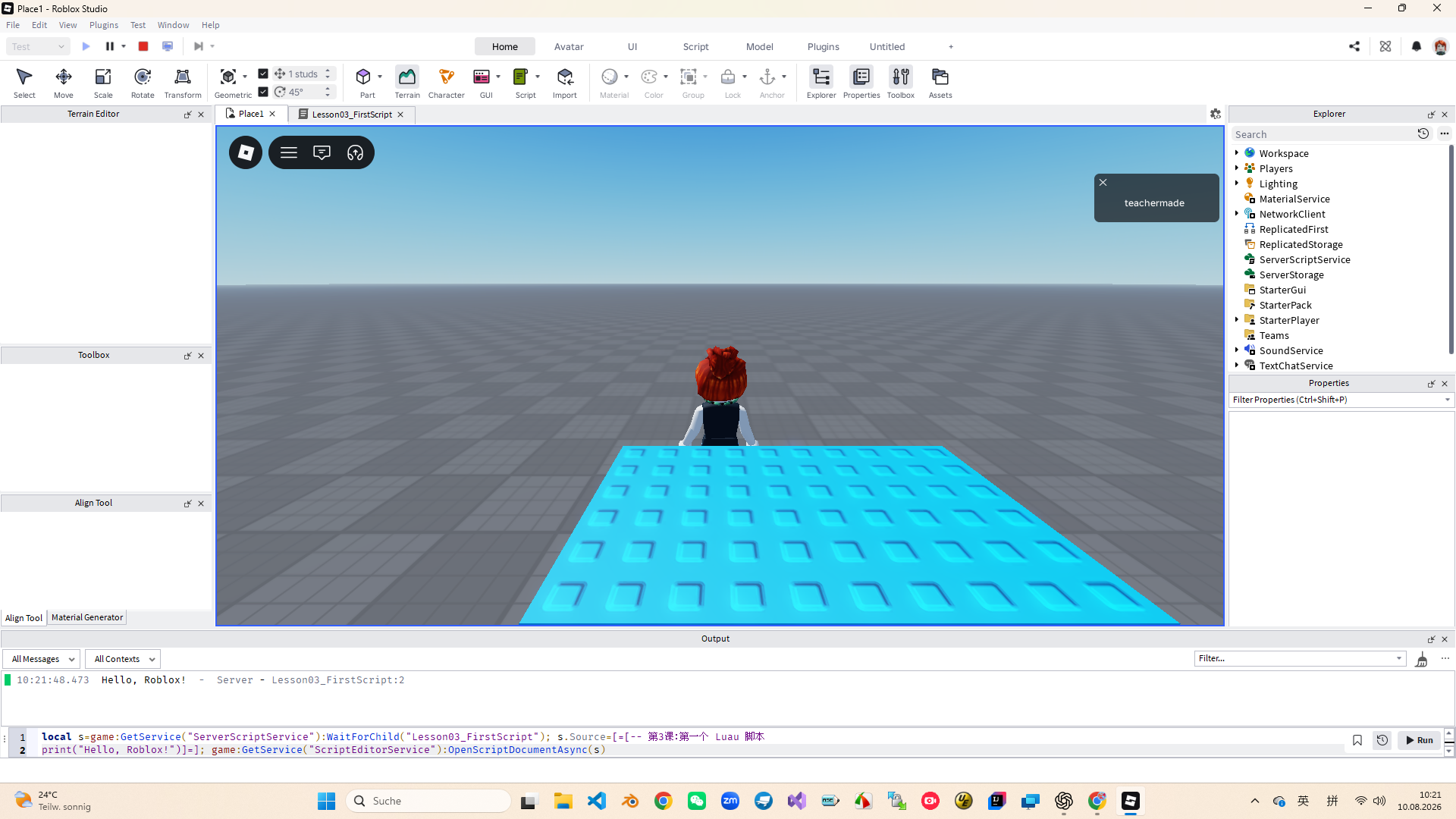
Local variables
A variable is like a box with a name: the right side of the equal sign is the value to be saved, and the left side is the variable name. In the beginner stage, use local to create local variables, so the scope of scope is clearer. Variable names use camelCase, such as courseName, playerScore, newWidth.
string stores text, number stores numerical values, and boolean only has true or false. Numbers use + operation; strings use .. to connect. Don't add words and numbers directly using +.
local courseName = "Roblox Studio"
local score = 10
local isReady = true

print(courseName)
print(score)
print(isReady)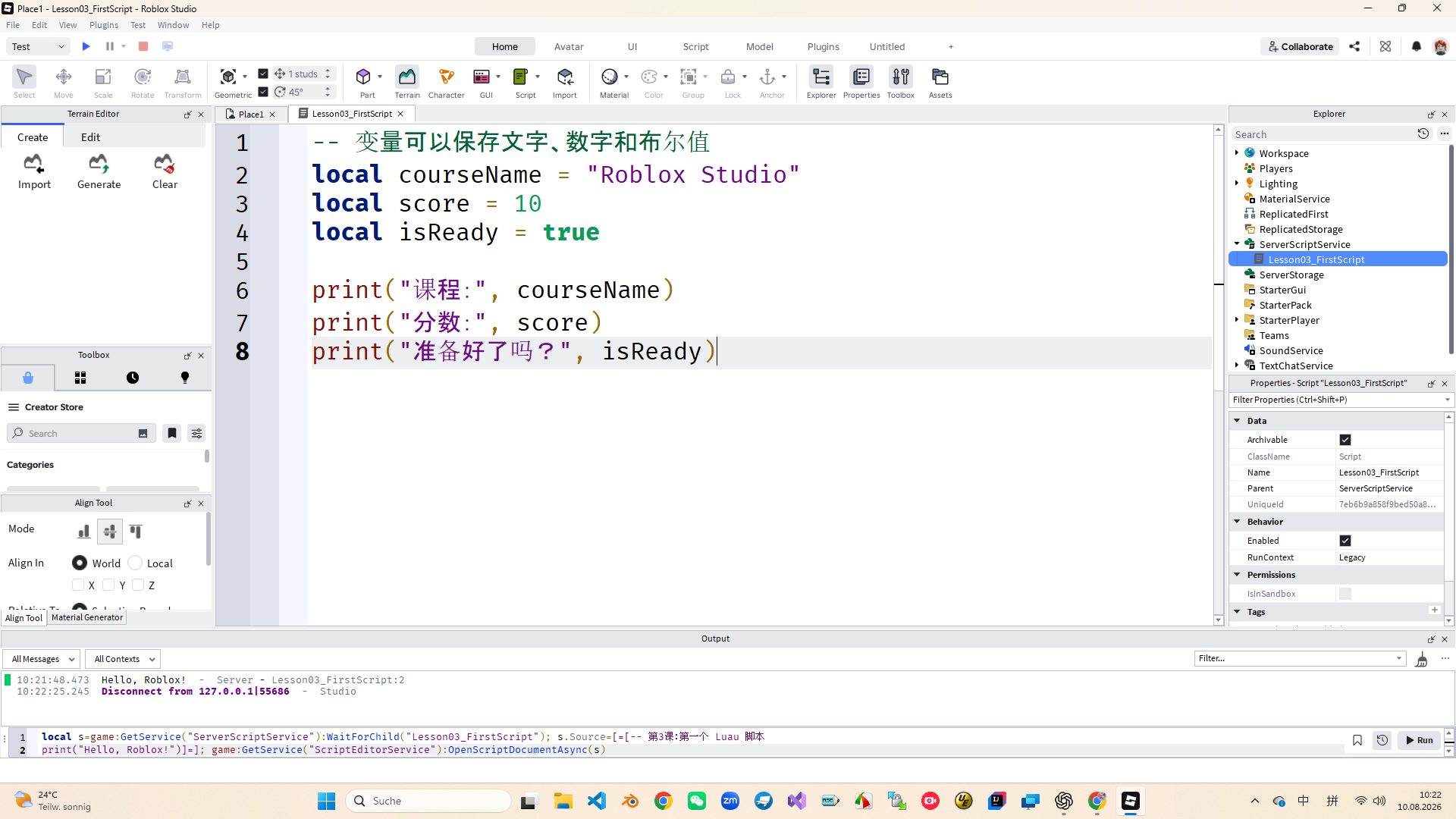
Object reference
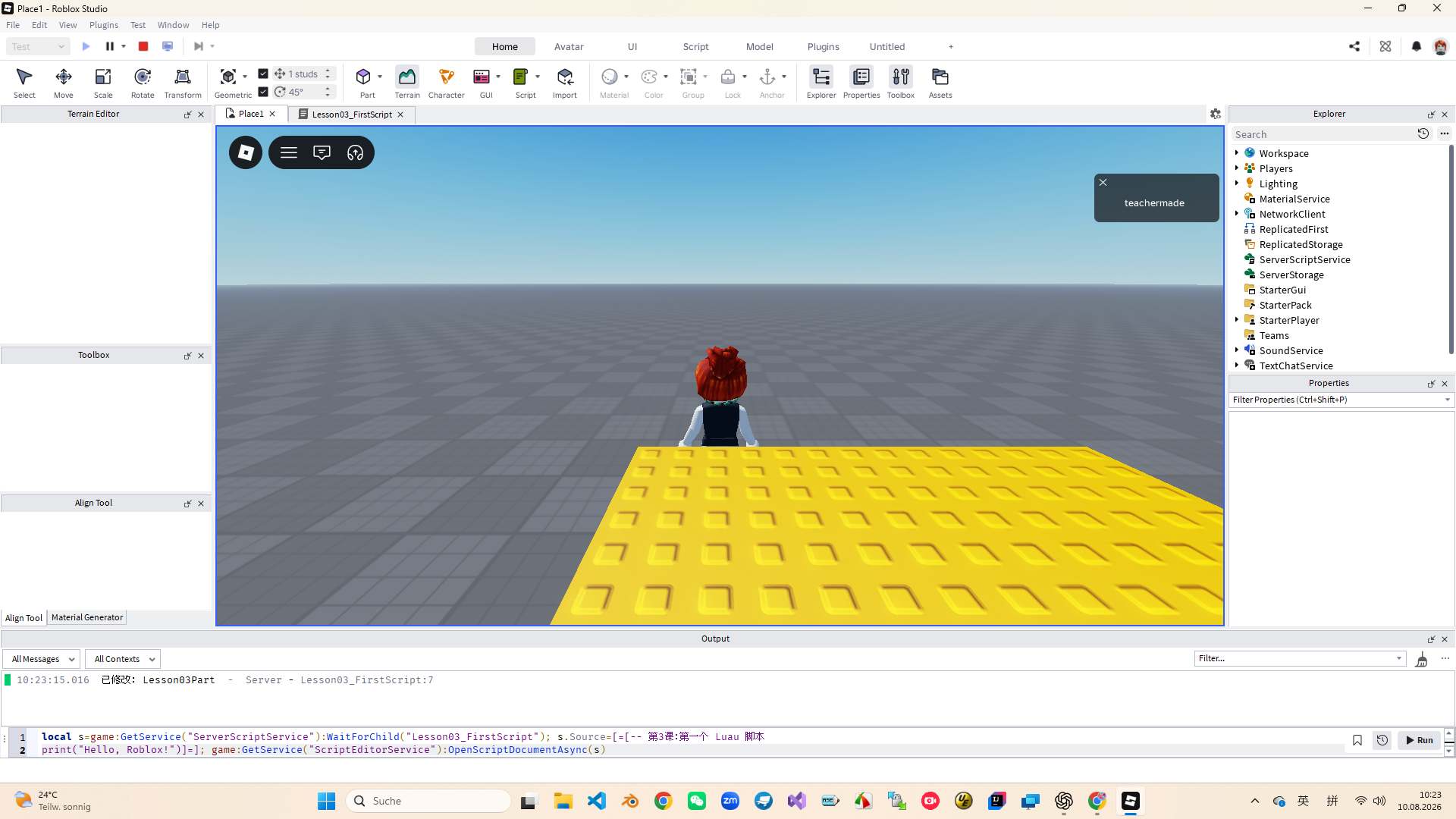
Create and accurately name Lesson03Part in the Workspace, then check Anchored. workspace:WaitForChild("Lesson03Part") will wait for the object to appear and return its reference; after getting the reference, you can access Name, Color, Size and other properties through dot notation.
Color and size changes during Playtest belong to the temporary running world. Clicking Stop will usually revert, and this is the value of security testing: verify the behavior before deciding whether to permanently modify it in the edit state.
local lessonPart = workspace:WaitForChild("Lesson03Part")
local newWidth = 14

lessonPart.Color = Color3.fromRGB(255, 170, 0)
lessonPart.Size = Vector3.new(newWidth, 2, 6)
print("已修改:", lessonPart.Name)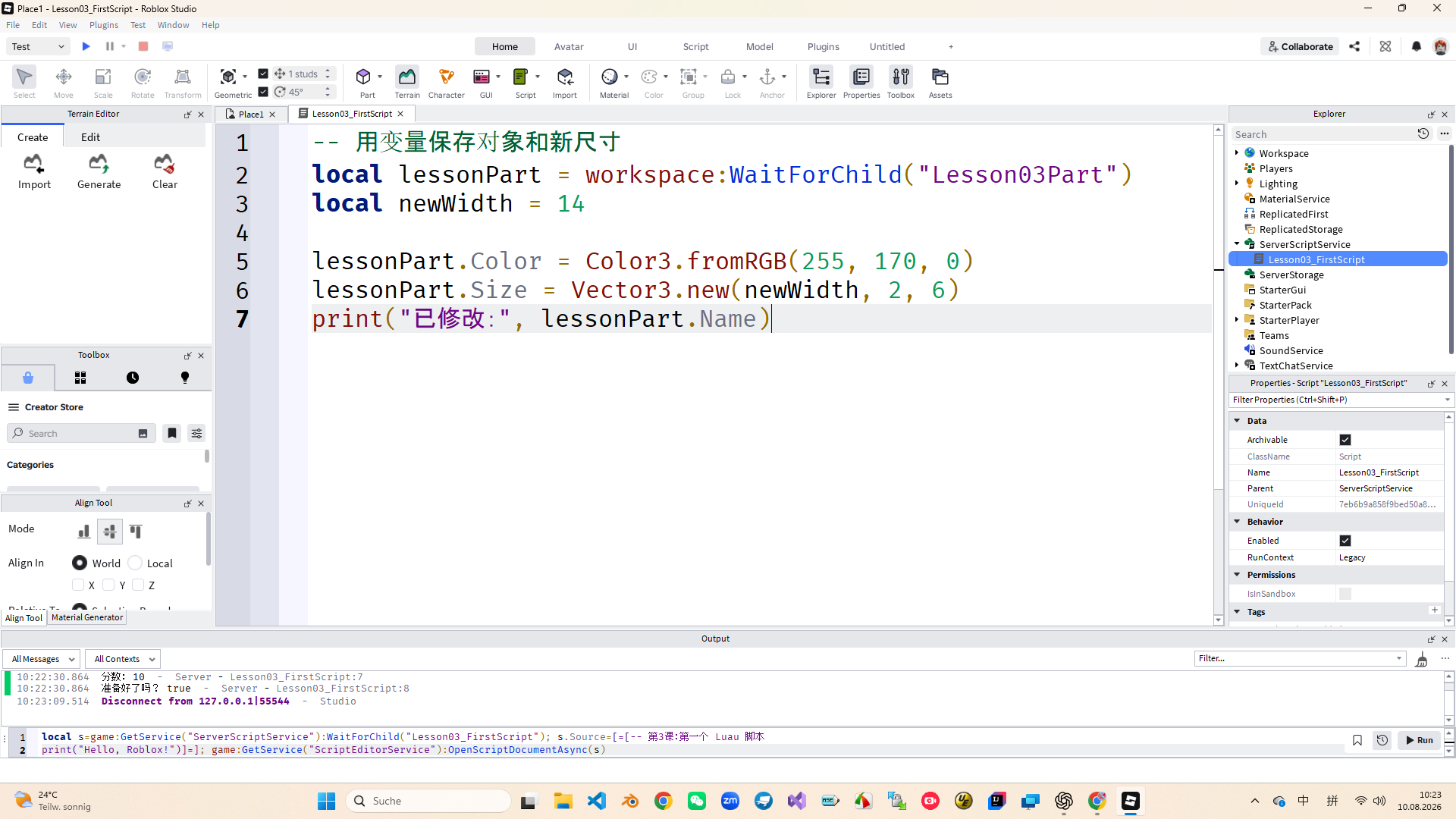
Debug loop
When a red message comes in, the fixed processing order: first look at the earliest error, then look at the script name and line number, click on Stop, go back to the corresponding position to check for symbols or names, and restore Play. The error behind this is probably only a chain result caused by the first syntax problem.
For example, when the string lacks closing quotes, do not delete the entire code; add pairs of English quotes, retest, and confirm that Malformed string no longer appears in Output.
-- 错误版本
local message = "Lesson 03
print(message)

-- 修复:给 Lesson 03 补上右引号
local fixedMessage = "Lesson 03"
print(fixedMessage)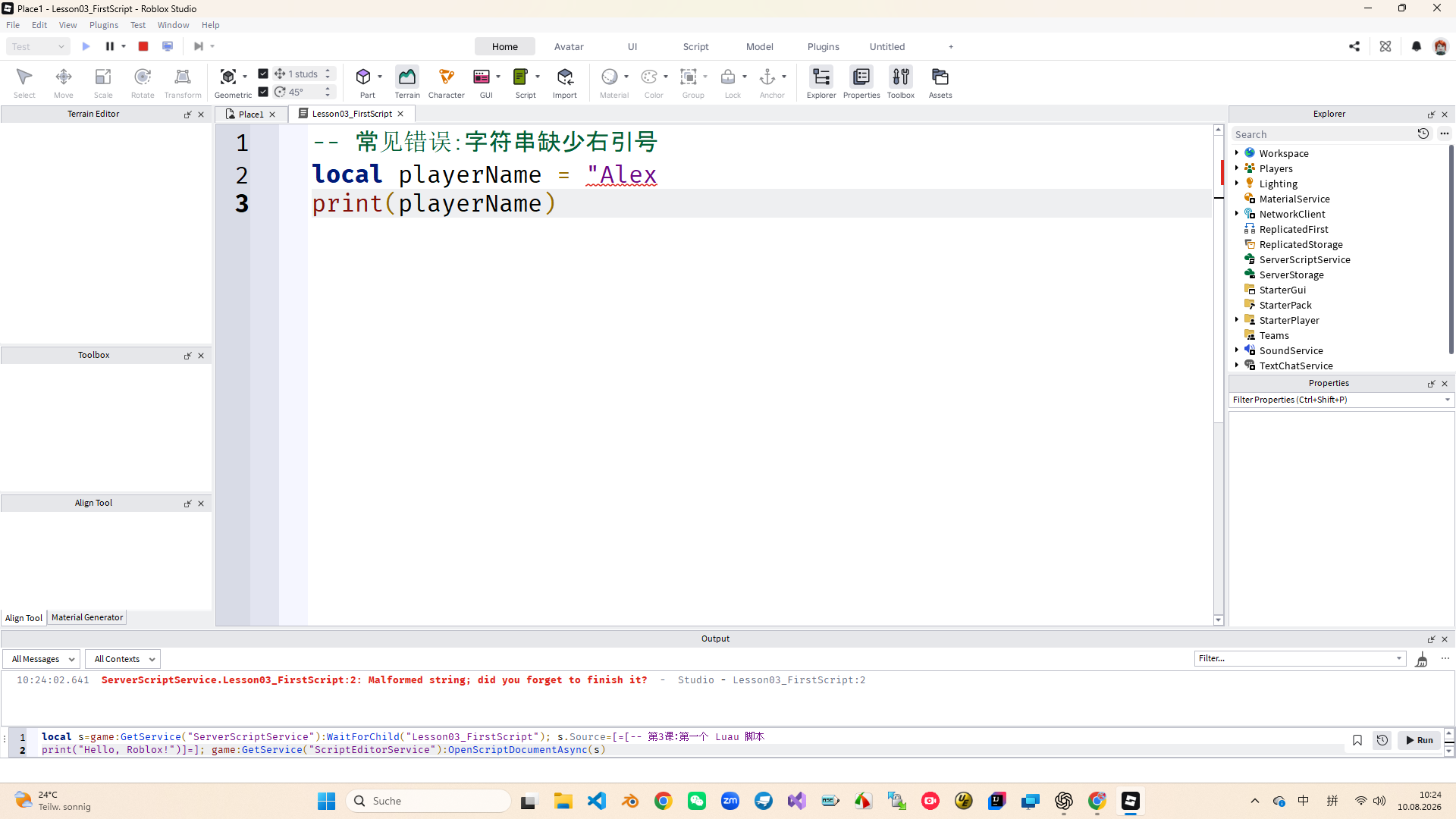
Homework
Use gameTheme, levelCount, and isComplete to save text, numbers, and Boolean values respectively.
Each print has label text to let readers know what the value they see represents.
Safely modify the Color, Size or Transparency of Lesson03Part and fix a minor bug.
Exit questions
Clear location makes it easy to manage server-side scripts and identify their messages in the Output.
Send information to Output to confirm whether the code is executed and observe the data.
local creates a local variable; = assigns the value on the right to the variable name on the left.
Subsequent errors may be caused by a chain of syntax errors in the first place.