Pack actions into a package
Give a group of actions a name. Put this pack of action to work again when you need it.
 PixelCraft
Roblox Studio · Lesson 4
Give the blue block a "touch doorbell"! When the character touches it, it turns gold, rests for a while, and then turns back to blue. Follow the diagrams and small experiments to learn about functions, events and busy step by step.
Course overview
Have you ever stepped on a floor in Roblox and had a door open, a light come on, or a mechanism suddenly activate? It may look like the floor knows you, but in fact it just follows the rules we wrote. Today, we are also going to build a block that responds to the character. It's called TouchPad, and you can think of it as a "small platform that reacts when you touch it."
The platform's temper is simple: it's usually blue; the character touches it and turns into gold; it waits for about 1:5 seconds before it returns to blue. If someone comes back in this period, it will hang on to an invisible "please hold." Rest assured, we do this little thing first, and we don't have to make a whole world of adventure.
Today you will encounter several English names. Don't think of them as vocabulary tests, think of them as tools in your toolbox. Every time we recognize a tool, we try it immediately. You can look at the mind map, compare it with the game scene diagram, and finally enter the game yourself to see if your platform works according to the rules.
Give a group of actions a name. Put this pack of action to work again when you need it.
Someone touches the platform, and Touched issues a notification that "something touched me."
When the platform is changing colours, it uses busy to temporarily block new notifications and avoids being too busy.
Learning route
Every time a small step is completed, it is tested. Say what you expect to see first, and then use Play and Output to check it. Don't rush to write all the code at once.
Save the work from the previous lesson as Lesson04. Keeping old works well will make you feel more at ease when experimenting.
Look at the map first: Who will touch the platform? What will the platform do? When will it be ready again?
Make a flat square called TouchPad and put ordinary Script into it.
Knows the function and Touched. Look in Output first at what hit the platform.
Find Humanoid. Ordinary small blocks can touch the platform, but it will not change color.
Use busy to control waiting time. Turn golden, wait, return to blue, and the round is complete!
Test roles, test normal squares, try again to touch again. Stop at the end, save your own new version.
First stop · See what we are going to do today
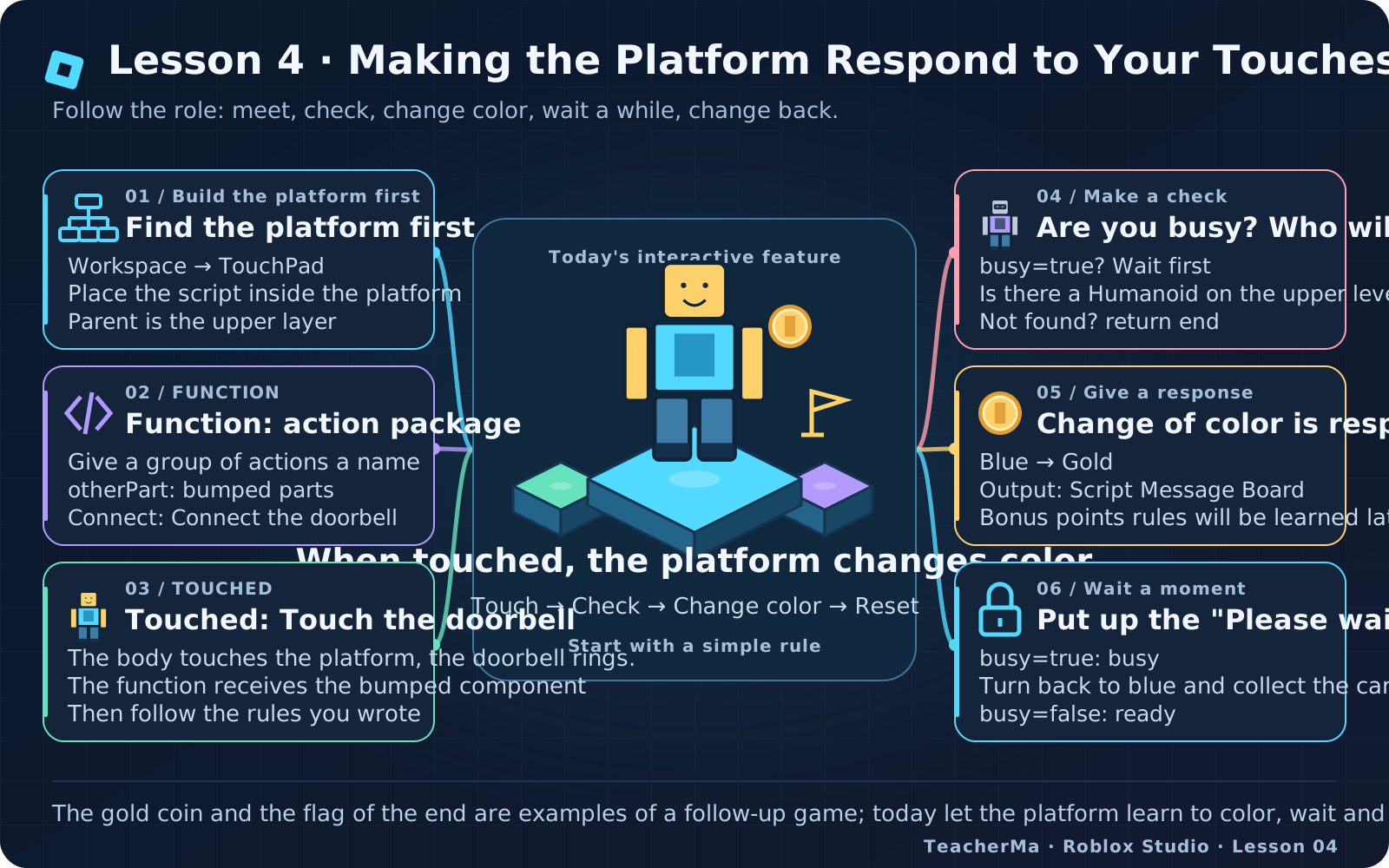
Imagine you are designing an obstacle course. In front is the jumping platform, behind is the finish line, and there is a blue platform in the middle. When the character steps on it, the platform turns golden, as if to say: "Got it, you're here!" This is today's little mechanism. The effect is not great, but it uses a method that many games use: wait for something to happen before responding.
Don’t stare at the code yet. Please walk around the mind map: the character touches the platform, the platform receives the touch notification, and then checks whether it can respond. If it can, it will change color; if it is busy, it will not accept new tasks. After finishing the work, the platform returns to blue and waits for the next contact again. If you explain this route smoothly, the subsequent code will be much easier to understand.
Note that the platform cannot read minds. It doesn't know whether you stepped on it intentionally or slipped on it accidentally. All it knows is "something touched me." So we have to teach it to check, otherwise a fallen brick may be regarded as a VIP. The rules of the game are like this: tell the computer clearly what you take for granted.
There are also gold coins and finish flags in the picture. They are reminding you that today's method can be used to make other mechanisms in the future. Now do the discoloration first. We will slowly add functions such as adding gold coins and recording level passes in later lessons. If you only complete one small goal at a time, it will be much easier to find problems.
The mind map on the mobile phone can be slid left and right, and the original image can be opened by clicking on it. No need to memorize the entire picture. If you encounter something you don’t understand, go back to the corresponding branch and try it again in the game. Maps are there to help you find your way, not to memorize them.
Second stop: Set up the platform first
First save a copy of the work from the previous lesson and add Lesson04 to the name. Then insert a Part in the Workspace. Workspace can first be understood as the "item list" of the game scene, where our platform is placed. Rename Part to TouchPad, pay attention to the capitalization of letters, and give items clear names. It is much more comfortable than looking for "Part, Part2, Part3" everywhere.
Use Scale to make it a flat platform, about twelve by one by twelve studs. Stud is the unit of length in Roblox. Just try this size first. Place it on the ground in front of the spawn point so that the character can reach it in a few steps. Don't rush to swing it high into the sky. Today we want to study the color change, not how fast it falls.
Then find three switches in Properties and set them all to true, that is, turned on. Anchored allows the platform to be anchored to prevent it from being knocked away; CanCollide allows the character to stand on it; CanTouch allows the platform to issue touch notifications. The three switches each take care of one thing. They are fixed, can stand, and can report messages. If they are clearly distinguished, there will be no confusion.
Set Color to RGB (46, 116, 181), and the platform will have the blue coat it has today. RGB can be thought of as three color knobs, controlling red, green, and blue respectively. Now just follow the numerical settings and there is no need to memorize the numbers. READY_COLOR in the code below also uses this set of values, so that "ready" is the same blue.
Select TouchPad to add a normal Script to it, named TouchHandler. Do not select LocalScript. Open this script and check with the following two lines of code first. Script refers to an active script and Parent refers to an object on the floor in Explorer. Because the script is inside the platform, Script. Parent finds TouchPad.
Click Play, then look at Output. Output is the script's message board, and printt will write it here. You should see TouchPad. If you see another name like ServerScriptService, stop and move the script back to the platform. The path is right, then the command later goes to the right platform.
local touchPad = script.Parent
print(touchPad.Name)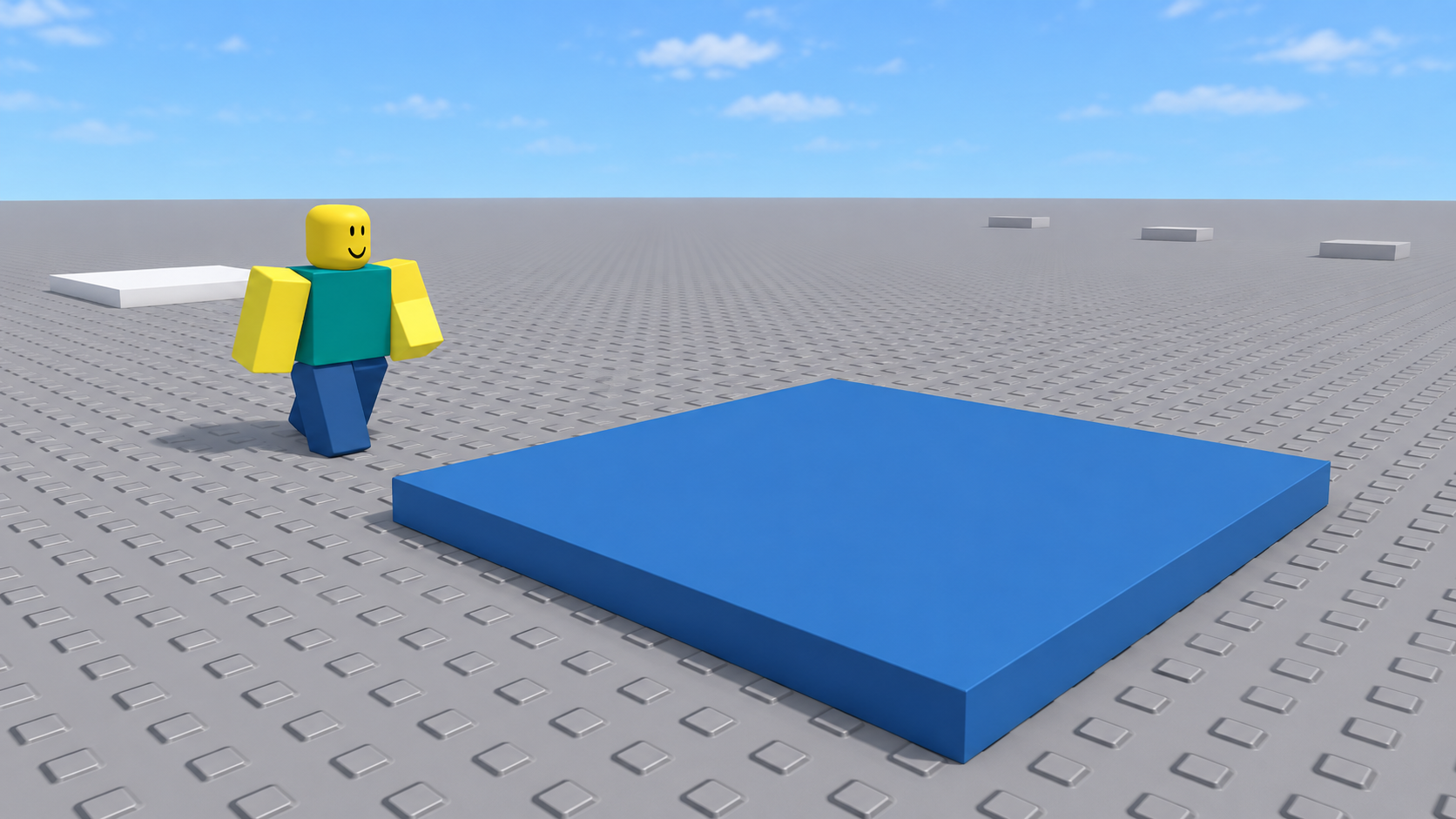
The third stop · Get to know the action package and doorbell
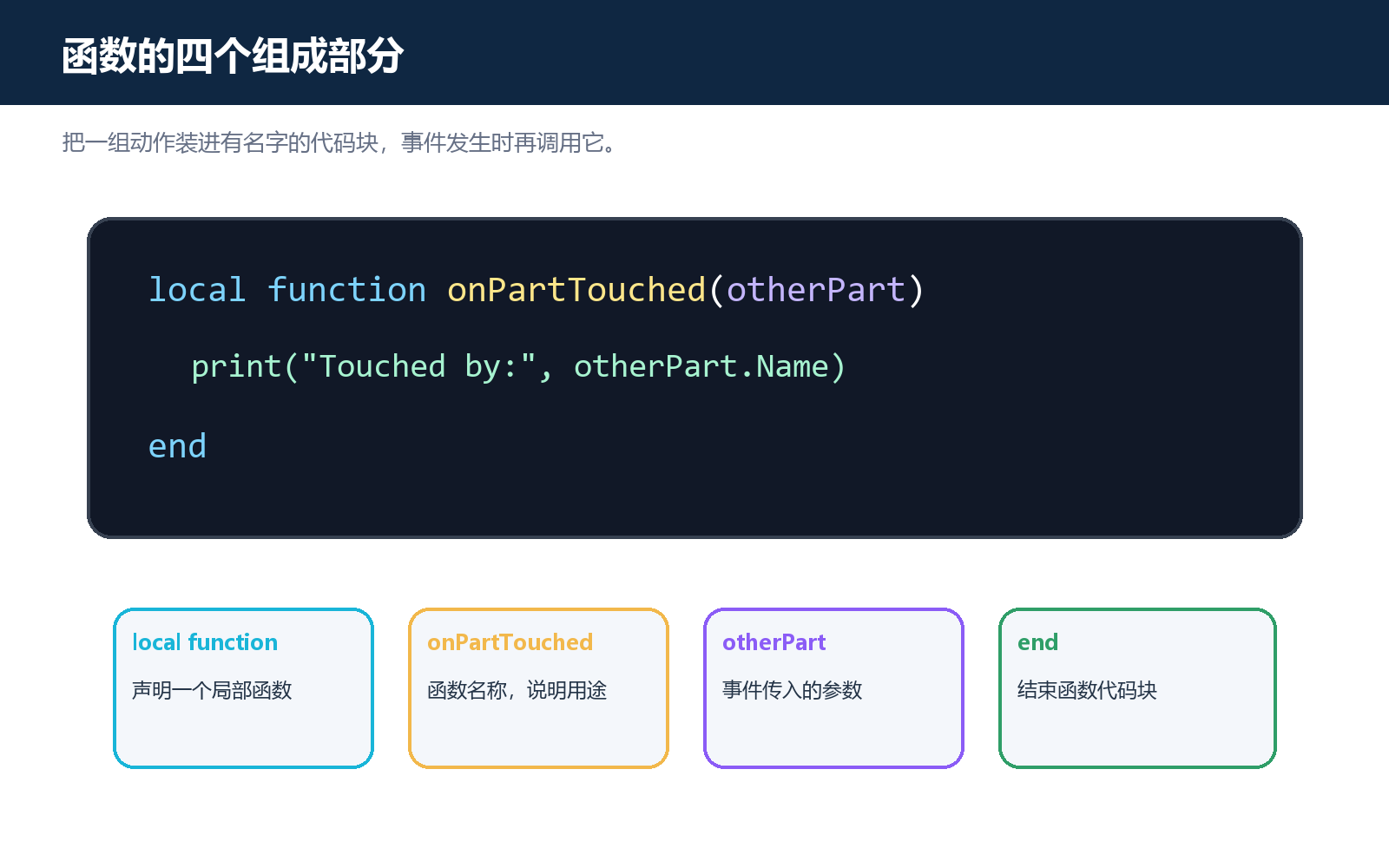
If every time someone comes to your house, you have to open the door, say hello, and get slippers. It is very troublesome to always rearrange these actions one by one. The way to use a function is to put a group of actions together, give it a name, and call it to work when needed. Today's action package is called onPartTouched. The name reminds us: "When a part touches the platform, here is what to do."
local function means we want to create a function. Followed by its name, write what it receives in parentheses, then write the action to be done, and finally end with end. You can think of end as the closure of the package. If you just package the action, it won't start on its own; someone has to call it, that is, notify it to start working.
Touched is a touch event on the platform. Events can be understood as messages sent by the game. When someone touches the platform, it reports: "Something touched me!" The part that touches the platform this time will be put into the name otherPart. Other means "another", so it's talking about another component that touches it, not the platform itself.
The character has legs, legs, body parts. When the role comes up, the other part may be a foot. If a small square falls down, it's that square. The parameter sounds a little formal, actually what the function received this time.
Now look at the last line of code. Connect is like a thread that connects the touch doorbell and action package together. Touched sends a notification, and onPartTouched starts working. Write the function name onPartTouched here, do not add a pair of parentheses after the name. What we want to give the doorbell is "use this action package later", not "open the action package now".
Stop first, replace the entire old content in TouchHandler with the following code, and then Play. Go up to the platform and see what Output writes. GetFullName will display the complete location of that part in the inventory, making it easier for us to find it. The platform will not change color at this time, which is normal. Let’s practice receiving messages first, and then let it decide whether to change the color in the next step.
local touchPad = script.Parent

local function onPartTouched(otherPart)
    print("Touched by:", otherPart:GetFullName())
end

touchPad.Touched:Connect(onPartTouched)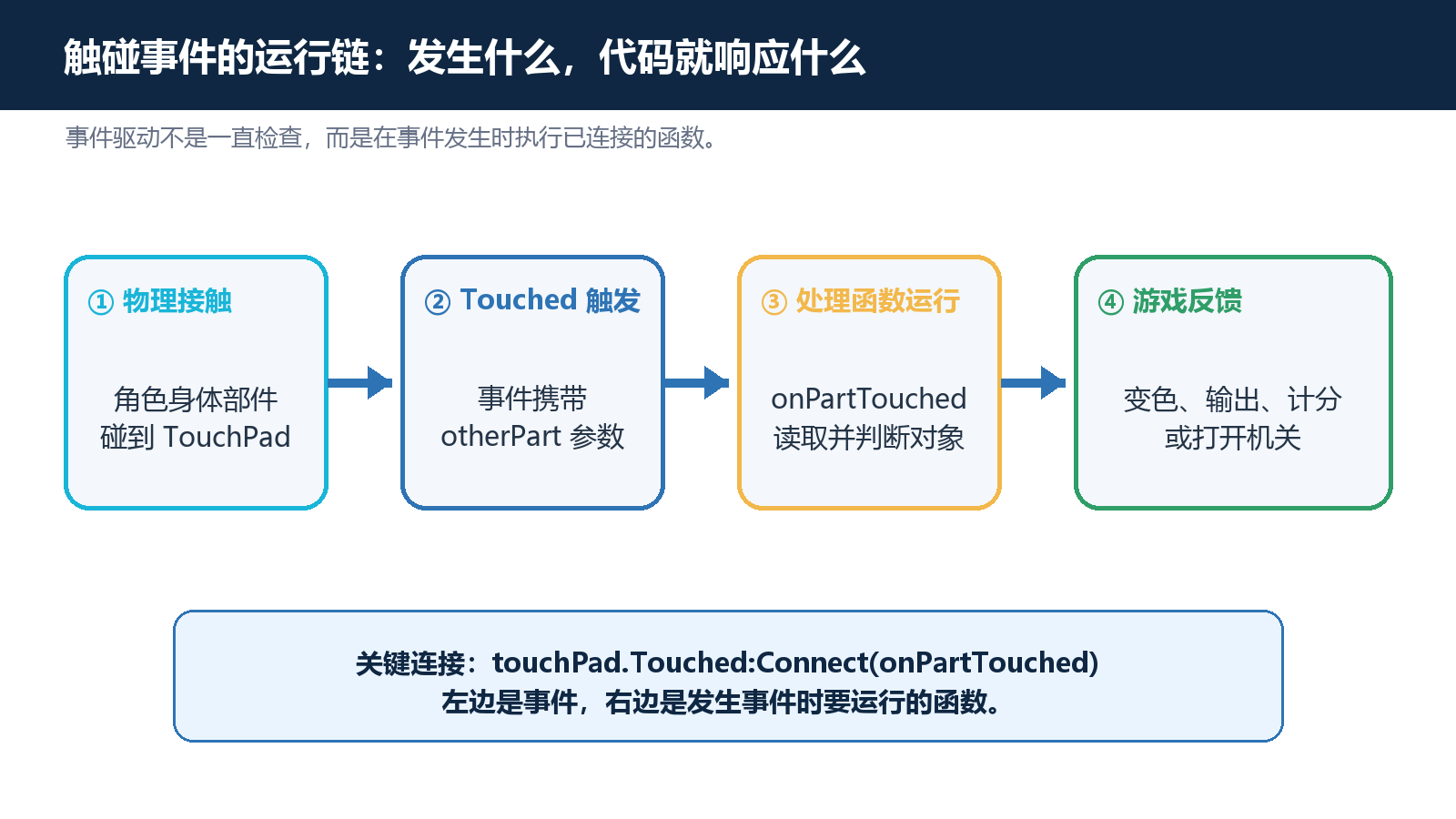
The fourth stop · Don’t treat Brick as a guest
The doorbell's open, but the problem is: a normal brick falls on the platform and comes in touch with news. We want the characters to change color when they touch and the bricks to change colour when they touch. So we add a check. Touched is responsible for reporting. It doesn't decide who can pass. We have to write the rules of the game.
A Roblox character is usually a Model, which is a set of objects that put body parts together. There will also be a Humanoid inside, which you can use as the character's little housekeeper, responsible for the character's movement, health and other things. Today we are looking for this little housekeeper to determine whether the body parts we touch belong to a character.
Imagine that what is touching the platform is one of the character's legs. otherPart is this leg. First look at otherPart.Parent to find the character model whose legs are one layer above in Explorer; then use FindFirstChildOfClass("Humanoid") to see if there is a Humanoid in it. The method name is so long that you can read it as: "Find me a Humanoid here."
If found, record the found object in humanoid. If not found, you get nil, which means "nothing was found". The following if not humanoid then can be read as: "If the little housekeeper is not found, then..." The subsequent return indicates the end of this function work. Ordinary blocks will be blocked when they reach here, and subsequent color-changing actions will not be performed.
There's one easy to guess: finding Humanoid does not prove the other must be a real player. The NPC, the computer-controlled character of the game, may have this little butler. So the lesson begins with learning to distinguish between "general objects" and "with Humanoid".
If you encounter a Handle in an accessory such as a hat, the layer above it is usually Accessory, not the entire character. This simple code only checks one level above, and usually blocks it. Now test it by touching the platform with your body. The following paragraph is just a small fragment of the check method, used to understand the rules; in the end, please use the complete code of the next stop, do not put together several functions with the same name.
local function onPartTouched(otherPart)
    local humanoid = otherPart.Parent:FindFirstChildOfClass("Humanoid")
    if not humanoid then
        return
    end

    print("Confirmed humanoid character")
end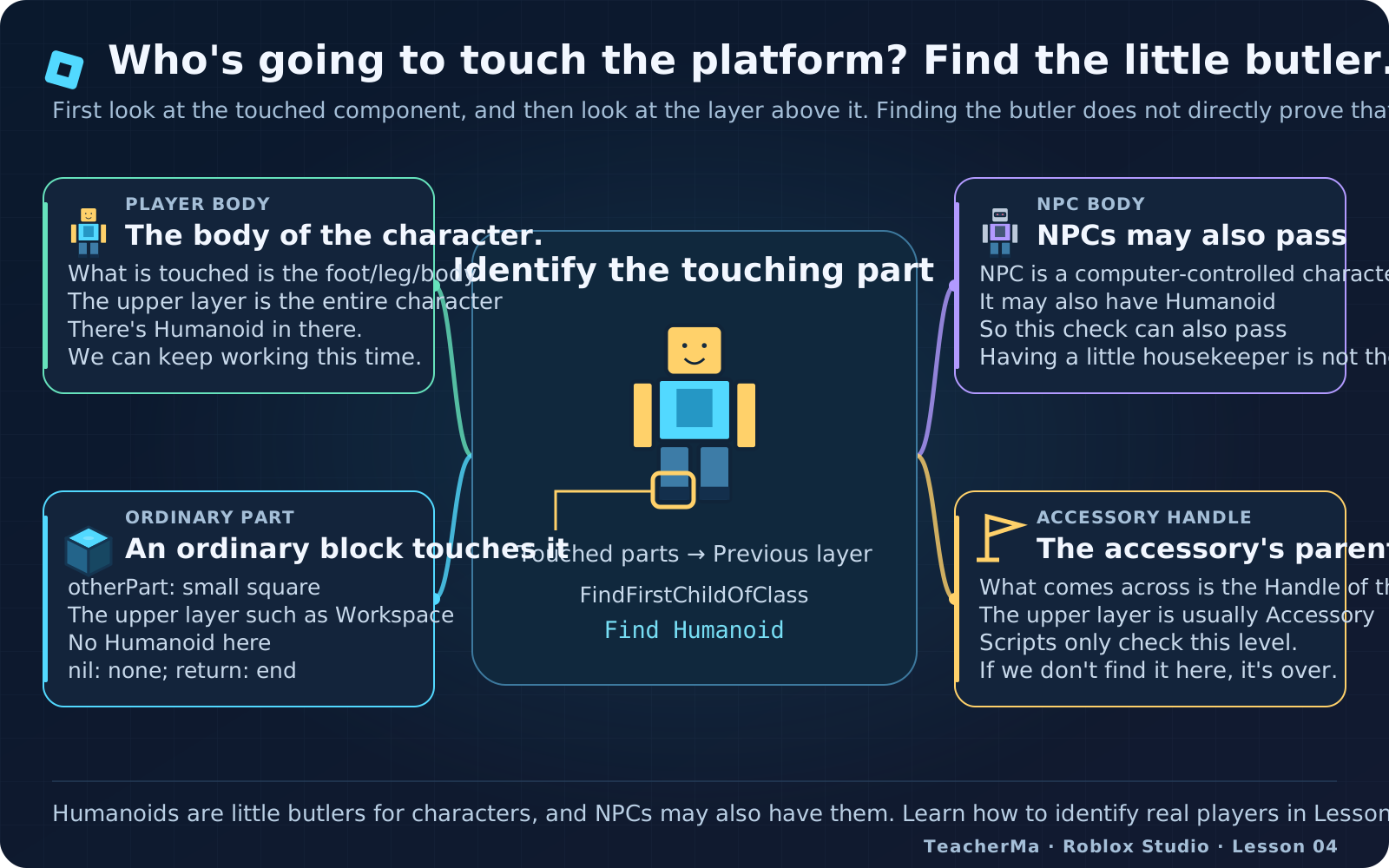
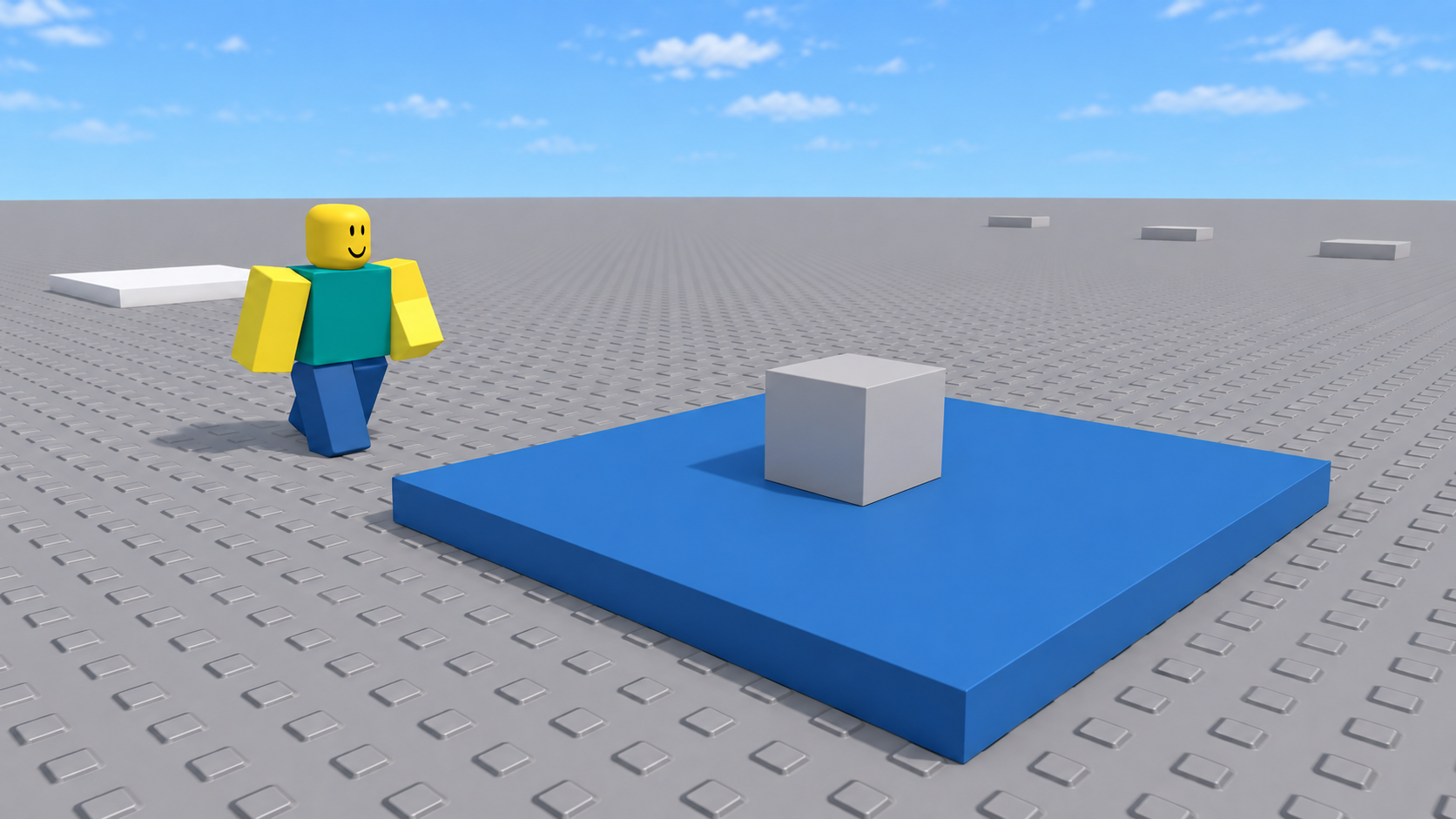
Fifth stop · Please wait, I am busy
Now connect inspection and discoloration. Below is the complete TouchHandler. Stop first and replace all the original contents of the script with this copy. Do not paste another copy after the old code. READY_COLOR is blue when ready and ACTIVE_COLOR is gold after receiving a valid touch. Color3.fromRGB uses three numbers to match colors, just like mixing two cups of paint in a palette.
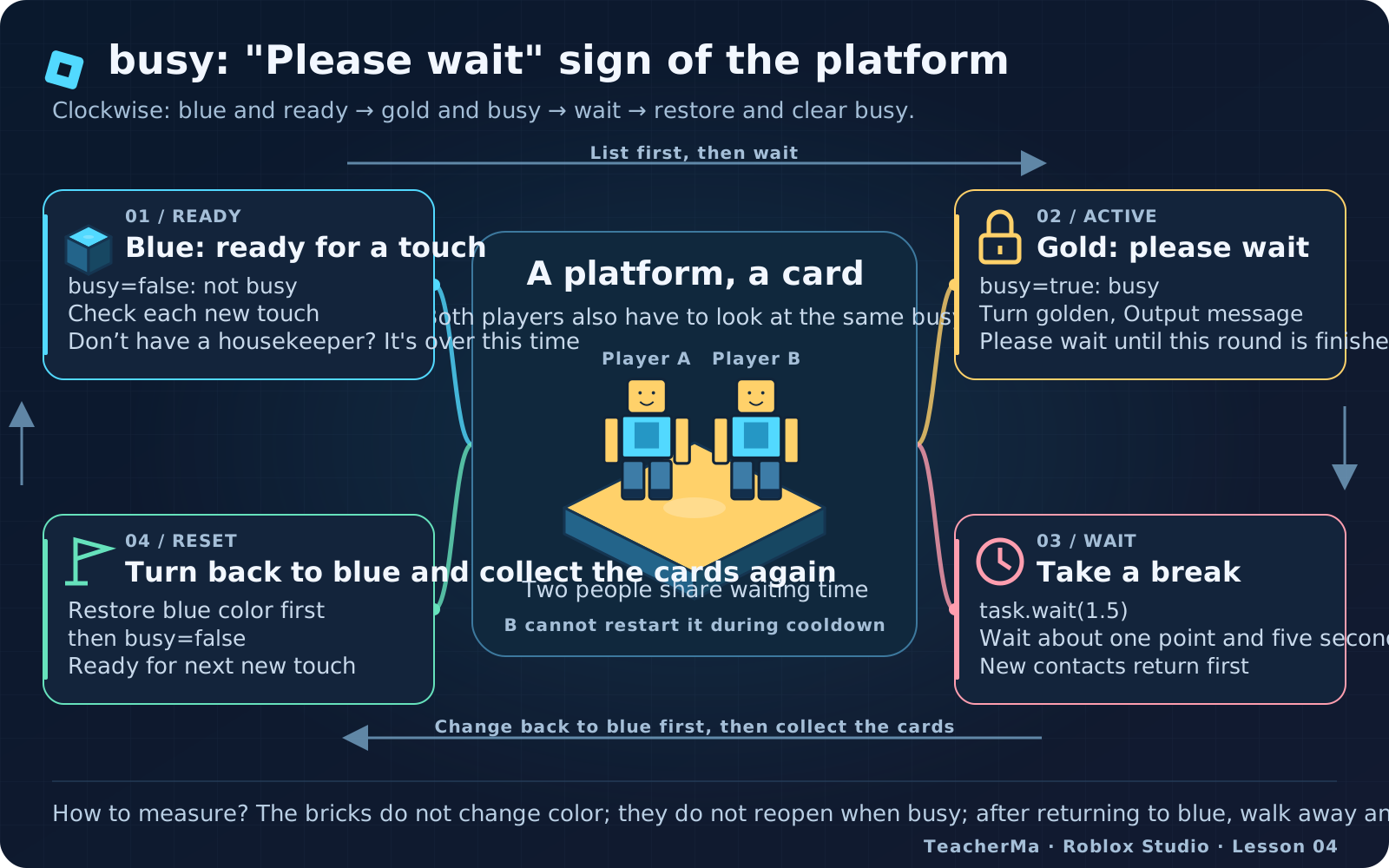
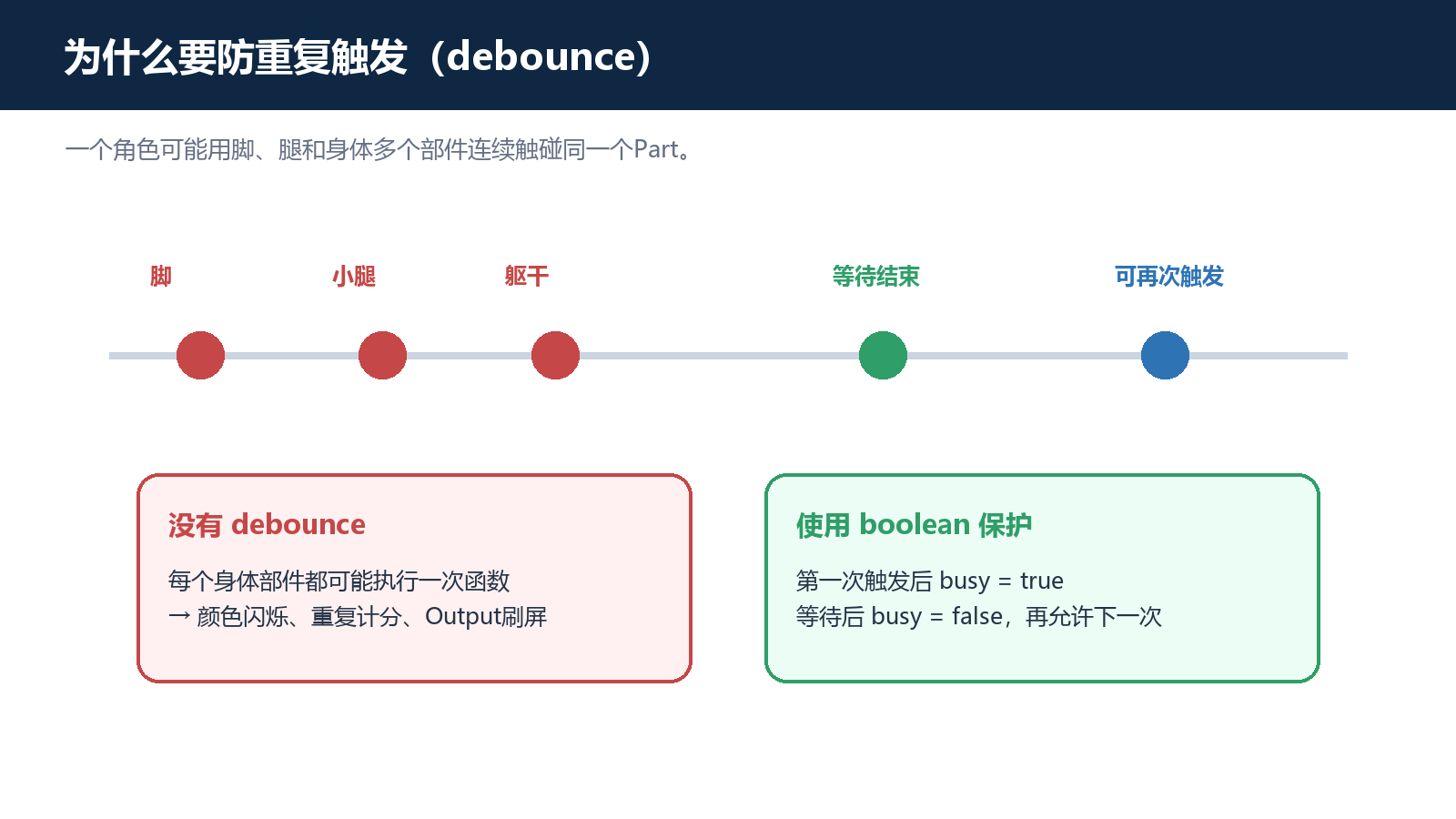
Why does the platform need a rest? Because the role is not just one body. One foot touches, and another leg hits, and it may be informed several times soon. If you start coloring and waiting every time, the platform is like being called by a group of people at the same time and busy not knowing who to answer first. We need a "please wait" card to make it do a round.
This card is called busy, which means " Busy." It only takes two things: false says it's not busy and can take on new tasks; true says it's busy, so don't bother. Only the data for these two values is a boolean value, and you don't have to be surprised by their names. You can think of it as a switch: busy or not busy, without the option of 30% busy.
When you read the function, look at the first sentence if busy then return end. It is asked: "I'm busy? " If so, this notice ends. If you are not busy, go to Humanoid and find him. As soon as you find him, set the business as true, hang on to the "Please wait" card; then make the platform golden and leave a message in Output.
Then task.wait(1.5) makes this job wait for about one point and five seconds. When the wait is over, the platform returns to blue. Finally, set busy back to false and put away the "Please wait" card. The order should be clearly remembered: hang the tag first, then wait; restore the color first, then collect the tag. If you just hang up but don't accept, the platform will never accept new tasks, like a store that always says "Be back soon".
busy is written outside the function, so you can see the same card every time you touch it. There is only one card on the entire platform, not everyone gets one. After player A triggers, player B comes up during the cooldown and has to wait for the end of the round. In the game, this method of temporarily not accepting repeated tasks is called debounce. If you remember "prevent repeated execution in a short period of time", you will grasp the key point.
There is no need to use a stopwatch to estimate the waiting time, it is about one and a half seconds. After the platform turns back to blue, walk away and then step back up to create a new contact. Standing on it all the time does not guarantee that it will trigger again every one point and five seconds. Also, the changes you see during Play belong to the game under test, and it will return to the editing state after Stop, which is normal.
local touchPad = script.Parent
local READY_COLOR = Color3.fromRGB(46, 116, 181)
local ACTIVE_COLOR = Color3.fromRGB(242, 184, 75)
local busy = false

local function onPartTouched(otherPart)
    if busy then return end

    local humanoid = otherPart.Parent:FindFirstChildOfClass("Humanoid")
    if not humanoid then return end

    busy = true
    touchPad.Color = ACTIVE_COLOR
    print(otherPart.Parent.Name, "activated TouchPad")
    task.wait(1.5)
    touchPad.Color = READY_COLOR
    busy = false
end

touchPad.Touched:Connect(onPartTouched)
The sixth stop: Ask some questions for your platform
I am really happy to see the platform turn golden. But the tester still wants to ask a few more questions: What will happen if ordinary blocks are encountered? What happens if you keep walking up there? Can it still be used after it returns to blue? We give the platform several questions. After each question, we first tell the result of our guess, and then enter the game to check. Guessing wrong is also helpful, it will tell you which step you haven't figured out yet.
In the first question, the character walks onto the blue platform. You should see it turn gold, a valid message appear in Output, and then the platform turns back to blue. The second question is to let ordinary small squares fall on the platform. The Anchored of this small box should be turned off, the CanTouch should be turned on, and placed above the platform. After playing, let it really fall, and the character should stand far away to avoid touching the platform yourself.
Don't just think that the touch test is completed by placing the two fixed blocks so that they penetrate each other during editing. What we want to observe today is the real contact brought by movement, so the character has to walk up and the small squares have to fall down. The picture appears to be colliding, and the physics system sends a new notification, which are two things that need to be checked separately.
The third question is to create new contacts when the platform turns golden. It is still busy and should not start a new round of waiting. Question 4: Wait for it to turn blue, walk away and then come back, it should start again. Look at the color, but also look at the Output: the color only tells you what you see in front of you, and the message can help you judge whether the function has been executed again.
There's a double split: two players meet the same platform. A first, B first, while the platform is gold. They share a business, B doesn't start a new round. You can ask your teacher to test it with a two-person studio test. It's more interesting for two people to find problems together than one person guesses a screen.
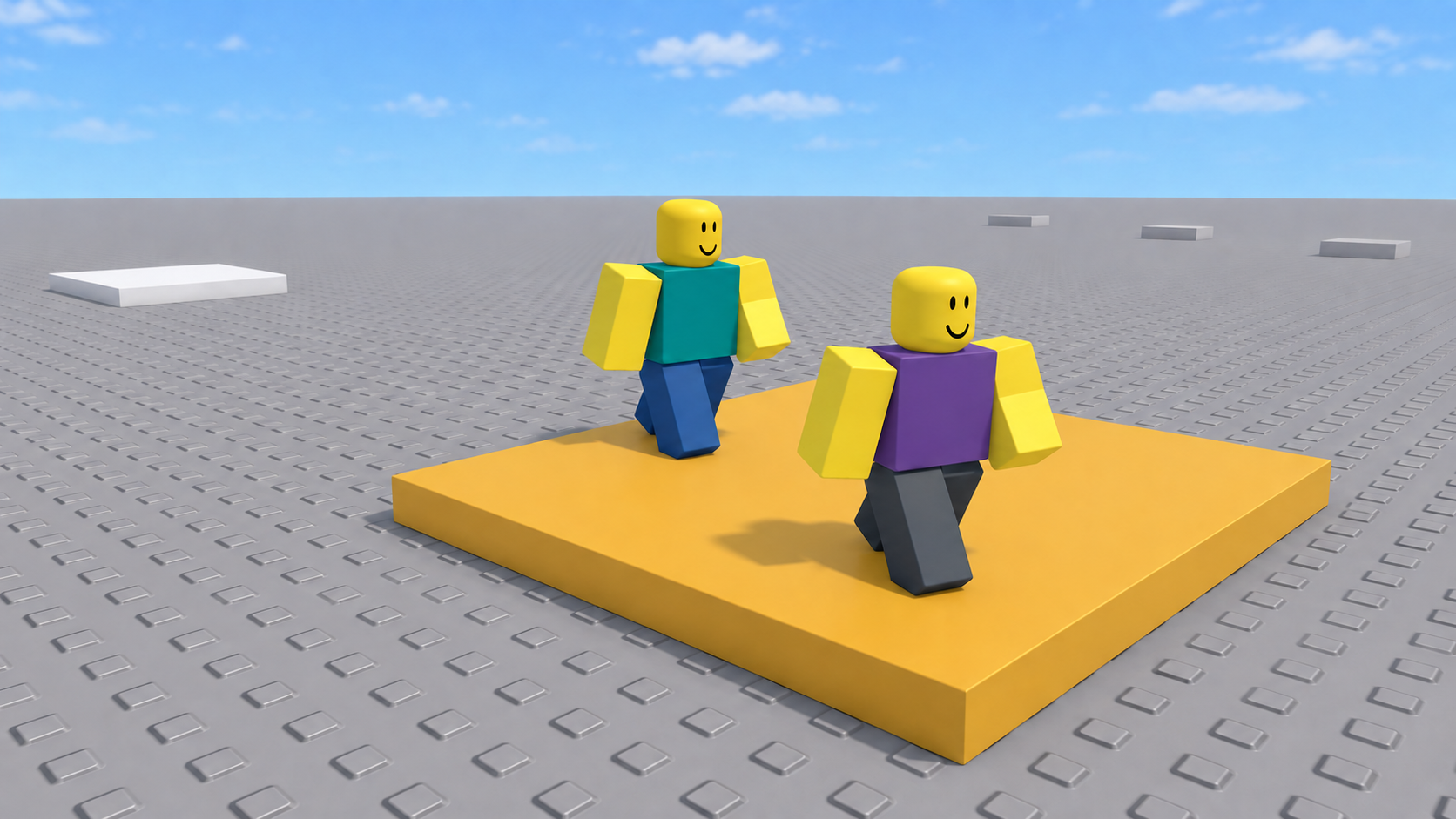
The four game scene pictures below are teaching instructions generated by AI to help you imagine the results in advance, and are not screenshots of actual machines. The final judge is your own Playtest. Press Stop when finished to save Lesson04. Want to change colors or wait time? Change only one place at a time and try again. This way, even if something goes wrong, it's easy to find which step caused the trouble.
| Questions given to the platform | Guess first | What are you looking at after the game? |
|---|---|---|
| For the first time, the character touched the blue platform. | Humanoid found, ready to start | Turns gold, appears a valid message, then turns blue |
| Ordinary small squares fall on the platform | Humanoid not found, end this time | The platform is still blue. No active start-up. |
| There's a new contact when the platform is busy. | busy is true, no reception yet | Continue the current round without waiting again |
| After turning blue, walk away and come back | The platform is no longer busy, you can start again | Complete golden color and recovery again |
| Two players collide successively within the same cooldown | A has started, B will wait this time | The entire platform only runs the current round |
Homework
Copy a piece of platform, rename it FinishPad, and place it at a safe end position. Turn on Anchored, CanCollide, and CanTouch, and then add your own ordinary Script to it.
Name the script FinishHandler and change ACTIVE_COLOR to your favorite green. With READY_COLOR still set to blue, change the wait time to about two seconds.
Check that the character will turn green when touched and will recover after a while; ordinary blocks will not start; they will not start repeatedly when busy. Do the color feedback first, and leave the extra points and clearance records for later lessons.
Exit questions
Writing a good function is just a matter of packaging the action. To call it, or let the event notify it, the actions inside will be executed.
We need to hand over the entire function to the event and call it again when the touch occurs. Adding parentheses would mean calling now, which is not what we want to do here.
No. It's the piece that hits the platform this time, it could be a foot or leg, or it could be a regular block that falls down.
Not necessarily, NPCs may also have Humanoids. Today, let’s first identify the character who leads this “little butler”, and then learn to identify real players in Lesson 9.
"Please wait a moment, I am busy." New touches return first, wait for the platform to restore color, and busy changes back to false, and then accept the next task.
The platforms of this lesson share a busy. The round started by A has not yet ended, and B's new touch will be blocked and another round will not be started.
No. You can design the appearance yourself, but to add points you have to write corresponding rules. Today's platform is only responsible for changing colors, leaving messages, waiting and restoring.
Explore further
The text code can be copied directly. First confirm the script type, placement, and whether this code is a complete version or a small experiment; do not run multiple versions of the same script superimposed. The source of the interface reference picture has been marked. The object names in the picture may be different from those in this lesson. Please refer to the operation steps.