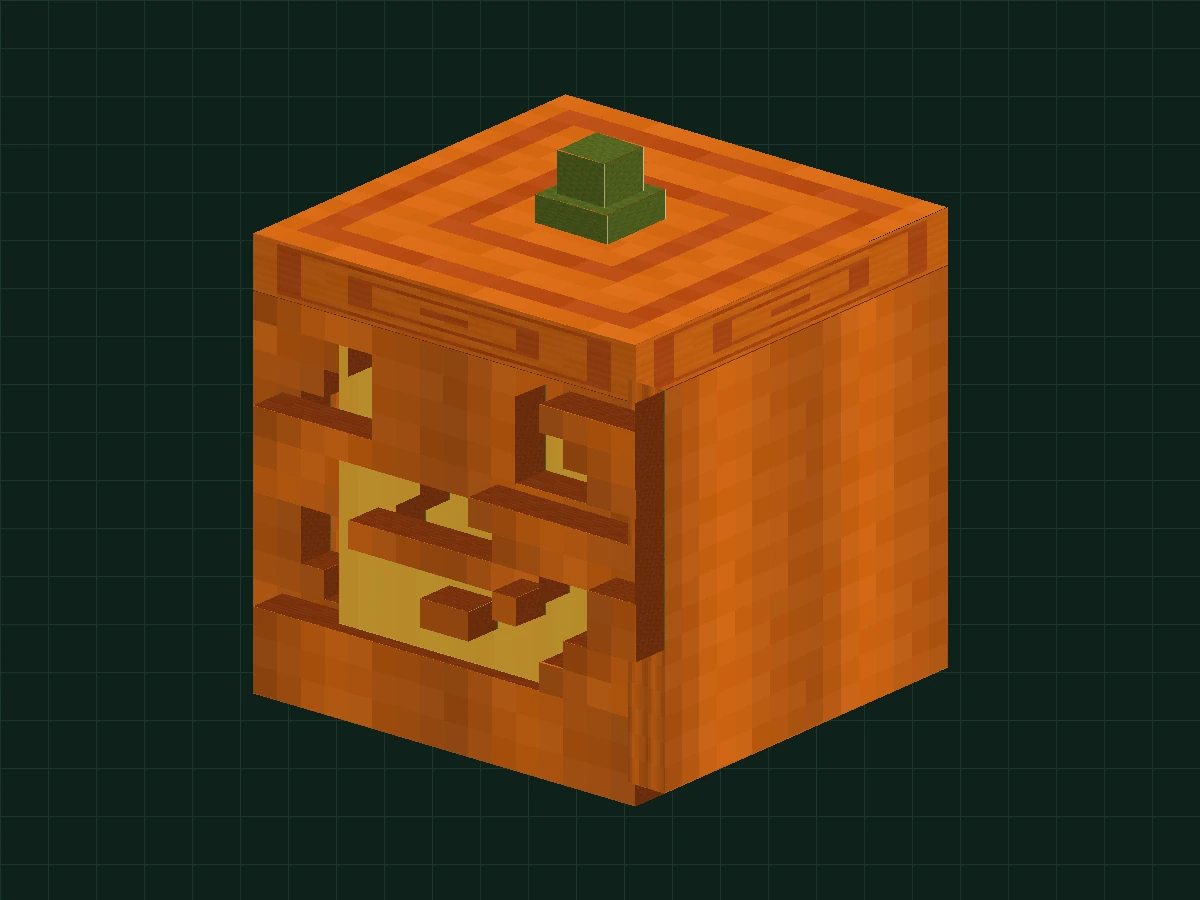
BEFORE YOU BUILD
You don’t have to do it right once, you can continue doing it at any time.
Prepare a computer, mouse and Blockbench ↗. used in this lesson Generic Model (general / free model), you do not need to install Minecraft or write codes. The first one can be done in two stages: modeling and animation.
Download the exercise package for this lesson · 24 KB ↓01-shellShell Complete · After Step 202-carved-faceSmiley completed · After step 303-textured-structureTexture/Grouping/Pivot Ready · After step 604-finished-animatedAll completed · Contains two animations
There are 4 .bbmodel and PNG textures in the package, which can be opened independently. The following 8 "real machine operation" pictures are from the native Chinese version of Blockbench: Open the checkpoint of this lesson to display the tool panel, model and animation timeline of the corresponding stage. Checkpoints have embedded textures, so early projects are also colored; structural diagrams are marked separately. Click on the software screenshot to view the original image, and you can also zoom in on the parameters on your mobile phone.
Open your workbench
First let a block appear on the workbench.
- Open Blockbench, create a new Generic Model. Fill in the project name
pumpkin_lanterntexture size set to 64 × 64, use a face-to-face UV (don't enable Box UV). The interface language is different and can be compared to the bracketed English. - Add a cube (Add Cube). Select it and find Position,Size,RotationThree fields. The subsequent forms are filled in in the order of X / Y / Z.
- Use the mouse to drag the viewing angle and the scroll wheel to zoom. Save the project as
my-pumpkin.bbmodel; every small step after that is saved.

- Select "Universal Model" as the format; the file name in the screenshot is pumpkin_lantern.
- Use Per-Face UV as the default UV mode, set both width and height to 64, confirm, and then add cubes.
First build the hollow shell
Instead of building a solid box first, enclose the space like building blocks.
Rename the cube just now left_wall, add 3 more cubes. Enter the table below and put the name Shell grouping. We first make the left and right walls, the back panel and the bottom panel; leave the front for the expression and the top for the cover.
The initial value of
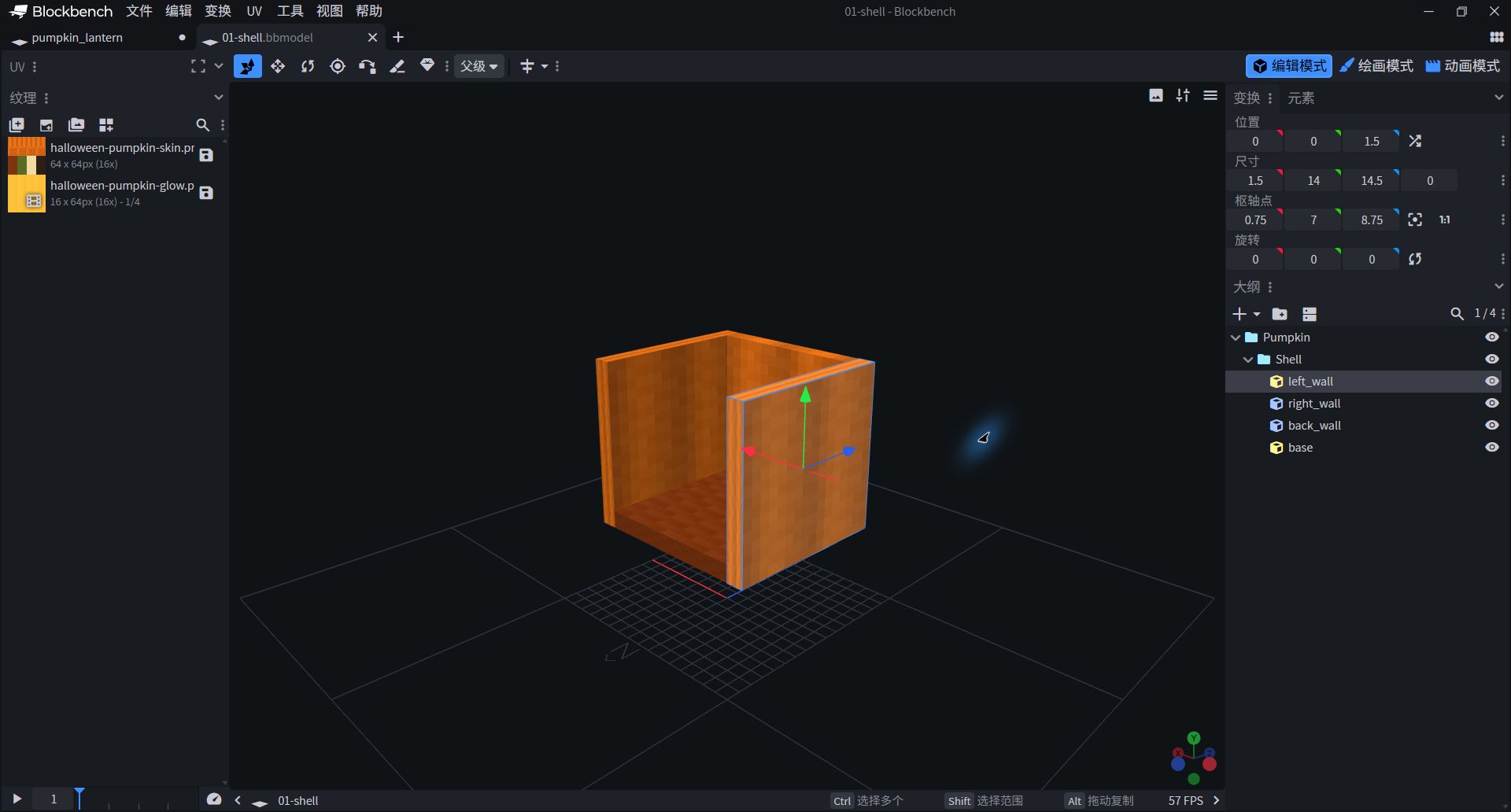
- Select left_wall in the "Outline" on the lower right; the blue outline tells you which piece you are editing.
- The "position" and "size" on the upper right correspond to the table below. Only the wall and floor are enclosed in the middle, and the front and top are still empty.
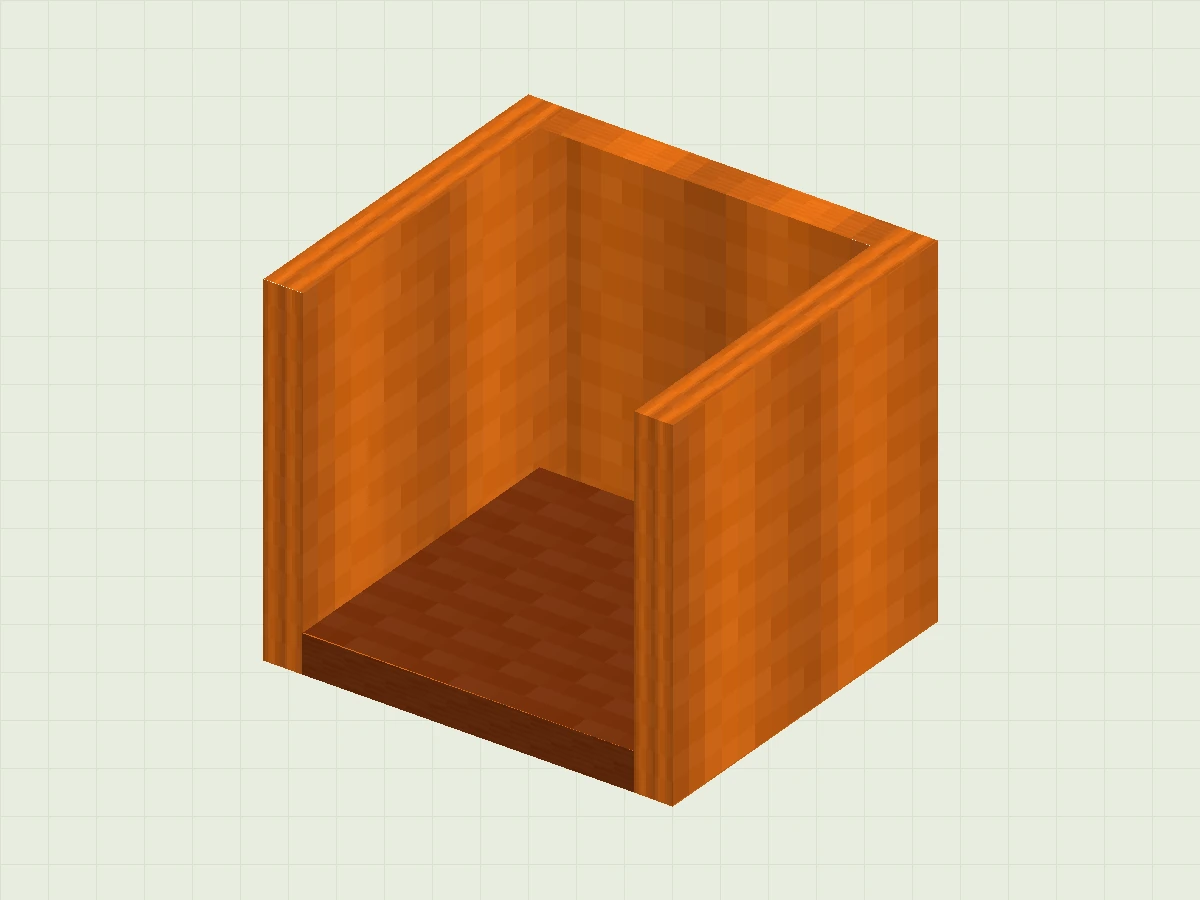
| Part Name | Position · X / Y / Z | Size · X / Y / Z |
|---|---|---|
| left_wall | 0 / 0 / 1.5 | 1.5 / 14 / 14.5 |
| right_wall | 14.5 / 0 / 1.5 | 1.5 / 14 / 14.5 |
| back_wall | 1.5 / 0 / 14.5 | 13 / 14 / 1.5 |
| base | 1.5 / 0 / 1.5 | 13 / 1.5 / 13 |
Spell out a hollow smiley face
Leave the orange part, and the eyes and mouth will naturally be empty.
You do not need a Boolean cutout for this step. Think of the front face as 16 columns × 14 rows of graph paper: Orange is a reserved square and deep green is an empty hole. Each line consists of successive orange colours that synthesize a rectangular shape.
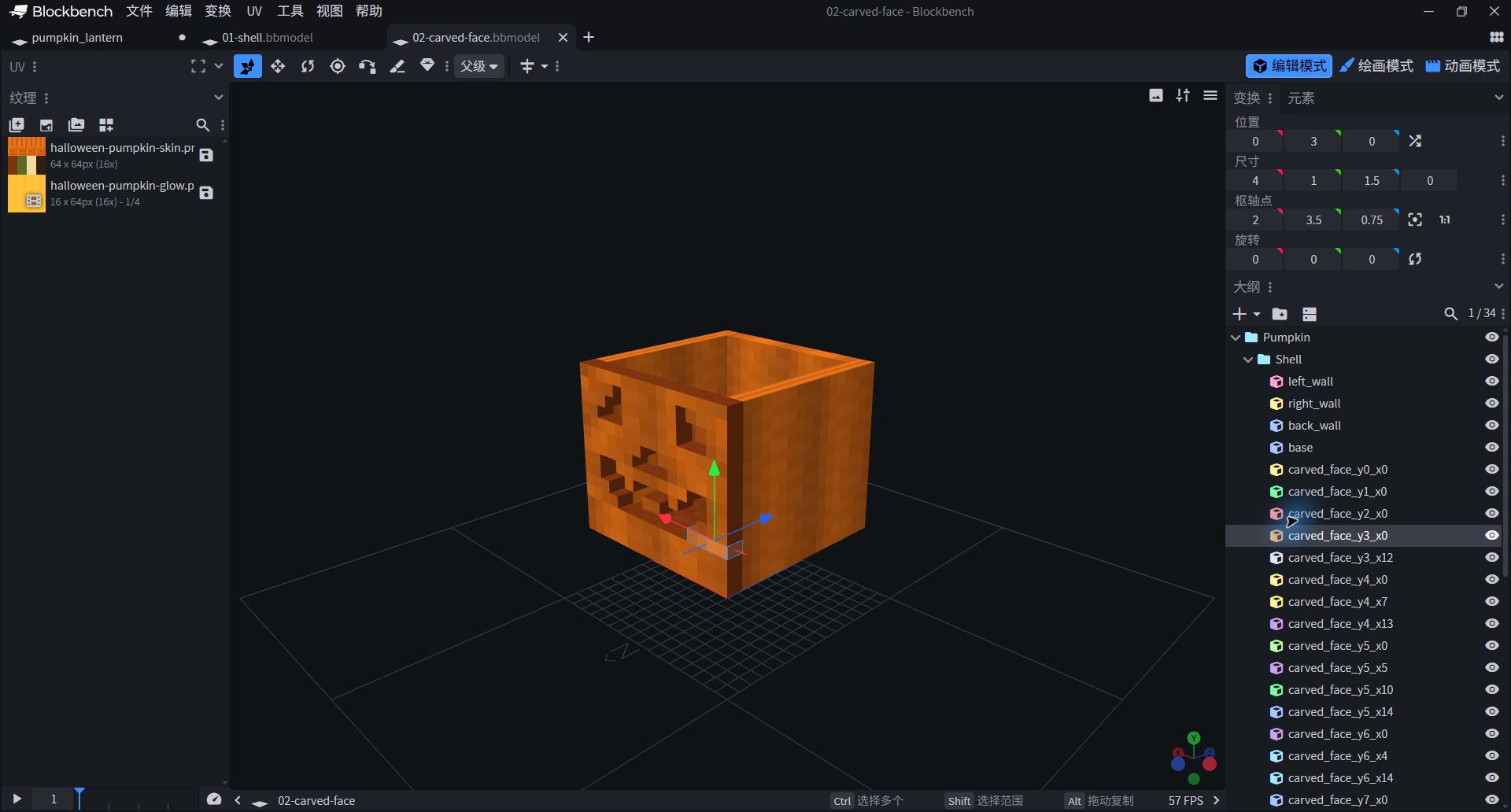
- Select carved_face_y3_x0 on the right side: starting from X=0, Y=3, width 4, height 1, thickness 1.5.
- The eyes and mouth are real gaps. Use the grid below to plan the position of each strip.
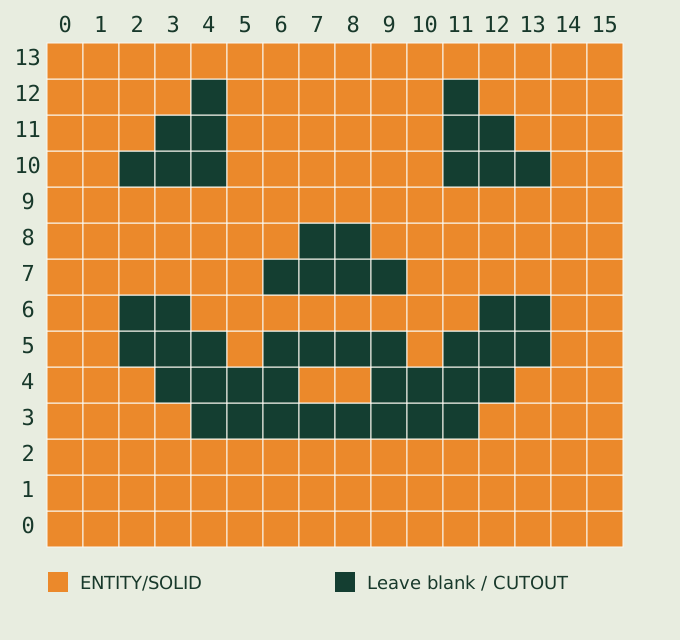
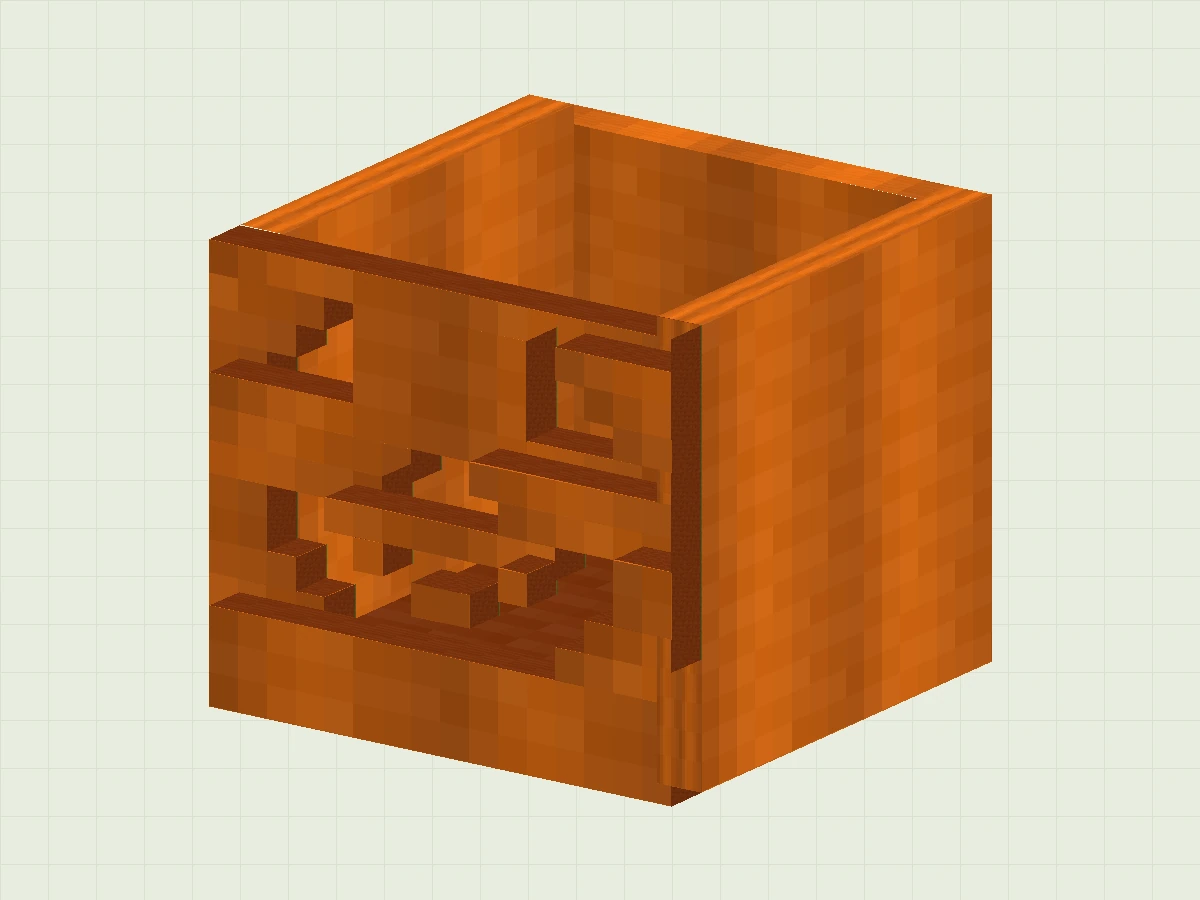
Leave gaps at X = 4 and X = 11 in this row, so add three strips:Position 0 / 12 / 0 → Size 4 / 1 / 1.5Position 5 / 12 / 0 → Size 6 / 1 / 1.5Position 12 / 12 / 0 → Size 4 / 1 / 1.5
The height of each bar is 1 and the thickness is 1.5. When finished, put them all in Shell. This smiley face uses a total of 30 cuboids; there is no need to count the boxes to guess the size, the complete table is below.
Expand the complete front face size chart · 30 items
| Part Name | Position · X / Y / Z | Size · X / Y / Z |
|---|---|---|
| carved_face_y0_x0 | 0 / 0 / 0 | 16 / 1 / 1.5 |
| carved_face_y1_x0 | 0 / 1 / 0 | 16 / 1 / 1.5 |
| carved_face_y2_x0 | 0 / 2 / 0 | 16 / 1 / 1.5 |
| carved_face_y3_x0 | 0 / 3 / 0 | 4 / 1 / 1.5 |
| carved_face_y3_x12 | 12 / 3 / 0 | 4 / 1 / 1.5 |
| carved_face_y4_x0 | 0 / 4 / 0 | 3 / 1 / 1.5 |
| carved_face_y4_x7 | 7 / 4 / 0 | 2 / 1 / 1.5 |
| carved_face_y4_x13 | 13 / 4 / 0 | 3 / 1 / 1.5 |
| carved_face_y5_x0 | 0 / 5 / 0 | 2 / 1 / 1.5 |
| carved_face_y5_x5 | 5 / 5 / 0 | 1 / 1 / 1.5 |
| carved_face_y5_x10 | 10 / 5 / 0 | 1 / 1 / 1.5 |
| carved_face_y5_x14 | 14 / 5 / 0 | 2 / 1 / 1.5 |
| carved_face_y6_x0 | 0 / 6 / 0 | 2 / 1 / 1.5 |
| carved_face_y6_x4 | 4 / 6 / 0 | 8 / 1 / 1.5 |
| carved_face_y6_x14 | 14 / 6 / 0 | 2 / 1 / 1.5 |
| carved_face_y7_x0 | 0 / 7 / 0 | 6 / 1 / 1.5 |
| carved_face_y7_x10 | 10 / 7 / 0 | 6 / 1 / 1.5 |
| carved_face_y8_x0 | 0 / 8 / 0 | 7 / 1 / 1.5 |
| carved_face_y8_x9 | 9 / 8 / 0 | 7 / 1 / 1.5 |
| carved_face_y9_x0 | 0 / 9 / 0 | 16 / 1 / 1.5 |
| carved_face_y10_x0 | 0 / 10 / 0 | 2 / 1 / 1.5 |
| carved_face_y10_x5 | 5 / 10 / 0 | 6 / 1 / 1.5 |
| carved_face_y10_x14 | 14 / 10 / 0 | 2 / 1 / 1.5 |
| carved_face_y11_x0 | 0 / 11 / 0 | 3 / 1 / 1.5 |
| carved_face_y11_x5 | 5 / 11 / 0 | 6 / 1 / 1.5 |
| carved_face_y11_x13 | 13 / 11 / 0 | 3 / 1 / 1.5 |
| carved_face_y12_x0 | 0 / 12 / 0 | 4 / 1 / 1.5 |
| carved_face_y12_x5 | 5 / 12 / 0 | 6 / 1 / 1.5 |
| carved_face_y12_x12 | 12 / 12 / 0 | 4 / 1 / 1.5 |
| carved_face_y13_x0 | 0 / 13 / 0 | 16 / 1 / 1.5 |
Add lid and candlelight
Turn an empty box into a lamp with internal structure.
Add a square_lidPosition 0 / 14 / 0Dimensions 16 / 2 / 16Put it in. Lid Grouping. Put the melon stems and small leaves into Stemcandlesticks, candles and light cores in. Candle;3 small pieces of flame in Flame.
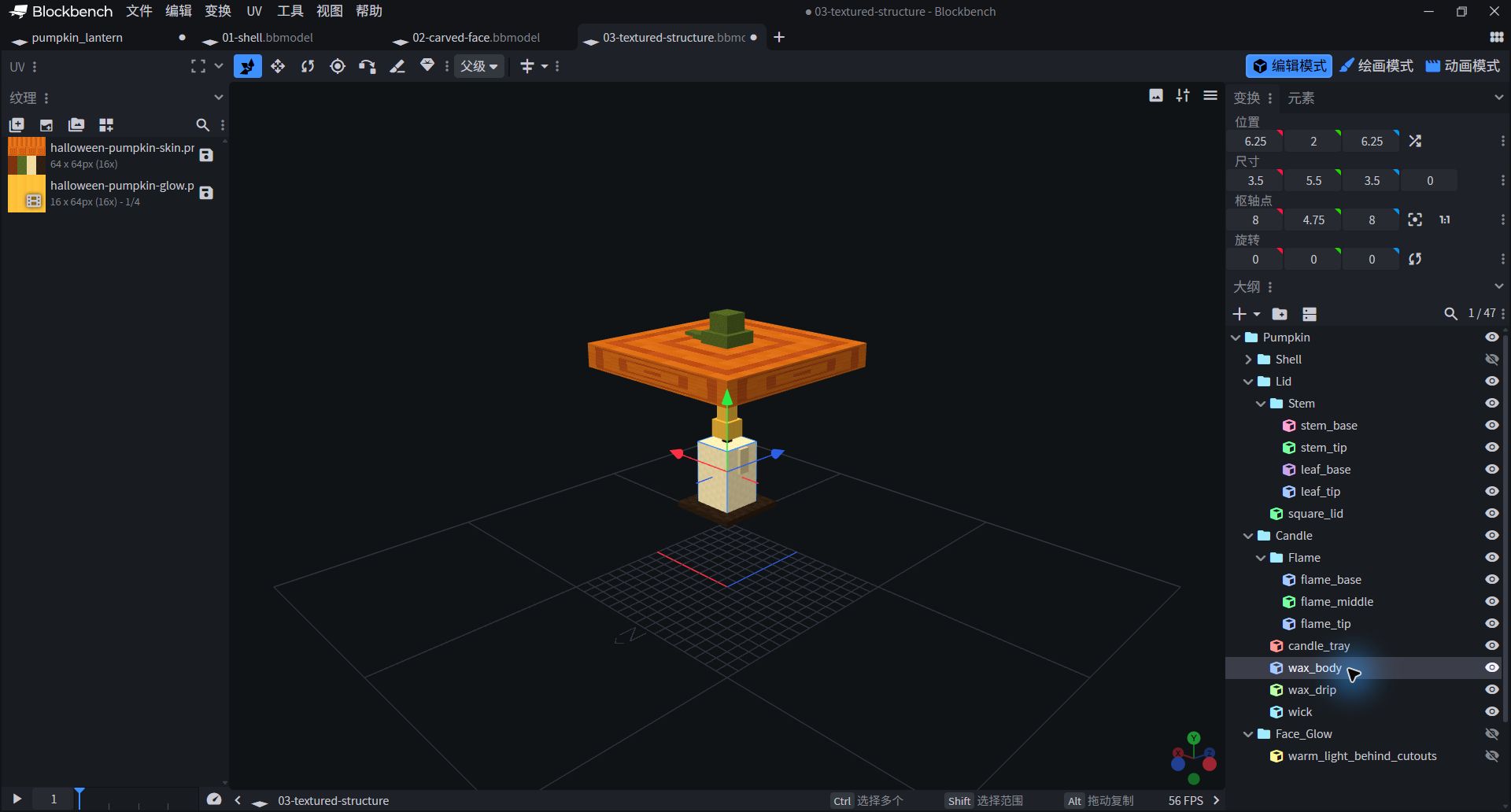
- During the demonstration, click on the eye on the right side of the outline to temporarily hide the Shell and Face_Glow; what is floating above is the still visible cover, not the misplaced parts.
- Select wax_body to inspect the candle parameters. The holder, wax drips, wick and Flame group are also visible on the right. Restore visibility when you finish.
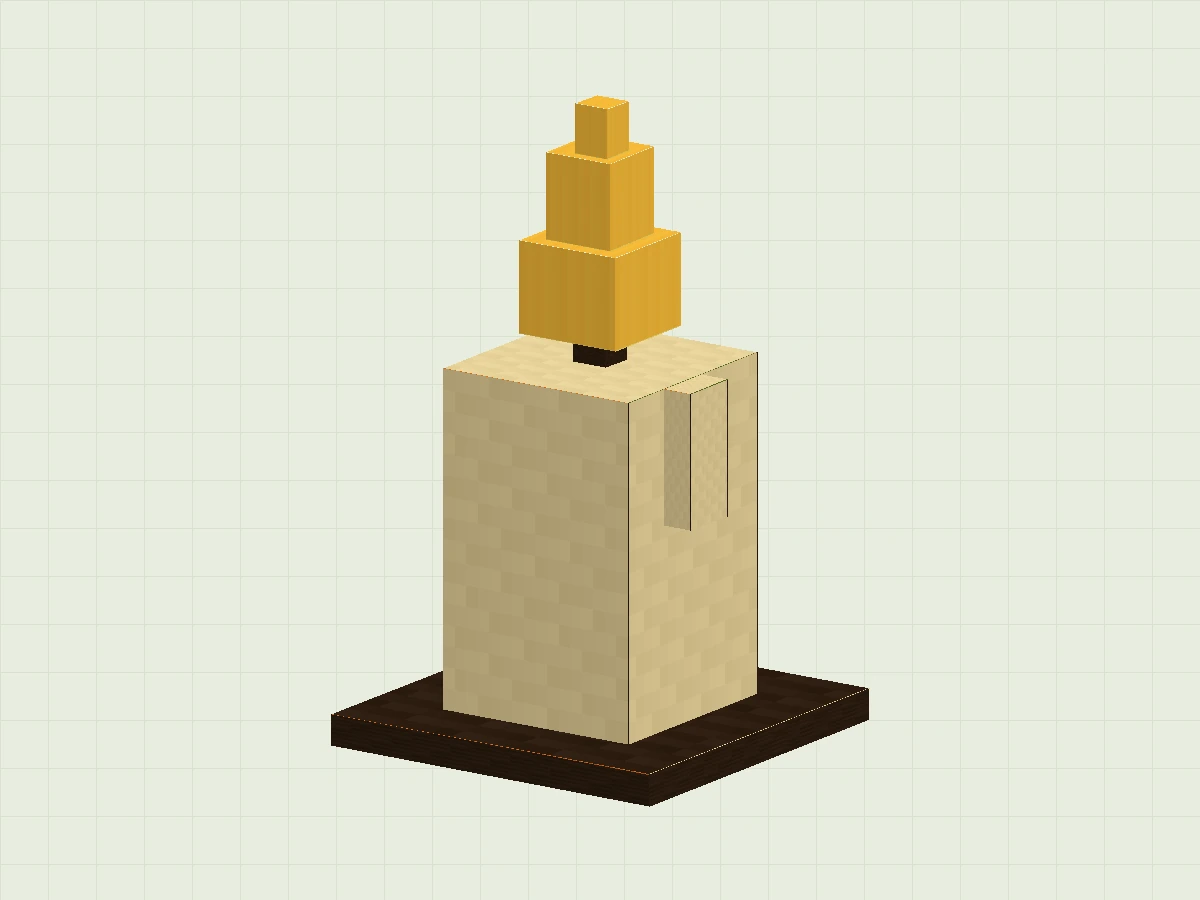
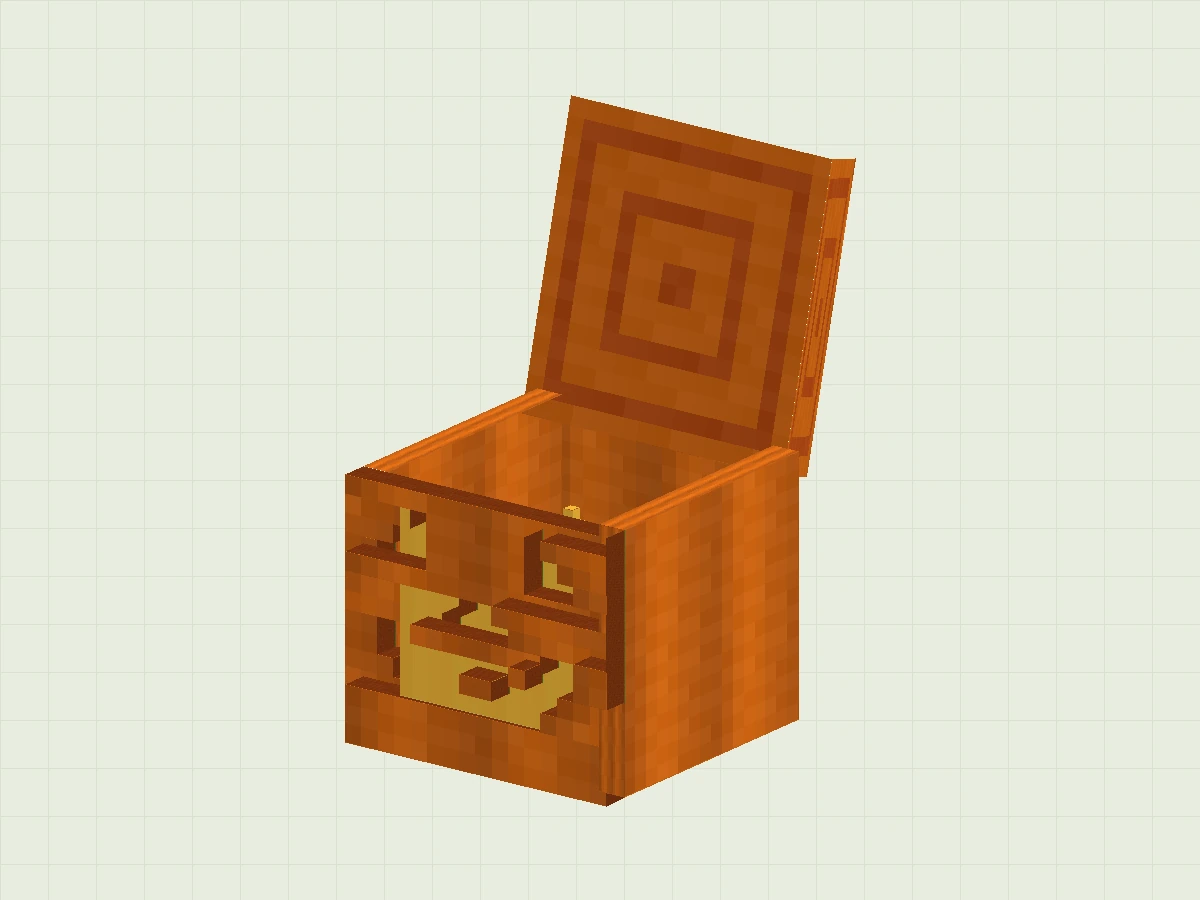
Temporarily hide the cover to facilitate access to the interior. Last added Face_Glow Grouping and warm_light_behind_cutouts sheet, placed behind the opening. It gives the smiling face a warm-colored background; it is not in-game lighting code.
Expand the full size of the lid, melon stem, candle and warm light panel
| Part Name | Position · X / Y / Z | Size · X / Y / Z |
|---|---|---|
| square_lid | 0 / 14 / 0 | 16 / 2 / 16 |
| stem_base | 6.5 / 16 / 6.5 | 3 / 1 / 3 |
| stem_tip | 7 / 17 / 7 | 2 / 1.5 / 2 |
| leaf_base | 9 / 16.05 / 7 | 2 / 0.4 / 2 |
| leaf_tip | 11 / 16.05 / 7.5 | 1.5 / 0.3 / 1 |
| candle_tray | 5 / 1.5 / 5 | 6 / 0.5 / 6 |
| wax_body | 6.25 / 2 / 6.25 | 3.5 / 5.5 / 3.5 |
| wax_drip | 5.95 / 5.2 / 7.5 | 0.5 / 2.2 / 1 |
| wick | 7.7 / 7.5 / 7.7 | 0.6 / 0.6 / 0.6 |
| flame_base | 7.1 / 8 / 7.1 | 1.8 / 1.5 / 1.8 |
| flame_middle | 7.4 / 9.5 / 7.4 | 1.2 / 1.4 / 1.2 |
| flame_tip | 7.6 / 10.9 / 7.6 | 0.6 / 0.8 / 0.6 |
| warm_light_behind_cutouts | 1.5 / 2 / 2.6 | 13 / 11 / 0.15 |
Color it with pixels
The model determines the shape, and the texture is responsible for making it look like a pumpkin.
- In the texture (Textures) panel, import the practice package
halloween-pumpkin-skin.png, sized 64 × 64. Switch to Paint, choose a 1-pixel brush, and draw light and dark vertical stripes in the orange region. Start with a small area and watch how the model changes. - Switch back to Edit, select a cube, and then select the face to be mapped in the UV panel. Assign a skin texture to it, then move the UV box to the corresponding color block.UV is "where to get the color from this surface in the picture."
- The flames and warm light panels use a second warm light texture. When making by hand, you can first use the ones in the bag
halloween-pumpkin-glow-static.png, covering the full 16 × 16 UV area. You can continue to the deformation animation in Step 7 without first creating an animated texture.

- Y 0–15: Vertical texture of pumpkin outer wall
- Y 16–31: Square pattern of top cover
- Y 32–47: Trim edge/melon stem/wax body/wick

- Switch to "Painting Mode" on the upper right, the 64×64 texture canvas is displayed on the upper left, and below is a list of two textures.
- Set the brush size in the top toolbar and choose a color on the right. Save a copy of your project first, paint a small stroke, and check its position on the central model.
Expand UV comparison: How does each color block correspond to the model?
The coordinates in the following table are texture pixels, not model positions. Per-face UVs use the upper left corner (U, V) and width and height.
| Purpose | Upper left corner U/V | Width/Height |
|---|---|---|
| Left and right walls/back wall | 16/0 or 32/0 | 16 / 16 |
| All Lid Faces | 0 / 16 | 16 / 16 |
| Base plate / front face trimming | 0 / 32 | 16 / 16 |
| Melon stem and leaves | 16 / 32 | 16 / 16 |
| Candle Body and Wax Drips | 32 / 32 | 16 / 16 |
| Candlestick and wick | 48 / 32 | 16 / 16 |
Front face direction North The surface should be continuously sampled: the starting point is U = Position X,V = 15 − Position Y, with a width equal to long strip X-sized with a height of 1. For example, the first article in Y = 12 is U = 0, V = 3, width 4, height 1. The side, top and bottom of it takes a deep orange tan; the back is orange.
Find the Lid's Rotation Axis
To open it like a box lid, first locate its hinge.
Organize and group in the outline (Outliner) according to the following levels. Drag the child group into the parent group:Stem must be in Lid, so the stem moves with the lid. The flame can move with the candle, but the animation should act only on Flame.
Pumpkin
├─ Shell       外壳与笑脸
├─ Lid         顶盖
│  └─ Stem     瓜梗与叶片
├─ Candle      蜡烛与烛台
│  └─ Flame    火焰
└─ Face_Glow   暖光板
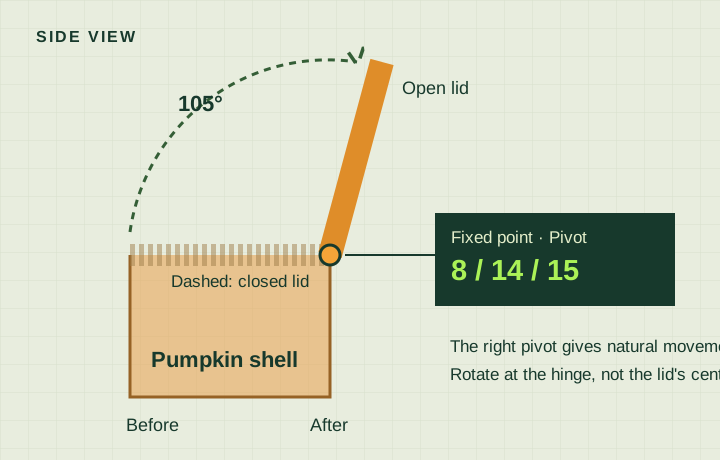
- Select Lid groupingEnter in Pivot Point 8 / 14 / 15. This point can also be moved using the pivot tool.
- Flame pivot is set to 8 / 8 / 8, the flame changes around the bottom when scaled. For other groups: Pumpkin and Shell, Face_Glow 8/ 8; Stem 8/ 16/8; Candle 8/ 1/8.
- In Edit, temporarily change Lid's X rotation to 30°Check if it opens along the back edge and moves together. When you see it, restore the rotation to 0 / 0 / 0, start animation again.
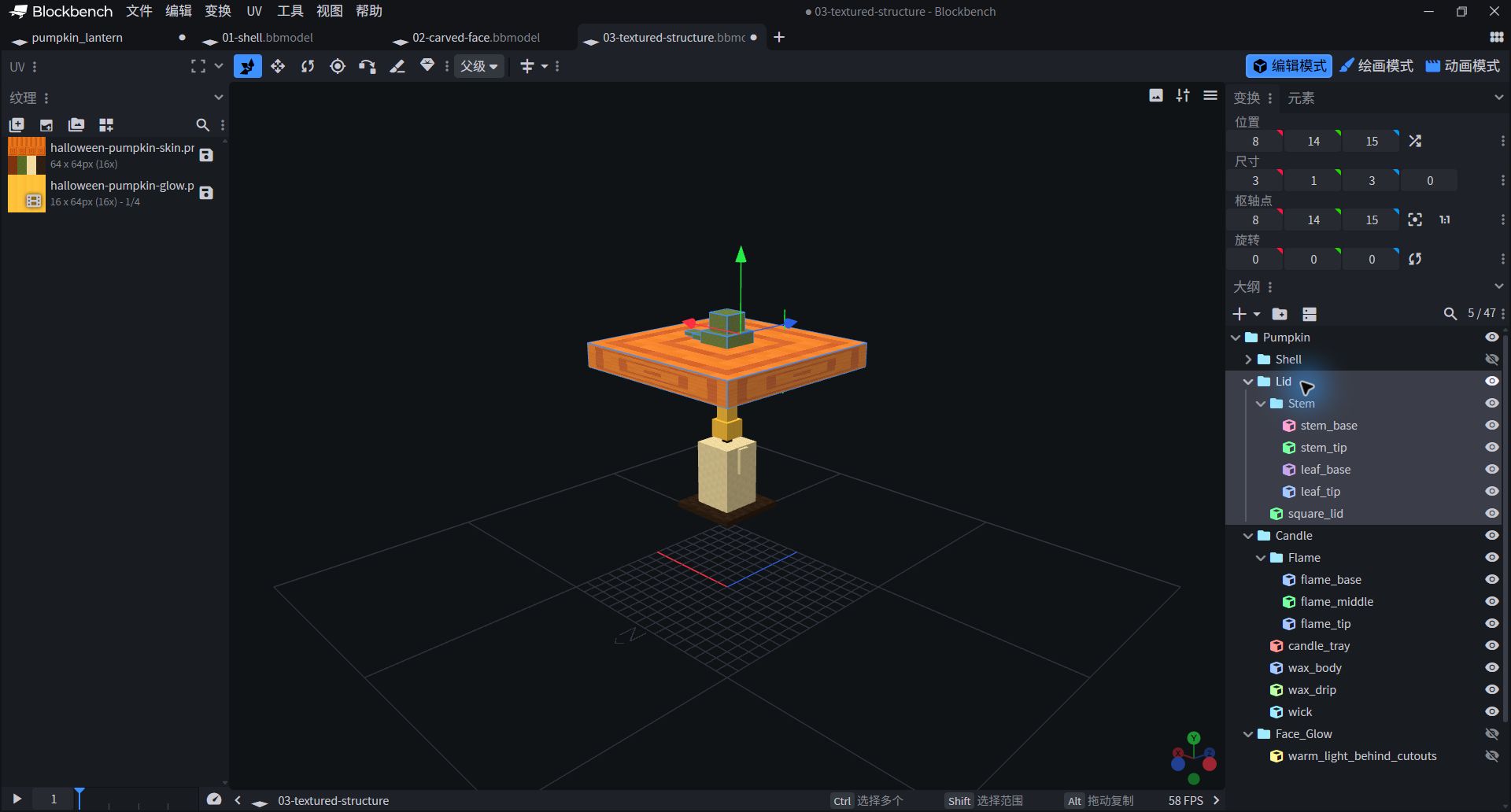
- The Lid on the right is highlighted and the Stem is indented inside it; the lid and melon stem will move as a whole.
- Look to the right at the line "Pivot Point": 8/14/15. The screenshot still hides the casing and warm light panel so that the internal relationships can be seen clearly.
Let the Flame Breathe Gently
Instead of moving each flame individually, it is enough to change the entire Flame grouping.
- Open Animate, New Animation
pumpkin.flame_flicker, duration 2 seconds, loop selected Loop. - Select the Flame group, move the timeline to 0 seconds, and add a keyframe to the Scaletrack. Follow the table to set the time, add keyframes, and enter the X / Y / Z scale values. Choose Linear interpolation.
| time/second | Scale X | Scale Y | Scale Z |
|---|---|---|---|
| 0 | 1 | 1 | 1 |
| 0.25 | 0.88 | 1.18 | 0.94 |
| 0.5 | 1.08 | 0.8 | 1.05 |
| 0.85 | 0.93 | 1.1 | 1 |
| 1.25 | 1.12 | 0.88 | 1.04 |
| 1.65 | 0.94 | 1.14 | 0.94 |
| 2 | 1 | 1 | 1 |
And then to Flame Rotation track: add three keyframes:0 seconds → 0 / 0 / −6°,1 second → 0 / 0 / 6°,2 seconds → 0 / 0 / −6°. It will sway slightly from side to side. Finally, set the Lid's Rotation to a frame of 0 / 0 / 0 at 0 seconds and 2 seconds, so that the lid returns to the closed position when switching back to the candlelight animation.
Start→Intermediate frame
Height / Sway→2 s
Return to starting point
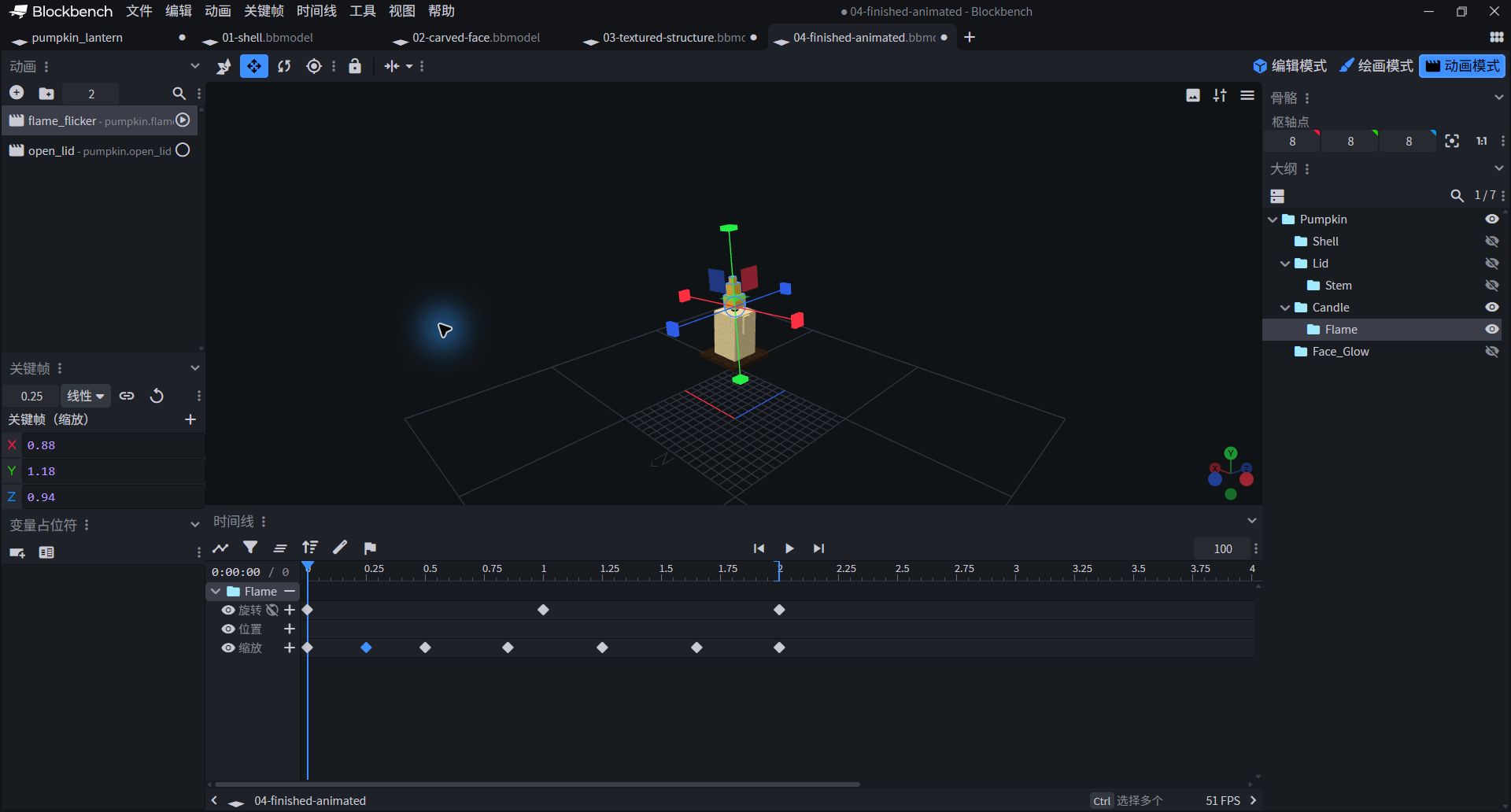
- Select flame_flicker on the upper left and Flame on the right; there are 7 diamond-shaped keyframes in the "Zoom" row at the bottom.
- The blue diamond is the 0.25-second keyframe being edited, with values 0.88 / 1.18 / 0.94 on the left. The blue playhead is still at 0 seconds.
- In order to see the candlelight, Shell, Lid and Face_Glow are temporarily hidden during the demonstration. Drag the playhead to preview and select a key frame to edit the frame value.
Lift the lid and complete the work
One last little surprise: let the lid open by itself.
- Create a new second animation
pumpkin.open_lid, duration 1.2 seconds, loop mode set to Hold (keep the last frame). - Select the Lid group and add the following three keyframes to Rotation. Only X changes; Y and Z remain 0. Use Linear interpolation.
- In order to switch smoothly from the candlelight animation, add one frame to Flame's Scale at 0 seconds and 1.2 seconds in this animation. 1 / 1 / 1. Save the project and play the two animations separately.
| time/second | Lid Rotation X / Y / Z | You will see |
|---|---|---|
| 0 | 0° / 0° / 0° | Completely closed |
| 0.25 | 12° / 0° / 0° | Make a slit first |
| 1.2 | 105° / 0° / 0° | Open and stay |
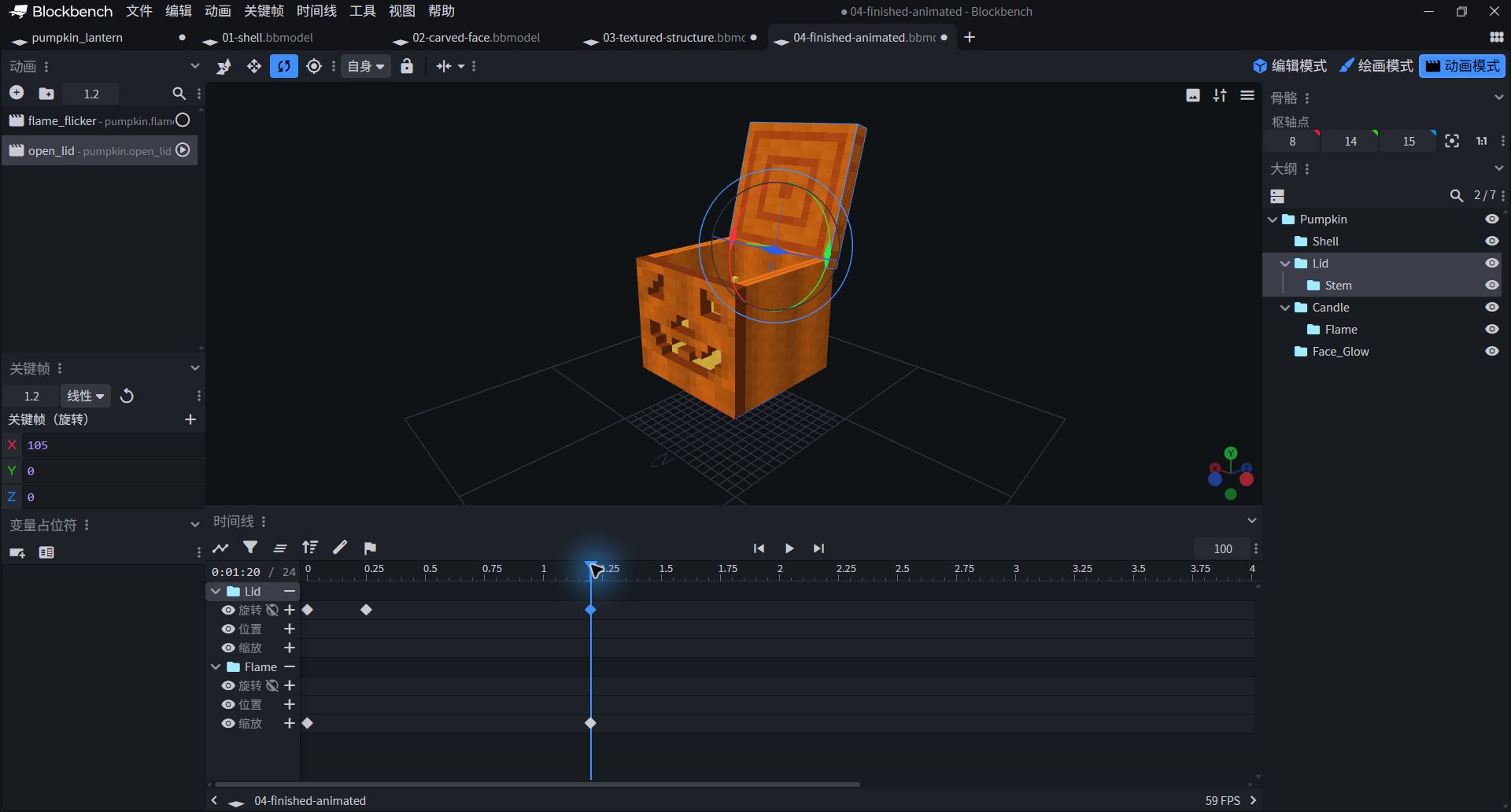
- First restore all groups to visibility, then select open_lid and Lid; the bottom "rotation" track has 3 keyframes.
- Drag the blue playhead to 1.2 seconds, and the last frame on the left is X=105, Y=0, Z=0. The central lid opens along the rear edge and the melon stem turns together.
YOU MADE IT
A lamp, already has your idea.
What you have done is not just a jack-o-lantern, but a complete 3D creation: shape → texture → grouping → animation. Save this version first, then choose a small variation to make it your own.
- Change expression:Change the jagged smiley face into a surprised round mouth, keeping the real hollowness.
- Change the atmosphere:Try a purple shell and cyan candlelight, and see how the mood changes.
- Change rhythm:Extend the lid opening time to 2 seconds to make a lamp that wakes up slowly.
QUICK RESCUE
Got a little problem?
The lid turns like a windmill, not like lifting the lid.
First stop the animation, check whether the Pivot Point of the Lid group is 8 / 14 / 15, and then check whether the key frame is on the X rotation track. Make sure the group is selected, not the square_lid cube.
The melon stem did not move with the lid.
Stem should be nested within Lid, not alongside Lid. After dragging in, check that the melon stem and leaves are in the Stem.
The model becomes white, the texture is misplaced, or the texture cannot be found.
Open the checkpoint project control in the exercise package; it has embedded textures. When making it yourself, check whether the corresponding surface has a texture assigned, whether the UV falls on the correct color block, and whether the Box UV is opened by mistake. Skin is 64×64 and Static Warm is 16×16, don’t mix.
Why can't I put it directly into Minecraft after downloading?
.bbmodel is an editable project, not a MOD installation package. The Java block model JSON will not automatically play the skeletal animation here; before entering the game, you need to register the block for the target version and connect to the appropriate rendering and animation scheme. The next stage is available MOD development columnContinue learning.
The web page 3D failed to load, can I still learn?
Yes. All steps, structural drawings, dimension sheets and practice projects do not rely on 3D preview. The real-time viewer requires WebGL and an Internet connection to load Three.js; you can also download .bbmodel and open it locally in Blockbench for viewing.
Tool Description and Extended Reading
The parameters of this lesson come from the supporting jack-o'-lantern project; the name of the software tool can be compared with the official Blockbench documentation. The button locations may vary slightly between interface languages or versions.
Interface, Grouping and Pivot ↗Project and export format ↗Back to Course Contents →