
01 · Discover a route through the level
Time to Bring Out the Star You Saved!
Your Goal at This StopFind star and Stair in "My Models" and recognize their locations in the game.
Remember your saved colorful star? Four yellow, green, blue and magenta cylinders share one center, like a team of colored pencils holding a meeting. Today, make them move and give passing players a small challenge.
① Please select the protagonist from your own model library
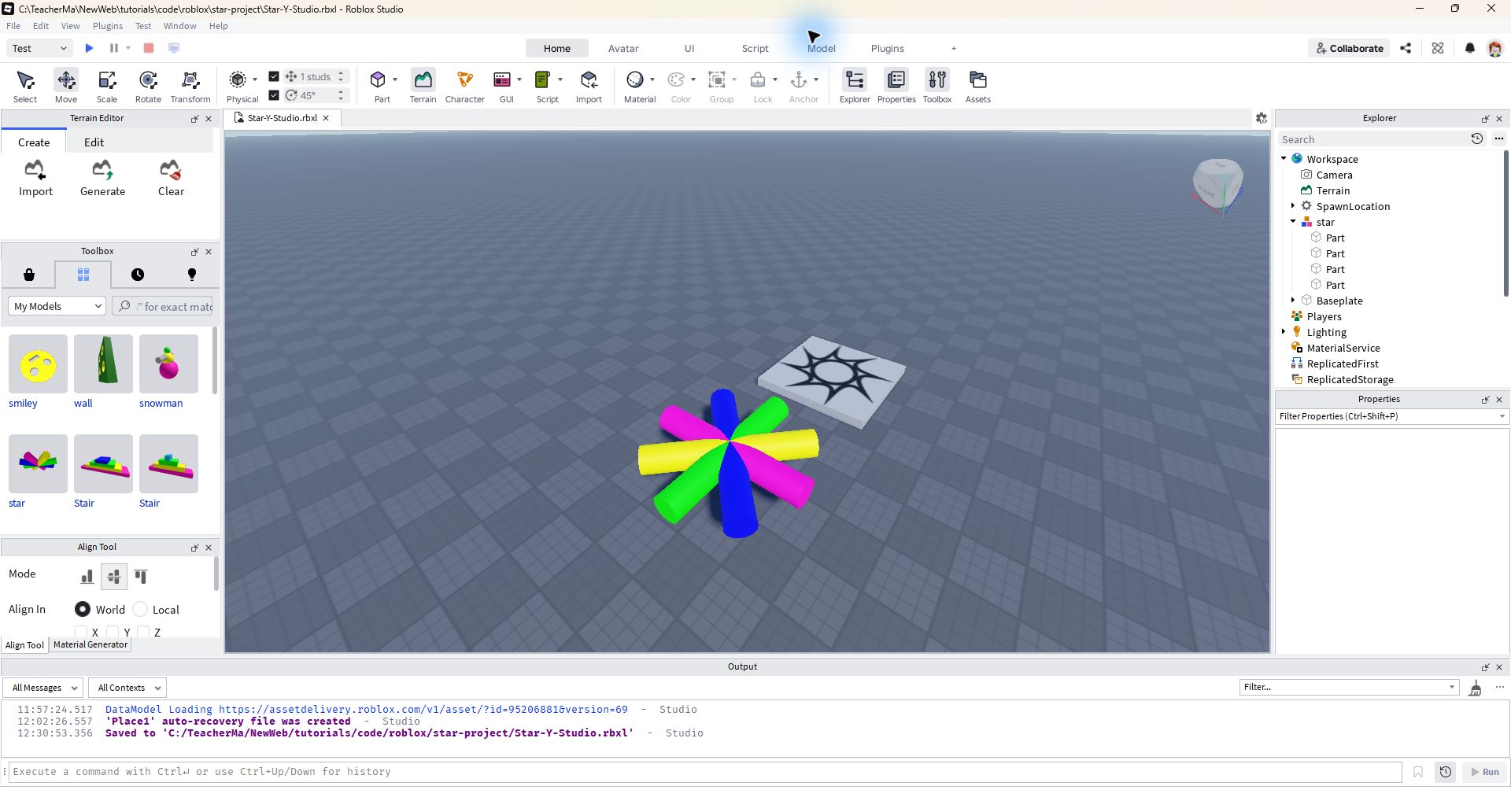
Open ToolboxCut to your own resources, then choose. My Models. The one on the left in the second row in the picture star That's the main character; there are two Stairs next to it, this time use the colored staircase on the left.
Click the controls to insert star and Stair into the scene once each. Check their names in Explorer:Star is all lowercase, without t at the end; Stair has a capital S.The code can find them only if the names match.
② See what game they form
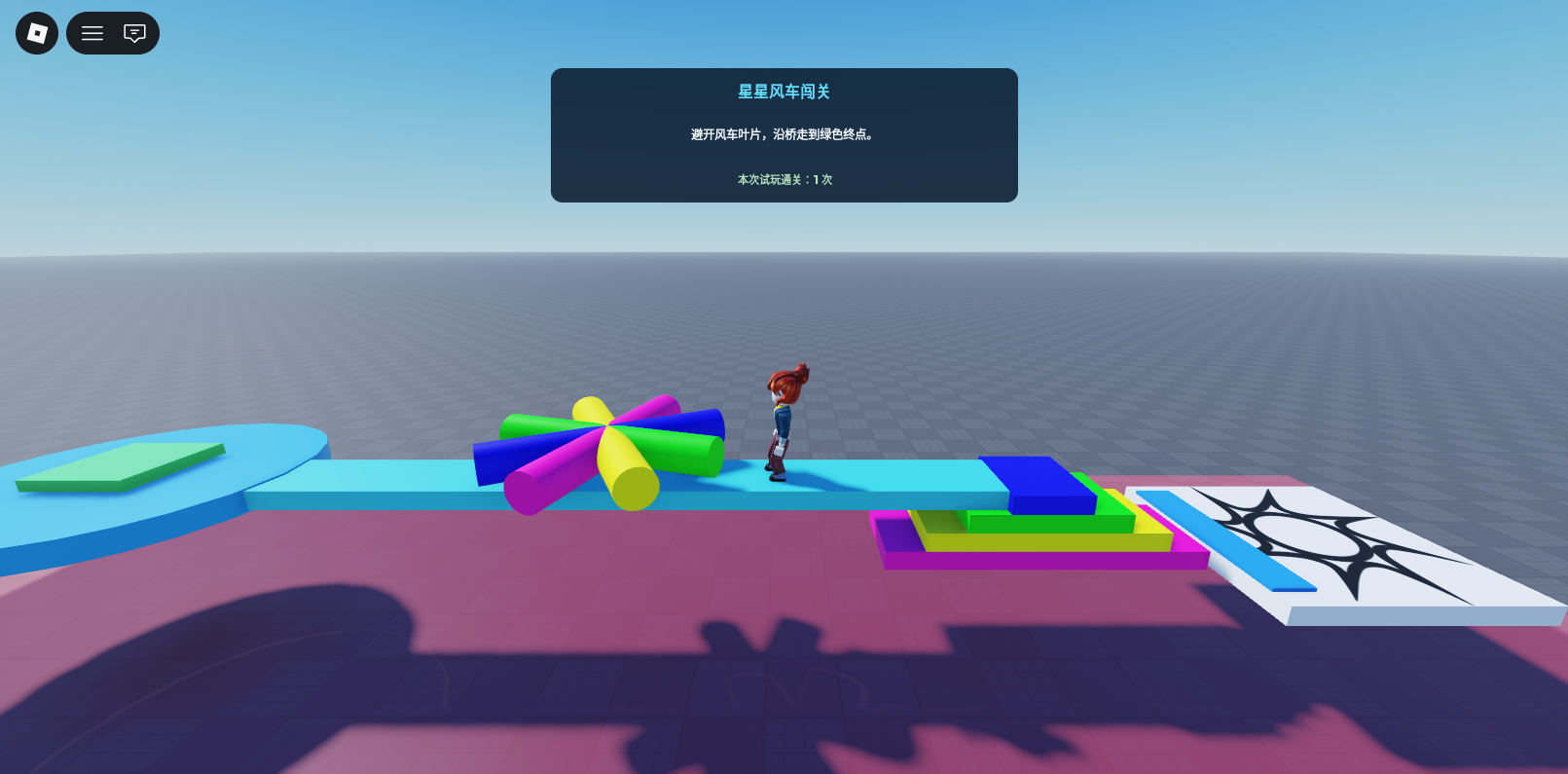
First look at the completed route: starting from the white birth platform, stepping on the blue pad, walking up the preserved colorful stairs, avoiding the stars along the light blue bridge, and then to the green end point. The red area below is responsible for catching the fallen player and sending him to start again.
The scene and script screenshots here come from an actual running instance of Roblox Studio. The running screen is captured in the Play test; the picture with the toolbox and Explorer is from the editing interface. Four mind maps help you string together the steps.
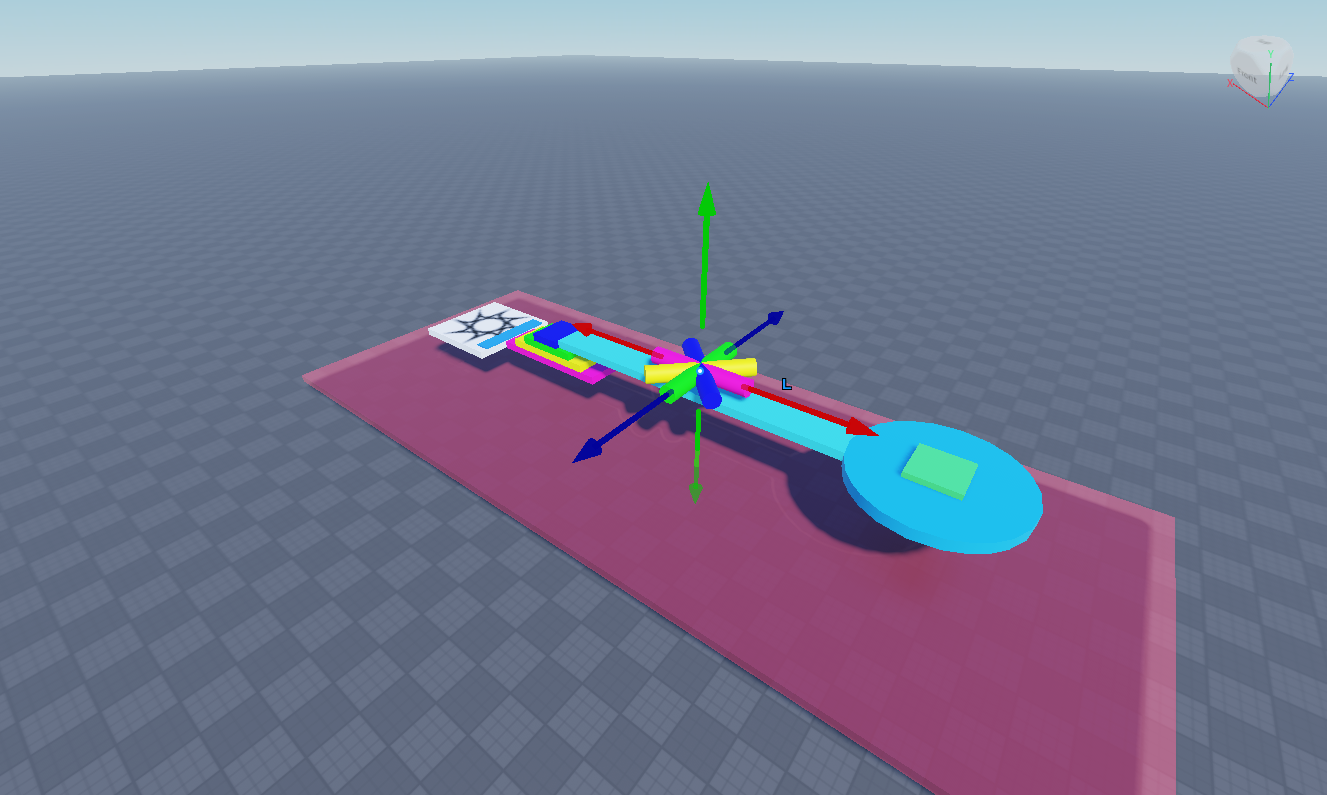
You can build it all over again, or you can download the one at the end of the page first Star-Y-Studio.rbxl, press Play when open with Studio. The full project has three run scripts in place; when opening it to try, there is no need to install them again.
Star and Stair can be found in My Models and Explorer, and the route from the starting point to the end point can be explained clearly.
Next step: Write down three rules →02·Write down three rules
First give the game a "little note on how to play"
Your Goal at This StopHelp first-time players understand how to start, how they can fail and how to finish.
Think of yourself as a friend coming to play for the first time. You see the beautiful steps, but you don’t know where to start. If you stand at the end and there is no response, you may think that the game is in a daze. Let’s make the rules clear first.
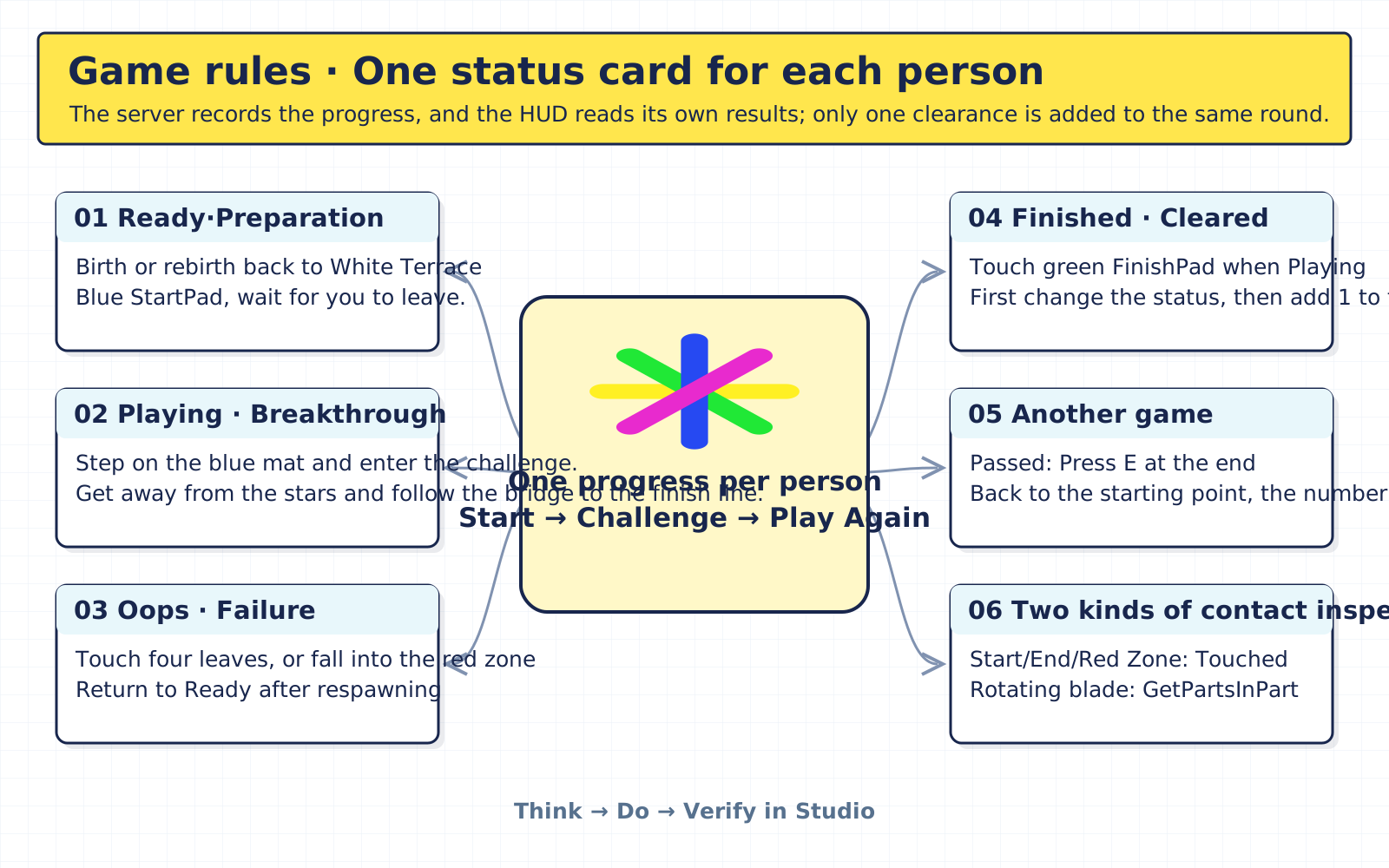
Article 1: Step on the blue starting mat and this round begins. Article 2: If you touch the star blade or fall to the red area below, this round will fail. Article 3: After starting, go to the green end and pass the round.
Give four names to the progress
The game needs to remember which step you have taken. We prepare a small card for each playerStatus card: Ready is ready, Playing is breaking, Ops is failing and Finished is clearing. Change the sign, the program will know what to do next.
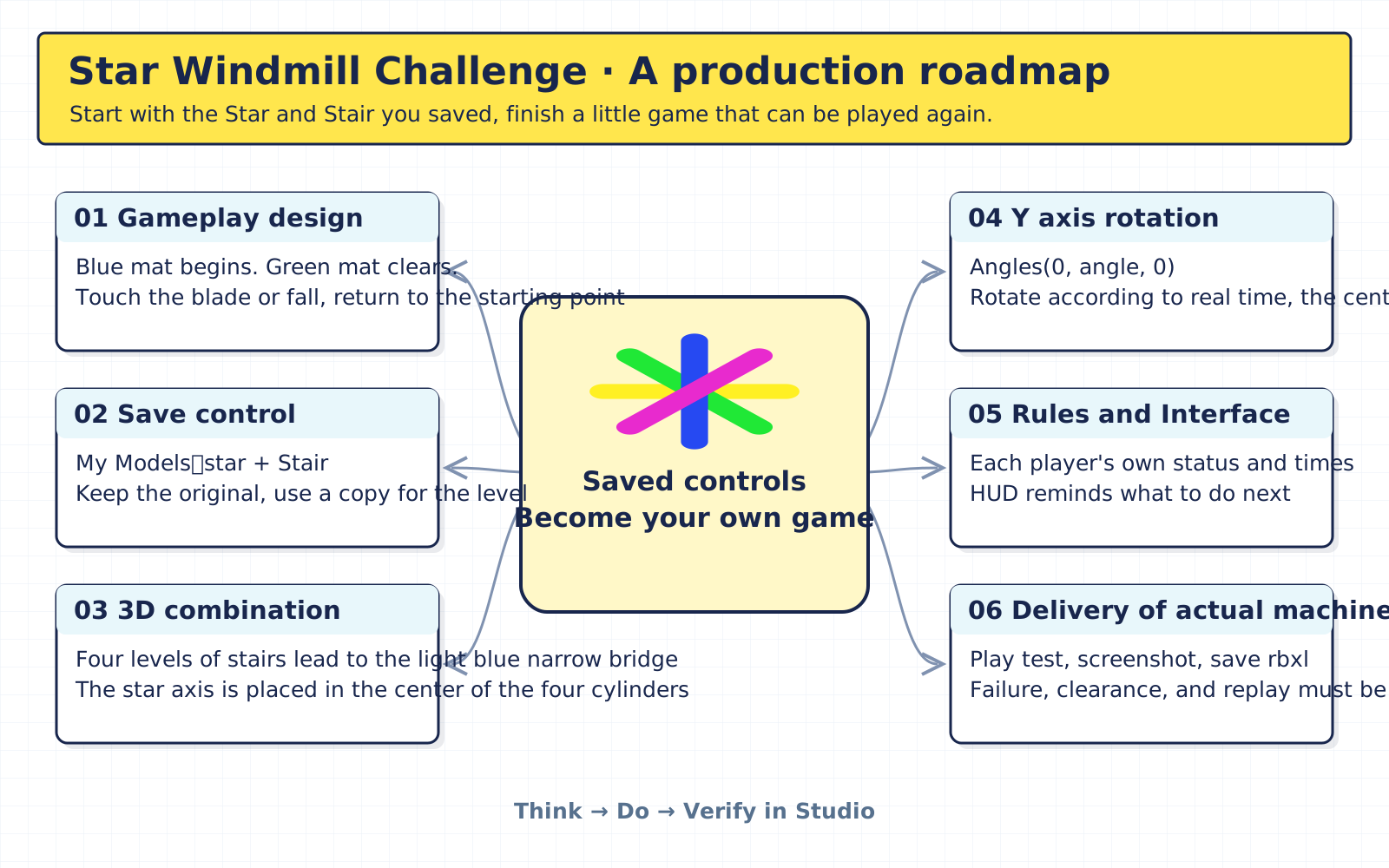
Why one per person? Because you fell, your friend might still be standing on the bridge. Your failure should make you start over and continue playing with your friends. Just like everyone does their own homework, the whole class cannot erase their notebooks together just because their deskmate made a mistake.
For now, count wins only within the current playtest. The count resets when you press Stop or leave. Once the first version works from start to finish, consider persistent saving, timing or leaderboards.
First save a version of your own
Use first File > Save to File As Save a local project, such as "Initials_StarCourse_v1.rbxl". Save each subsequent stop you complete. No matter how bold the new idea is, the old version also has its own safety seat.
- Start: Step on the blue StartPad.
- Failure: Hitting a blade, or falling into a red KillPlane.
- Win: a player who has already started touches the green FinishPad.
You can explain the four states and also know why your friend's progress should be recorded separately.
Next step: Get to know the saved controls →03·Understand the saved controls
Why do four cylinders appear to have eight corners?
Your Goal at This StopUnderstand the structure of star and stair, fix the parts, and retain your original model.
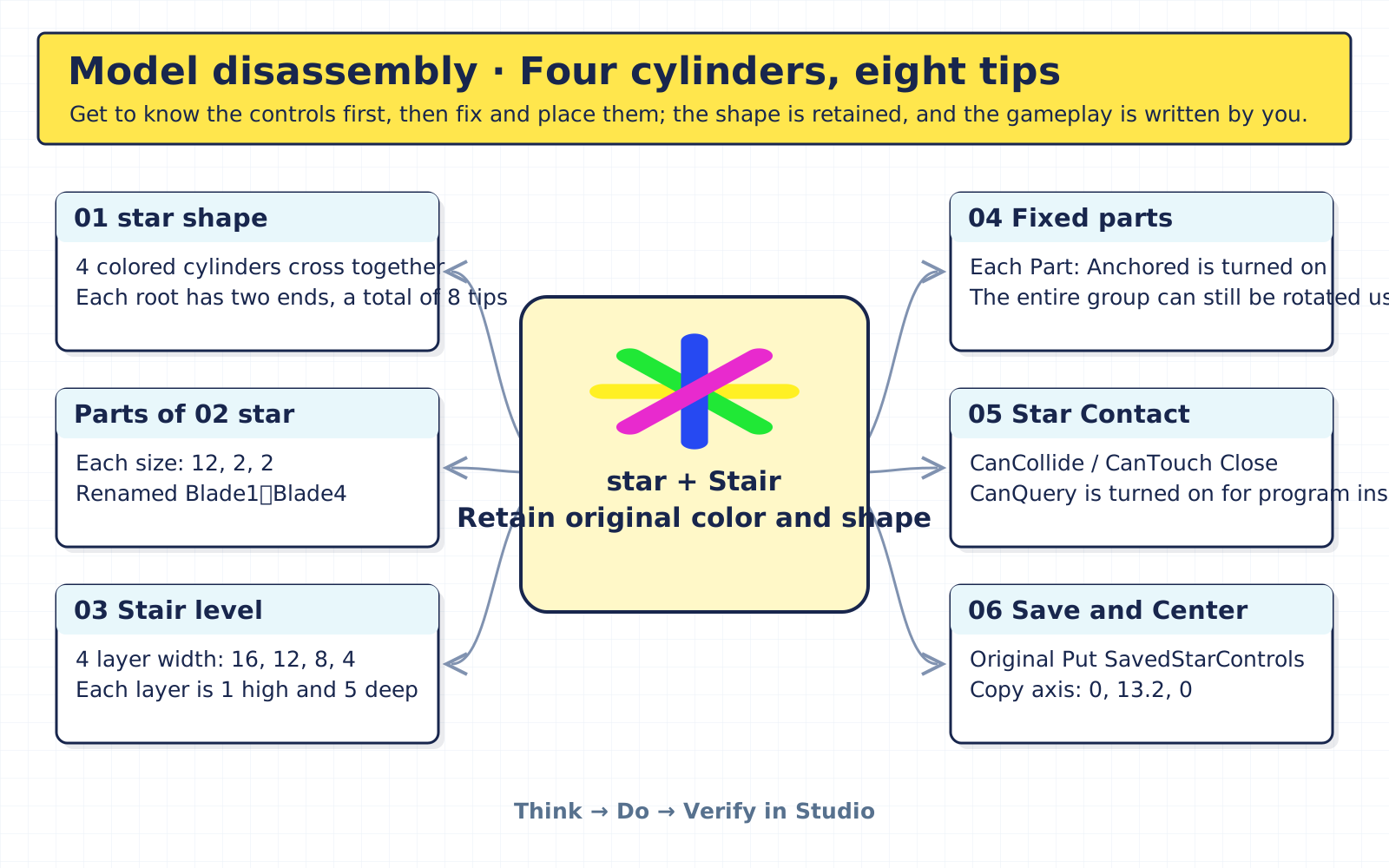
First expand the Explorer star. This save control consists of four Parts, all of which are long cylinders. Each is 12 studs long and 2 studs thick, with four studs crossing in the center. The stud here is the length unit in Studio.
A cylinder has two ends, and four of them expose eight tips. It looks like an eight-pointed star, but the program actually takes care of four complete cylinders. Don't make four more copies, the stars are already busy enough today.
The Stairs Have Their Own Building Recipe
Look again Stair: Four layers of colored building blocks, from width to narrow folding. The bottom 16 is wide, followed by 12, 8 and 4; each is 1 and 5 high. We use this stored pattern directly and we continue to practice grouping, scaling and setting.
Fix first, then start work
There is a small catch: the saved control's parts were not all anchored. When you press Play, gravity pulls them down. Select every part and set Anchored Open it so it won't fall apart as soon as it opens.
Keep the walkable stairs and bridge CanCollide Turn on. The four cylinders of the star turn off CanCollide, CanTouch, and turn on CanQuery. In this way, the character will not be pushed hard by the blades, and failure will be handed over to the subsequent collision check program.
Don't rush to fill in the coordinates one by one. The assistant at the next stop will copy these two real controls and put the originals into ServerStorage > SavedStarControls, and put a copy into Workspace > StarCourse. Your original shape is still in place.
If you want to add your own design, you can change the color first, and then adjust the platform near the stairs. Move one place at a time and try it out with your character. Whether the road is fun or not, your feet have more say than your eyes.
| Object | Save the structure in the control | The processing of this project |
|---|---|---|
| star | 4 cylinders, each Size = 12, 2, 2 | The whole group is used; named Blade1~Blade4 |
| Stair | 4 layers: 16/12/8/4, each layer is 1 high and 5 deep | Whole group movement, preserving color and shape |
| Original control | One each of star and stair | Saved in ServerStorage > SavedStarControls |
| Level copy | Workspace > StarCourse | For use with spins and game rules |
Explain why four cylinders produce eight tips, and understand the separate roles of Anchored, CanCollide and CanQuery.
Next step: Use the building assistant →04 · Use the building assistant
Move the save control into a complete route
Your Goal at This StopRun the construction assistant in edit mode, leaving the StarCourse that can be saved.
Now prepare a new one Baseplate, insert the star and the Stair on the left from My Models. Save a copy first. If you open the full package, this station is ready to see the axis and spin directly.
- Insert a star and a stair into the new scene, and save them as local files.
- Stay in editing mode and paste the complete build code into the Command Bar.
- Execute once; view StarCourse and save the project.
Stay in edit mode, do not press Play yet.Open the Window menu and find Command Bar under Script. If your interface version differs, look for Command Bar in the window menu.
Expand the following construction code, click "Copy Code", paste it into the Command Bar, and then execute it. The multi-line command bar in the current screenshot can be pressed Ctrl + EnterOr the right. Run. The entire code is executed only once.
What did the assistant do?
The assistant first finds your star and stair, then saves the original, copies the model, places the bridge and the end point. It will also rename the four parts of the star to Blade1 to Blade4 and fix all the blades.
Expand after completion Workspace > StarCourse, check against the chart below. The stars are above the bridge, the ladder is to one end of the bridge and the green end is to the other. After saving the project, these objects will remain in the editing scene.
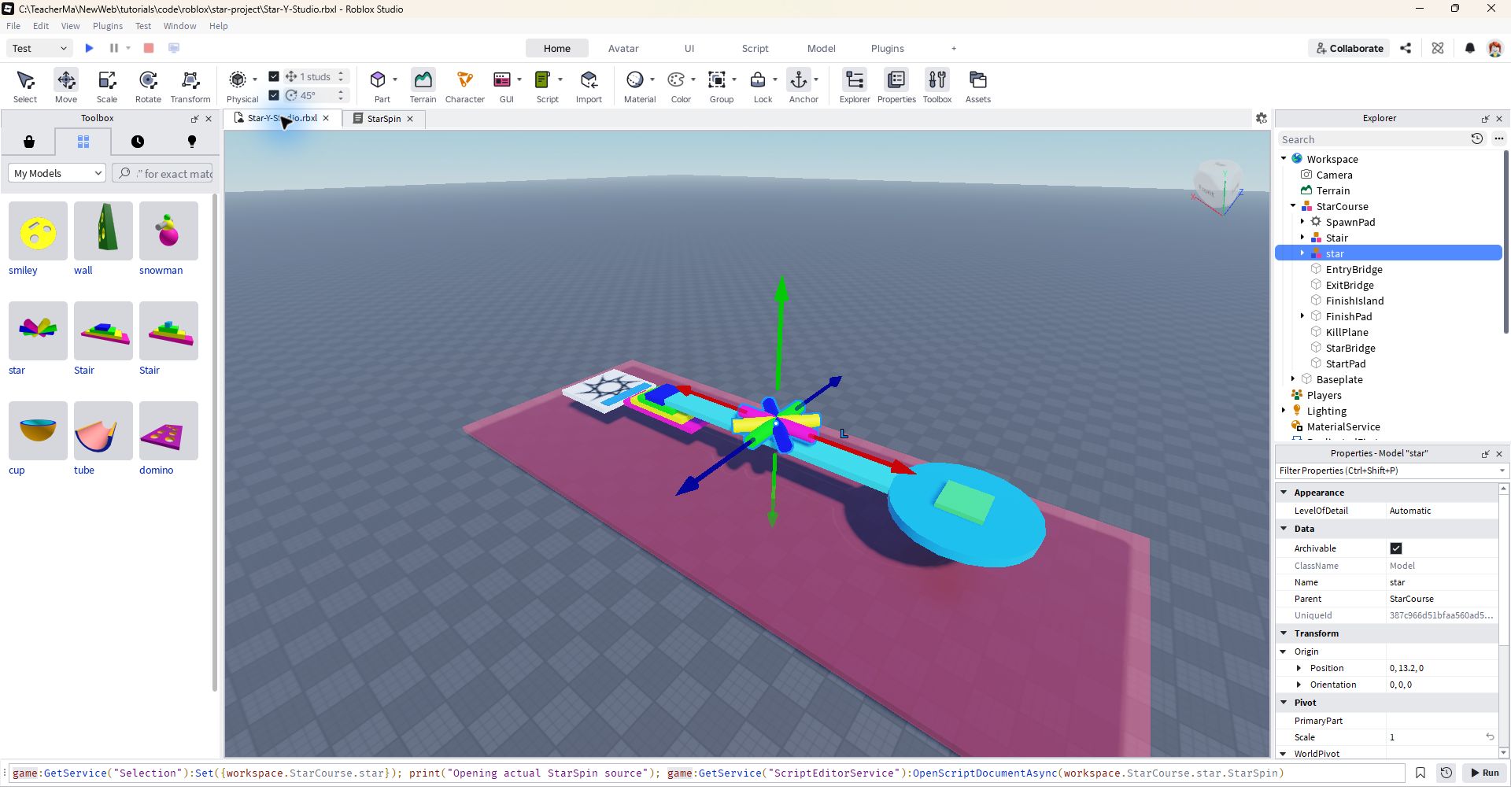
When prompted, first compare the names
If prompted "Insert saved star model first", check the name and location: it should be located directly under the Workspace with the name star. If you already have a StarCourse, use the existing route; if you want to try it from the beginning, open a new scene.
If you run the build code in Play, the generated objects belong only to that test. They disappear after pressing Stop. We need to save our level, so we build it in edit mode and use Play to try it out.
The following coordinates are only for verification, and the codes have been filled in. Size is the tube size, and Position is the tube position. The three numbers are arranged according to X, Y, and Z. If you want to widen the bridge later, you can first change only the third number of Size and try again.
| Object | Size or structure | Position X, Y, Z |
|---|---|---|
| SpawnPad / StartPad | 12, 1, 12 / 2, 0.2, 10 | 37, 7.5, 0 / 32, 8.1, 0 |
| Stair | Saved four-story ladder | Model axis: 22, 9.5, 0 |
| EntryBridge / StarBridge / ExitBridge | 10, 1, 4 / 20, 1, 4 / 8, 1, 4 | 15, 11, 0 / 0, 11, 0 / -14, 11, 0 |
| star | Four preserved cylinders | Model axis: 0, 13.2, 0 |
| FinishIsland / FinishPad | 1.2, 16, 16 / 5, 0.6, 5 | -25, 11, 0 / -25, 12, 0 |
| KillPlane | 100, 1, 40 | 5, 2, 0 |
Expand the complete code: Build a little assistant · Execute only once in the Command Bar in editing mode
-- 编辑模式:先从 Toolbox > My Models 插入 star 和 Stair,再执行一次。
-- 使用你保存的真实控件;原件收进 ServerStorage,关卡使用它们的副本。
assert(not workspace:FindFirstChild("StarCourse"), "已经有 StarCourse,请在新场景搭建。")
local starSource = workspace:FindFirstChild("star")
local stairSource = workspace:FindFirstChild("Stair")
assert(starSource and starSource:IsA("Model"), "先插入保存的 star 模型,名字全部小写。")
assert(stairSource and stairSource:IsA("Model"), "先插入保存的 Stair 模型。")
-- 先检查,再创建关卡;这个教学版本使用没有自带脚本的积木控件。
for _, model in ipairs({starSource, stairSource}) do
    for _, item in ipairs(model:GetDescendants()) do
        assert(not item:IsA("LuaSourceContainer"), "请先检查控件自带的脚本,再用于本教程。")
    end
end
local originals = Instance.new("Folder")
originals.Name = "SavedStarControls"
originals.Parent = game:GetService("ServerStorage")
starSource.Parent = originals
stairSource.Parent = originals

local course = Instance.new("Model")
course.Name = "StarCourse"
course.Parent = workspace
local function block(name, size, position, color, parent)
    local part = Instance.new("Part")
    part.Name = name
    part.Size = size
    part.CFrame = CFrame.new(position)
    part.Color = color
    part.Material = Enum.Material.SmoothPlastic
    part.Anchored = true
    part.TopSurface = Enum.SurfaceType.Smooth
    part.BottomSurface = Enum.SurfaceType.Smooth
    part.Parent = parent or course
    return part
end
local spawn = workspace:FindFirstChildOfClass("SpawnLocation") or Instance.new("SpawnLocation")
spawn.Name = "SpawnPad"
spawn.Size = Vector3.new(12, 1, 12)
spawn.CFrame = CFrame.new(37, 7.5, 0)
spawn.Color = Color3.fromRGB(240, 245, 255)
spawn.Anchored = true
spawn.Neutral = true
spawn.Duration = 0
spawn.Parent = course
local startPad = block("StartPad", Vector3.new(2, 0.2, 10), Vector3.new(32, 8.1, 0), Color3.fromRGB(45, 140, 255))
startPad.CanCollide = false

local stair = stairSource:Clone()
stair.Parent = course
for _, part in ipairs(stair:GetDescendants()) do
    if part:IsA("BasePart") then part.Anchored = true end
end
-- 更改轴心不会改变部件造型;让整座阶梯按包围盒中心摆放。
local stairBounds = stair:GetBoundingBox()
stair.PrimaryPart = nil
stair.WorldPivot = CFrame.new(stairBounds.Position)
stair:PivotTo(CFrame.new(22, 9.5, 0))
block("EntryBridge", Vector3.new(10, 1, 4), Vector3.new(15, 11, 0), Color3.fromRGB(65, 211, 231))
block("StarBridge", Vector3.new(20, 1, 4), Vector3.new(0, 11, 0), Color3.fromRGB(65, 211, 231))
block("ExitBridge", Vector3.new(8, 1, 4), Vector3.new(-14, 11, 0), Color3.fromRGB(65, 211, 231))

local star = starSource:Clone()
star.Parent = course
local bounds = star:GetBoundingBox()
star.PrimaryPart = nil
star.WorldPivot = CFrame.new(bounds.Position)
star:PivotTo(CFrame.new(0, 13.2, 0))
local bladeIndex = 0
for _, part in ipairs(star:GetDescendants()) do
    if part:IsA("BasePart") then
        bladeIndex = bladeIndex + 1
        part.Name = "Blade" .. bladeIndex
        part.Anchored = true
        part.CanCollide = false -- 失败由 StarGame 的重叠查询判断,避免把角色推飞。
        part.CanTouch = false
        part.CanQuery = true
    end
end
assert(bladeIndex == 4, "本教程的 star 由四根彩色圆柱组成,请核对保存的控件。")

local island = block("FinishIsland", Vector3.new(1.2, 16, 16), Vector3.new(-25, 11, 0), Color3.fromRGB(35, 165, 235))
island.Shape = Enum.PartType.Cylinder
-- 这里只是把圆柱放平:圆盘厚度原本沿自身 X 轴。
island.CFrame = CFrame.new(-25, 11, 0) * CFrame.Angles(0, 0, math.rad(90))
local finish = block("FinishPad", Vector3.new(5, 0.6, 5), Vector3.new(-25, 12, 0), Color3.fromRGB(79, 229, 117))
local prompt = Instance.new("ProximityPrompt")
prompt.Name = "ReplayPrompt"
prompt.ActionText = "再来一局"
prompt.ObjectText = "绿色终点"
prompt.HoldDuration = 0
prompt.MaxActivationDistance = 10
prompt.RequiresLineOfSight = false
prompt.Parent = finish
local killPlane = block("KillPlane", Vector3.new(100, 1, 40), Vector3.new(5, 2, 0), Color3.fromRGB(240, 89, 109))
killPlane.Transparency = 0.55
killPlane.CanCollide = false
print("StarCourse 已搭好:真实 star + Stair。接着安装 StarSpin、StarGame 和 StarHUD。")
Star, Stair, bridge and end point can be found in StarCourse; save and open again, the scene will still be there.
Next step: Place the axis of the star →05 · Place the axis of the star
The center of rotation is left in place first
Your Goal at This StopFind the central axis of the star and let the four cylinders move as a whole group.
Imagine there is a piece of colored paper stars on the table. You press the center with your finger and gently move the edges with your other hand. The edge turns, and the point where the finger is pressed remains in place. This center is what we need to take care ofPivot.
- Select the entire star model in Explorer.
- View Origin: The position is 0, 13.2, 0, and the axis is in the center of the star.
- Keep PrimaryPart empty, and put StarSpin in star in the next stop.
The construction assistant has placed the axis of the star in the center of the four cylinders. The position is 0, 13.2, 0. Select the entire star, expand Origin in Properties, and you can see the position and orientation of the model axis.
This version uses the model's own pivot
In this project, PrimaryPart Leave blank, using the Model's own WorldPivot. No need to create an additional transparent part. The assistant first uses a bounding box to find the middle of the model, and then sets the axis there; setting the axis itself will not change the shape of the part.
Two methods, each do one thing
GetPivot() Like asking "Where are you standing now, which way are you facing?";PivotTo(...) Like telling the model "put the whole group here, in this direction". Give the command to star, and the four cylinders inside will act together.
Later, the rotation Script must be placed star inside the model. If placed inside Blade1, all script.Parent finds is one cylinder, and it may get busy on its own, while the other three are still watching.
If using another star with an asymmetrical shape, check the center again. The pivot can be adjusted using Studio's Pivot editing tool. It is much easier to get the center right first and then write the rotation than to guess while rotating.
We can find the axis of the star, and we also know that the StarSpin should be placed in the entire set of models.
Next step: Must learn: Locate the Y axis →06 · Must learn: Look for the Y axis
Give the middle position to Y!
Your Goal at This StopUnderstand CFrame.Angles(0, angle, 0) and let star rotate around the vertical Y-axis of the world.
The stars now lie flat above the bridge, like a colorful broom spinning sideways.X is the red axis, Y is the green axis, and Z is the blue axis.The Y-axis of the world is vertically upward, like a pillar growing from the ground.
Think of this green pillar as a bamboo stick running through the center of the star. The four cylinders are mainly laid out in the X–Z plane and rotate together around the bamboo stick. Today’s must-learn moves are:The star rotates around the world Y-axis and the center does not move.
Find This Line: 0, angle, 0
Look at this sentence CFrame.Angles(0, angle, 0). The three seats in brackets belong to X, Y, and Z in order. We put angle in the middle and let Y be responsible for the rotation; fill both sides with 0. Remember "Y in the middle" and score a small point first.
In the small experiment below, hold Y and observe how the colored cylinder sweeps across the horizontal plane. Then switch X or Z to compare how the star flips up, and finally press "Back to Start." The web page demonstrates the principle, and the real collision must be tried in Studio.
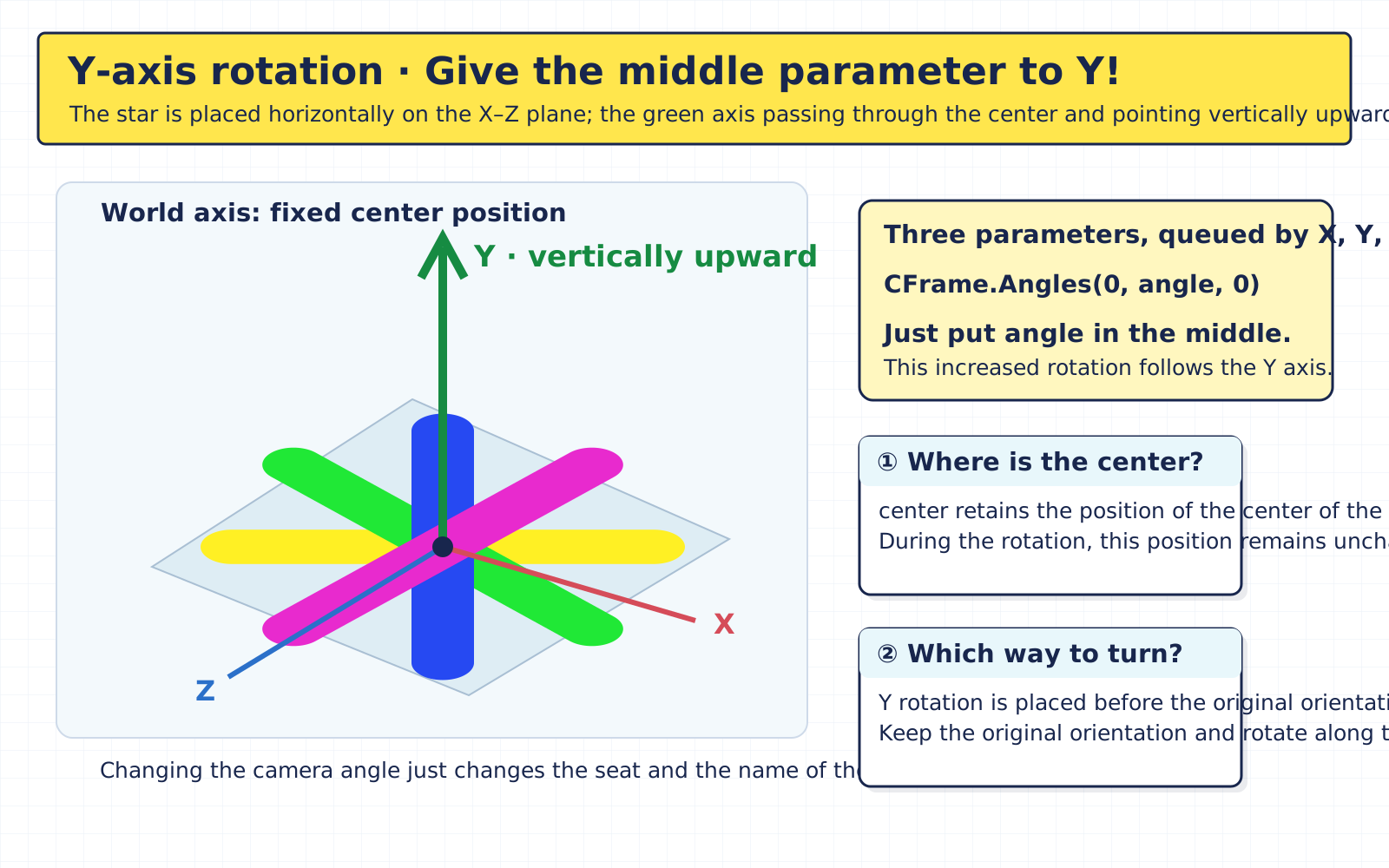
Why won’t the center follow?
CFrame It can first be understood as a "position and orientation card". The program splits the initial card into two parts:center Just remember where the center is,originalRotation Only the original orientation is remembered. Each person is concerned with one thing, so it is not easy to get confused while reading.
Finally connect them:center × new rotation about Y × originalRotation. The center remains where it is, the new rotation is along world Y, and finally the stars are kept in their original orientation. The asterisk * represents the multiplication here in the complete code.
The saved model may have different orientations
Why should we keep the original orientation? Because the saved model may have been rotated. The model's own Y axis may also be different from the world Y axis. This time we clearly turn along the vertical world Y. We cannot just guess based on the original direction of the model.
Changing the camera angle is just changing seats to watch the show, not changing Y to Z. When identifying the axis, first look at the direction and name, and then look at the three positions of the code. The green pillar is responsible for standing up straight, and the stars are responsible for rotating. Everyone has a clear division of labor.
CFrame.Angles(0, angle, 0)The middle position is Y; X and Z are not rotated.
Can point out the second parameter of Angles and explain: The star rotates around the vertical Y axis while the center remains stationary.
Next step: Let the stars spin →07 · Let the stars spin
Press Play and the windmill starts working!
Your Goal at This StopInstall StarSpin, watch star rotate around Y, and learn to change its speed and direction.
Expand in Explorer Workspace > StarCourse > star, click the plus button, and insert a regular Script, Name StarSpin. Clear the default content and copy the complete code below. Students who have already opened the supporting project can directly double-click the existing StarSpin.
- Create a common Script in star: StarSpin, or open an existing script in the project.
- Copy the code and press Play to observe the four cylinders rotating around Y.
- Stop, modify SPEED, and then Play to compare.
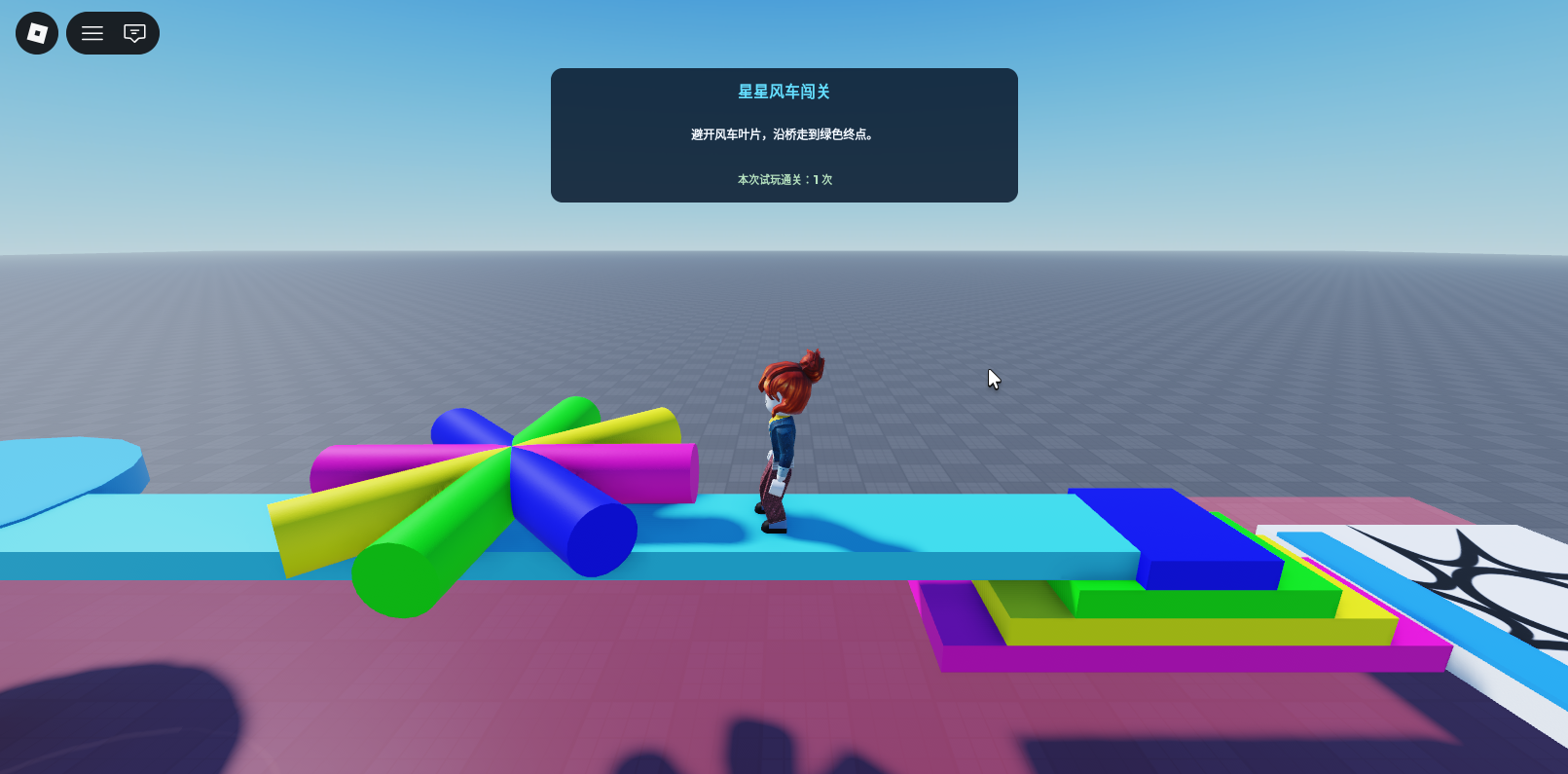
First install this run script, press Play. The colored stars should rotate sideways, with the four columns moving together and the center firmly above the bridge. Harvest this small achievement first, and then slowly get to know the English partners in the code.
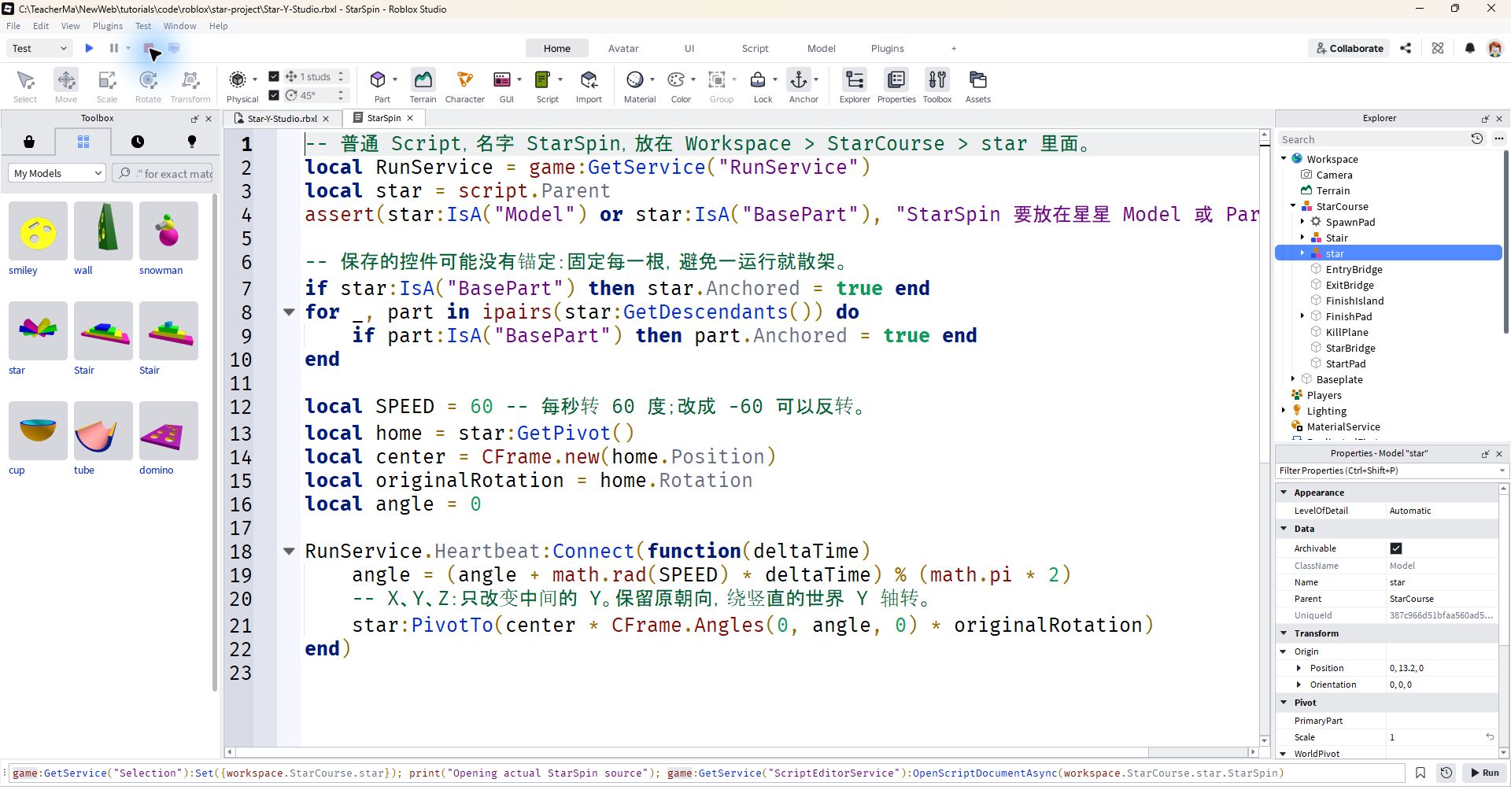
① Just change a number to adjust the speed
Found SPEED = 60. It represents 60° of rotation per second. One revolution is 360°, so one revolution takes about 6 seconds. Change it to 30, and it will take about 12 seconds; change it to -60, and the direction is reversed; change it to 0, and it will stop obediently.
② Change the unit and move forward by time
The angle unit used by Angles is calledradians, we set the speed with a "degree."math.rad Like a unit translator, convert 60° into the number the program needs. You can use it first, and there is no need to memorize the entire formula sheet in a hurry.
Heartbeat Notify once per frame,deltaTime tells us how many seconds have passed since the previous frame. "Speed per second × time passed this time", you can get how much rotation you should make this time. Computers have different speeds, so try to move forward in real time.
As a simple example: it rotates 60° per second, 30° in half a second, and 6° in one-tenth of a second. variable angle Add up these small angles and remember where the stars should be facing at this time.
Behind % (math.pi * 2) Reset the angle after each full turn. Like a clock hand passing twelve, it can keep going without adding another ring of numbers outside the clock face.
③ Give the new direction to the whole star
Last line star:PivotTo(center * CFrame.Angles(0, angle, 0) * originalRotation)It's to keep the whole star in the center, go around the world.
Before modifying the speed Stop, re-edit the numbers, then Play looks at the results. Try 30 and 60, before it gets harder. What we're doing today is going to break through the gate, without having to test the fan license of the windmill.
| Change SPEED Only | You should see | Don’t forget to check |
|---|---|---|
| 30 | Slower, about 12 seconds per turn | The center is still in its original position |
| 60 | About 6 seconds per turn | Four cylinders rotate together |
| -60 | Reverse the Direction | Still around Y, only changing direction |
| 0 | Stop | This is an intentional stop, not an error. |
-- 普通 Script,名字 StarSpin,放在 Workspace > StarCourse > star 里面。
local RunService = game:GetService("RunService")
local star = script.Parent
assert(star:IsA("Model") or star:IsA("BasePart"), "StarSpin 要放在星星 Model 或 Part 里面。")

-- 保存的控件可能没有锚定:固定每一根,避免一运行就散架。
if star:IsA("BasePart") then star.Anchored = true end
for _, part in ipairs(star:GetDescendants()) do
    if part:IsA("BasePart") then part.Anchored = true end
end

local SPEED = 60 -- 每秒转 60 度;改成 -60 可以反转。
local home = star:GetPivot()
local center = CFrame.new(home.Position)
local originalRotation = home.Rotation
local angle = 0

RunService.Heartbeat:Connect(function(deltaTime)
    angle = (angle + math.rad(SPEED) * deltaTime) % (math.pi * 2)
    -- X、Y、Z:只改变中间的 Y。保留原朝向,绕竖直的世界 Y 轴转。
    star:PivotTo(center * CFrame.Angles(0, angle, 0) * originalRotation)
end)
Try speeds of 30, 60, -60 and 0. The star should slow down, reverse and stop without its center drifting.
Next step: Continue with start and clearance →08 · Continue with the start and clearance
Touch it and the game will respond
Your Goal at This StopGive each game a start, a failure state, a finish and a way to replay.
The stars will rotate and players can run away. Now we add the rules to the game: start when you step on the starting pad, respawn when you encounter danger, and count as a pass when you reach the end.
- Create a common Script in ServerScriptService: StarGame.
- Copy the complete code and press Play.
- Try to start, touch the blade, fall, go to the end and play again.
In ServerScriptService create a regular Script named StarGame. Copy the complete code of this section. This program is placed on the server and is responsible for recording the progress of each player. Everyone plays according to the same set of rules.
Starting pad registration, end pad counting
When reading the code, find the StartPad and FinishPad sections first. StartPad changes a ready player's state from Ready to Playing; FinishPad changes an active player's state from Playing to Finished.
There is a small detail at the end point:First change it to Finished, then add one to the number of times.This ensures that touching the finish with both feet still counts only once. Otherwise, dancing at the finish could make the counter think you had won several times.
The pad touches a foot, leg or another part. findPlayer follows that part to the character, Humanoid and corresponding Player. Humanoid controls the character's body and health; Player represents the person playing.
After failure, go back to the starting point and try again
There are two types of failure: the character hits the red KillPlane below, or the body overlaps the blade. The program sets the health to 0 and the character then respawns on the SpawnPad. When the status returns to Ready, you can step on the blue pad to start the next round.
How to check the contact of moving blades?
The rotating blades also require a special inspection.PivotTo directly changes the model position, you cannot just expect Touched to report every contact.Therefore, the program uses GetPartsInPart to check whether there are body parts of the character in the leaves.
It checks approximately every 0.05 seconds and only checks Blade1 to Blade4, the four actual cylinders. Start testing at 30° to 60° per second. Faster obstacles will need improvements to this interval-based collision check.
There can be another round at the end
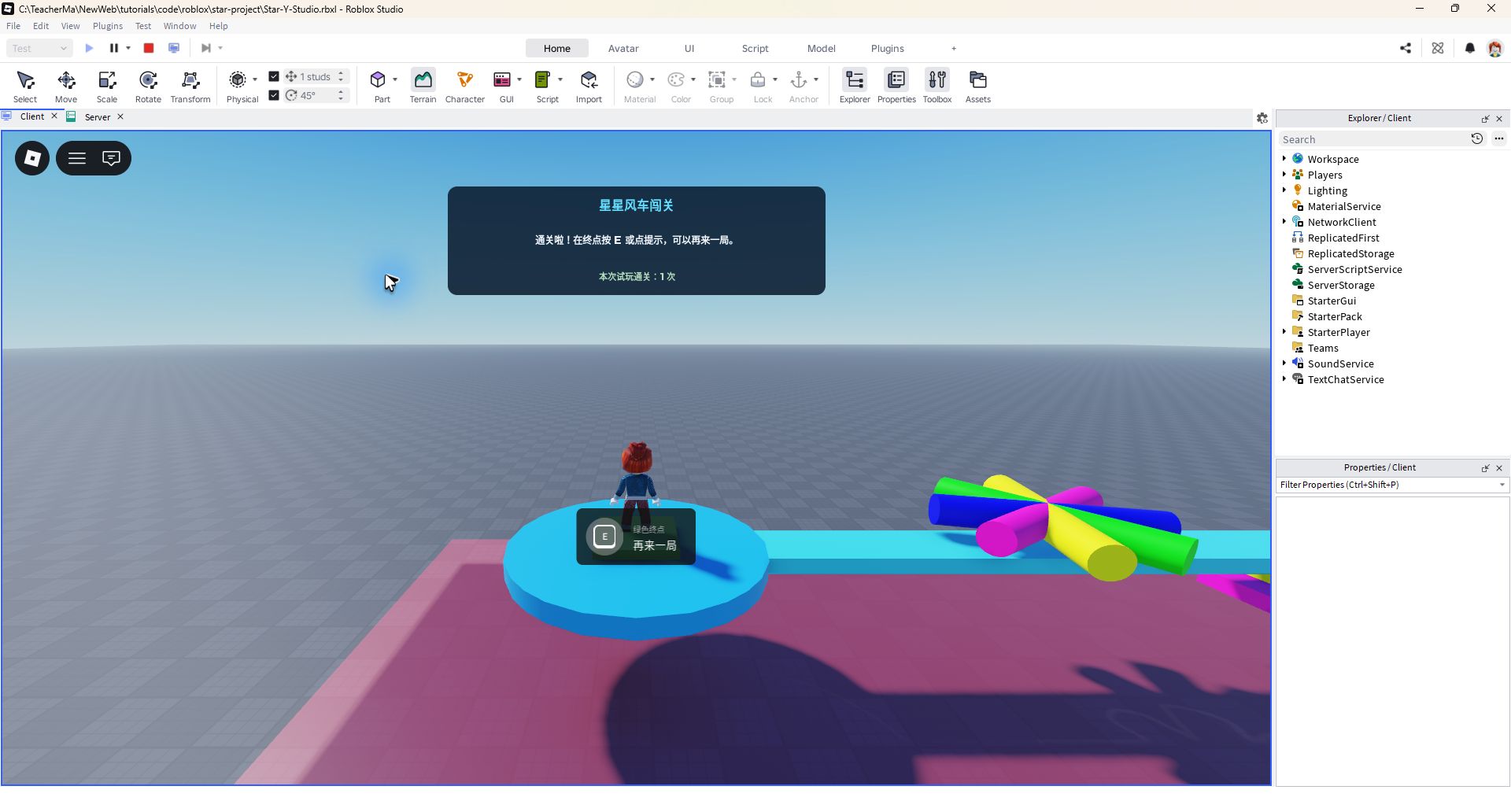
After reaching the end point, press E in the screen prompts, or click on the prompts on your mobile phone to start another round. The server confirms that you have cleared the level before reloading the character. The number of clearances for this trial will be retained and will be cleared after you leave or Stop.
The whole program looks a bit long and can be read in four times: first look for "start", then look for "end", then look at "fall", and finally look at "blade inspection". It's easier to track one thing at a time than to stare at all the code together.
Expand the complete code: StarGame · Ordinary Script is placed in ServerScriptService
-- 普通 Script,名字 StarGame,放在 ServerScriptService 里面。
local Players = game:GetService("Players")
local RunService = game:GetService("RunService")
local course = workspace:WaitForChild("StarCourse")
local spawn = course:WaitForChild("SpawnPad")
local startPad = course:WaitForChild("StartPad")
local finishPad = course:WaitForChild("FinishPad")
local killPlane = course:WaitForChild("KillPlane")
local star = course:WaitForChild("star")

local function findPlayer(part)
    local character = part:FindFirstAncestorOfClass("Model")
    if not character then return nil, nil end
    local humanoid = character:FindFirstChildOfClass("Humanoid")
    local player = Players:GetPlayerFromCharacter(character)
    if not player or not humanoid or humanoid.Health <= 0 then
        return nil, nil
    end
    return player, humanoid
end

local function setupPlayer(player)
    player.RespawnLocation = spawn
    player:SetAttribute("CourseState", "Ready")
    player:SetAttribute("Finishes", 0)
    local function setupCharacter(character)
        local humanoid = character:WaitForChild("Humanoid")
        local root = character:WaitForChild("HumanoidRootPart")
        if player.Character ~= character then return end
        player:SetAttribute("CourseState", "Ready")
        character:PivotTo(spawn.CFrame * CFrame.new(0, 4, 0))
        root.AssemblyLinearVelocity = Vector3.zero
        root.AssemblyAngularVelocity = Vector3.zero
        humanoid.Died:Connect(function()
            if player.Character == character then
                player:SetAttribute("CourseState", "Oops")
            end
        end)
    end
    player.CharacterAdded:Connect(setupCharacter)
    if player.Character then task.spawn(setupCharacter, player.Character) end
end
Players.PlayerAdded:Connect(setupPlayer)
for _, player in ipairs(Players:GetPlayers()) do setupPlayer(player) end

startPad.Touched:Connect(function(part)
    local player = findPlayer(part)
    if player and player:GetAttribute("CourseState") == "Ready" then
        player:SetAttribute("CourseState", "Playing")
    end
end)

finishPad.Touched:Connect(function(part)
    local player = findPlayer(part)
    if player and player:GetAttribute("CourseState") == "Playing" then
        -- 先改变状态,再加次数;多只脚同时碰到也只算一次。
        player:SetAttribute("CourseState", "Finished")
        player:SetAttribute("Finishes", (player:GetAttribute("Finishes") or 0) + 1)
    end
end)

killPlane.Touched:Connect(function(part)
    local player, humanoid = findPlayer(part)
    if player then humanoid.Health = 0 end
end)

finishPad:WaitForChild("ReplayPrompt").Triggered:Connect(function(player)
    if player:GetAttribute("CourseState") ~= "Finished" then return end
    player:SetAttribute("CourseState", "Ready")
    player:LoadCharacterAsync()
end)

-- 星星由 PivotTo 改位置:用重叠查询找叶片中的角色,不只依赖 Touched。
local blades = {}
if star:IsA("BasePart") then
    table.insert(blades, star)
else
    for _, item in ipairs(star:GetChildren()) do
        if item:IsA("BasePart") and string.match(item.Name, "^Blade") then
            table.insert(blades, item)
        end
    end
end
assert(#blades > 0, "star 里面没有找到 Blade 叶片,请检查名称和层级。")
local query = OverlapParams.new()
query.FilterType = Enum.RaycastFilterType.Include
local elapsed = 0
RunService.Heartbeat:Connect(function(deltaTime)
    elapsed = elapsed + deltaTime
    if elapsed < 0.05 then return end
    elapsed = 0
    local characters = {}
    for _, player in ipairs(Players:GetPlayers()) do
        if player.Character then table.insert(characters, player.Character) end
    end
    query.FilterDescendantsInstances = characters
    for _, blade in ipairs(blades) do
        for _, part in ipairs(workspace:GetPartsInPart(blade, query)) do
            local player, humanoid = findPlayer(part)
            if player then humanoid.Health = 0 end
        end
    end
end)
You cannot pass the level before starting; the same round is not counted repeatedly; you can rebirth if you touch the blade or fall.
Next step: Add screen prompt →09·Add screen prompts
Give players a small window that will report progress
Your Goal at This StopShow the current state, the next objective and the number of wins on screen.
If the player has cleared the level but the screen says nothing, happiness is like a message that has not been sent. We add a small window to tell the player the results that the game already knows.
- Find StarterPlayerScripts and insert LocalScript.
- Name StarHUD and copy the complete code.
- Observe the prompt after playing, and play through it again to see how it changes.
In StarterPlayer > StarterPlayerScripts create a new LocalScript, Name StarHUD, copy this section code. Here's the LocalScript, which handles the player's own screen.
Four states, four reminders
HUD is the prompt interface in the game screen. When preparing, it reminds you to step on the blue pad; when passing a level, it reminds you to avoid the blades; when failing, it tells you to go back to the starting point; when passing a level, it prompts you to play again. Below are the playthrough times for this trial.
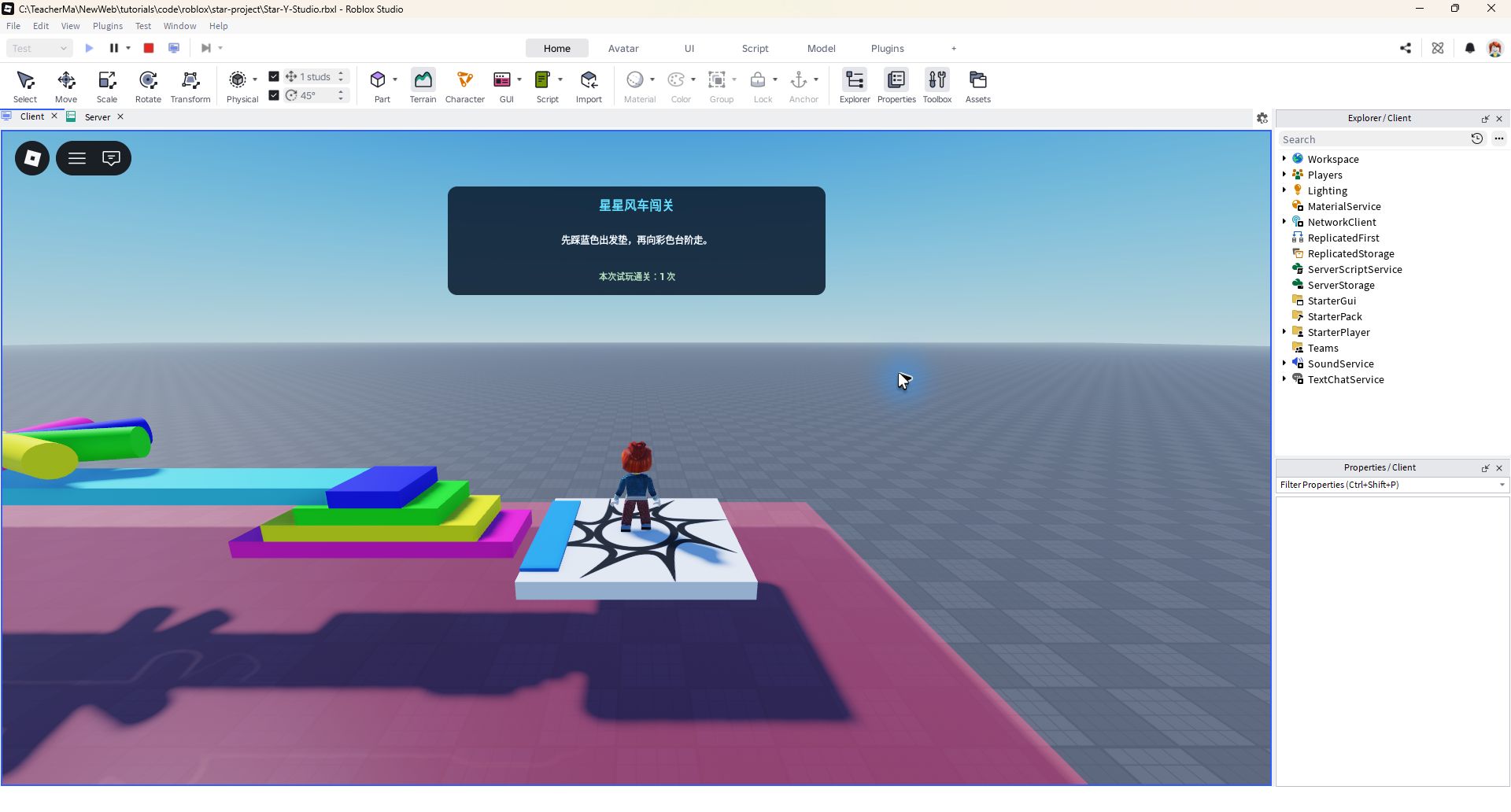
The server is like a referee, first recording CourseState and Finishes. The HUD is like a small scoreboard on the sidelines. It reads your two values and then displays the text. The friend's window reads the friend's progress, and both of them can see their own progress.
Change the screen and check again
The window is placed in proportion to the screen width, and the maximum width is limited, and the text can be wrapped. First read it clearly on the computer, and then use the Studio device to simulate looking at the mobile phone: does the prompt block the front, and are the words crowded together?
If you want to change the sentence to congratulate you for completing the customs, find Finished in messages and only change the Chinese in the quotation marks. For example, "Arrived! Another game?" Keep the status names of Ready, Playing, Oops, and Finished, and they must be consistent with the game rules.
Expand the complete code: StarHUD · LocalScript is placed in StarterPlayerScripts
-- LocalScript,名字 StarHUD,放在 StarterPlayer > StarterPlayerScripts。
local Players = game:GetService("Players")
local player = Players.LocalPlayer
local playerGui = player:WaitForChild("PlayerGui")
local old = playerGui:FindFirstChild("StarCourseHUD")
if old then old:Destroy() end

local screen = Instance.new("ScreenGui")
screen.Name = "StarCourseHUD"
screen.ResetOnSpawn = false
screen.Parent = playerGui
local panel = Instance.new("Frame")
panel.AnchorPoint = Vector2.new(0.5, 0)
panel.Position = UDim2.new(0.5, 0, 0, 12)
panel.Size = UDim2.new(0.88, 0, 0, 138)
panel.BackgroundColor3 = Color3.fromRGB(12, 29, 49)
panel.BackgroundTransparency = 0.12
panel.Parent = screen
local limit = Instance.new("UISizeConstraint")
limit.MaxSize = Vector2.new(480, 138)
limit.Parent = panel
local corner = Instance.new("UICorner")
corner.CornerRadius = UDim.new(0, 12)
corner.Parent = panel

local function label(name, y, height, size, color)
    local text = Instance.new("TextLabel")
    text.Name = name
    text.Position = UDim2.new(0, 14, 0, y)
    text.Size = UDim2.new(1, -28, 0, height)
    text.BackgroundTransparency = 1
    text.TextColor3 = color
    text.Font = Enum.Font.GothamBold
    text.TextSize = size
    text.TextWrapped = true
    text.Parent = panel
    return text
end
local title = label("Title", 8, 30, 22, Color3.fromRGB(100, 222, 255))
title.Text = "星星风车闯关"
local message = label("Message", 40, 54, 17, Color3.fromRGB(243, 248, 255))
local count = label("Count", 101, 25, 15, Color3.fromRGB(181, 225, 190))
local messages = {
    Ready = "先踩蓝色出发垫,再向彩色台阶走。",
    Playing = "避开风车叶片,沿桥走到绿色终点。",
    Oops = "哎呀!碰到叶片或掉下去了,回起点再试一次。",
    Finished = "通关啦!在终点按 E 或点提示,可以再来一局。",
}
local function update()
    local state = player:GetAttribute("CourseState") or "Ready"
    message.Text = messages[state] or messages.Ready
    count.Text = "本次试玩通关:" .. tostring(player:GetAttribute("Finishes") or 0) .. " 次"
end
player:GetAttributeChangedSignal("CourseState"):Connect(update)
player:GetAttributeChangedSignal("Finishes"):Connect(update)
update()
When starting, failing, or clearing a level, the HUD will display corresponding prompts; clearing the same round will only increase once.
Next step: Ask friends to try →10 · Ask a friend to try it out
Now, it’s your turn to find loopholes
Your Goal at This StopPlay through the round from start to finish, also examining what happens when you make a deliberate mistake.
People who play games have a special ability: they can take the initiative to find out where problems may arise in the game. Today you become a tester. First play a game as usual, and then deliberately make a few "naughty moves".
Check rotation first, then check rules
Look at the stars first: Has the center moved? Are the four wires turned together? If the entire star is circling in the distance, check the model axis; if only one cylinder is busy, check whether the parent object of StarSpin is a star.
Rules for retry: run to the end point before stepping on the starting pad; have passed the level, touch the end point back and forth several times; touch the blade once, and then take the initiative to fall down once. Write "what should happen" and "what actually happens" together.
If two people play at the same time, each should count
Ask your teacher to start a two-player test. When A touches a blade, B should keep moving. When B wins, A's count must not increase. Then each player should replay. This checks that their states are kept separate.
When you see the red error message in Output, read the first one and find the script name and line number written by it. If you can't find the object, just check the name and level in Explorer; don't change five places at once, you won't even know which one worked after the change.
Finally, use the mobile phone to simulate the buttons and prompts. If conditions permit, try it again with a real device. Leave a clear record in the test sheet: "Which step did the problem occur, what did I change, and what happened after retesting."
The project has been checked in Studio's single-player Play mode for rotation, starting, counting the finish once, both failure conditions, respawning and replaying with E. Continue with the two-player and mobile tests below and record your results.
| Test action | What should happen | Your Test Record |
|---|---|---|
| Play observation star | Rotate around Y, the center does not move, and the four roots move together | Pass / Issue |
| SPEED is set to 30, 60, -60, 0 | slow down, default, reverse, stop | Actual action seen |
| Touch FinishPad without stepping on StartPad | Unable to register for customs clearance | Whether the number of times has not changed |
| Arrive at end point after normal departure | Finished, the number of times plus one | Is HUD updated? |
| The same game repeatedly touches the end point | No repeated counting | Try both left and right feet |
| Hit the blade / fall below | Failure, return to SpawnPad | Two kinds of failures are tried separately. |
| Use ReplayPrompt After Winning | Return to the starting point and play the next round | The number of times is retained until the end of this trial |
| Two players start, fail, and pass levels respectively. | Respective status and times do not cover each other | Observation records of two people |
| Mobile phone simulation and self-shot game screen | Words can be read, roads can be seen, and operation prompts are available | Device and Screenshot Name |
Each of the following items has actual test results; the problems found have been corrected and tried again.
Next step: Save your work →11 · Save your work
You Won — and You Are the Game's Creator!
Your Goal at This StopLeave behind projects that can continue to be edited, your own screenshots and a clear introduction to your work.
When a friend walks all the way from the white platform to the green end point, what you make is more than just a few building blocks. You chart the course, let the stars turn, and decide when to start and when to try again.
Press Stop, save the editable Studio project, and then reopen it for a trial run. Leave three screenshots of your own game: the birth platform and stairs, the spinning stars, and the prompt window after completing the level. Screenshots should be able to show what step you actually took.
It is enough to write three sentences for the work: the first sentence introduces the gameplay; the second sentence explains how the stars rotate around Y; the third sentence writes what you have changed. For example, "I changed the steps to the color of the night sky and adjusted the windmill speed to 30° per second to make it easier for friends who are playing for the first time to pass."
Put the project, code, screenshots and test sheets into the same work folder. When you open it later, you will know what this version can do and which ideas are still left for the next version.
Choose only one goal when upgrading: make a more special blade, add a branching route, or add a timer. Save v2 first and then start changing. The next time your friend says "just one more game," you'll have something new to give him.
- Editable Studio project and accompanying code.
- Three actual screenshots of birth, star rotation, and HUD clearance.
- A filled-in test form.
- A three-sentence description of the work, as well as small goals for the next edition.
Save the project, actual screenshots and test records, and be able to explain why the stars revolve around Y.
GOAL! Work completedProject Files · Copy, Download and Review
Where is the code installed? Check the table once.
| File | Location | Purpose |
|---|---|---|
| 01-CreateStarCourse.luau | Command Bar, edit mode is executed once | First insert the saved star and Stair; edit mode is set up once |
| 02-StarSpin.server.luau | Workspace > StarCourse > star > StarSpin | Normal Script; let the entire group of stars rotate around world Y |
| 03-StarGame.server.luau | ServerScriptService > StarGame | Ordinary Script; start, fail, pass and retry |
| 04-StarHUD.client.luau | StarterPlayer > StarterPlayerScripts > StarHUD | LocalScript; display own prompt card |
The file suffix is used to indicate the server or local script; create a new corresponding type according to the table in Studio, and copy the file content into it. The build file is only executed once in edit mode. The compressed package also contains Star-Y-Studio.rbxl that can be opened directly; the project has installed scripts, just press Play after opening. When building it yourself, install it according to the table to avoid repeating scripts.