Before starting
Complete Lesson 23, save as Lesson24; disable the old Patrol to avoid two scripts commanding the robot at the same time.
 PixelCraft
Roblox Studio · Lesson 24
Use PathfindingService to calculate waypoints and handle jumps, nowhere to go, and blocked paths.
Course overview
We saw with our own eyes in the last class that walking directly towards the target may be blocked by a wall. PathfindingService will calculate a series of waypoints based on the traversable area, and then Humanoid will walk through them one by one.
Planning and walking success are still two things. The walls move, the roads can be blocked. You have to let the robots admit to failure, not keep stuck.
Complete Lesson 23, save as Lesson24; disable the old Patrol to avoid two scripts commanding the robot at the same time.
The robot bypasses a static wall and walks to the Goal; it stops safely when there is no path or it is blocked on the way.
Ability to check PathStatus, handle jump waypoints, and output completion messages at the endpoint.
Learning route
Every time a small step is completed, it is tested. Say what you expect to see first, and then use Play and Output to check it. Don't rush to write all the code at once.
Keep the PatrolBot and put a wall in front of it so that at least one of the left and right sides can go around. Don’t stuff your target into a closed box and expect the algorithm to walk through the wall.
AgentRadius and AgentHeight in CreatePath describe the space required by the robot. If a passage is too narrow, the planner should not consider it a passable route.
Roadpoint contains position and action. When Action is Jump, let Humanoid. Jump=true move to the road point.
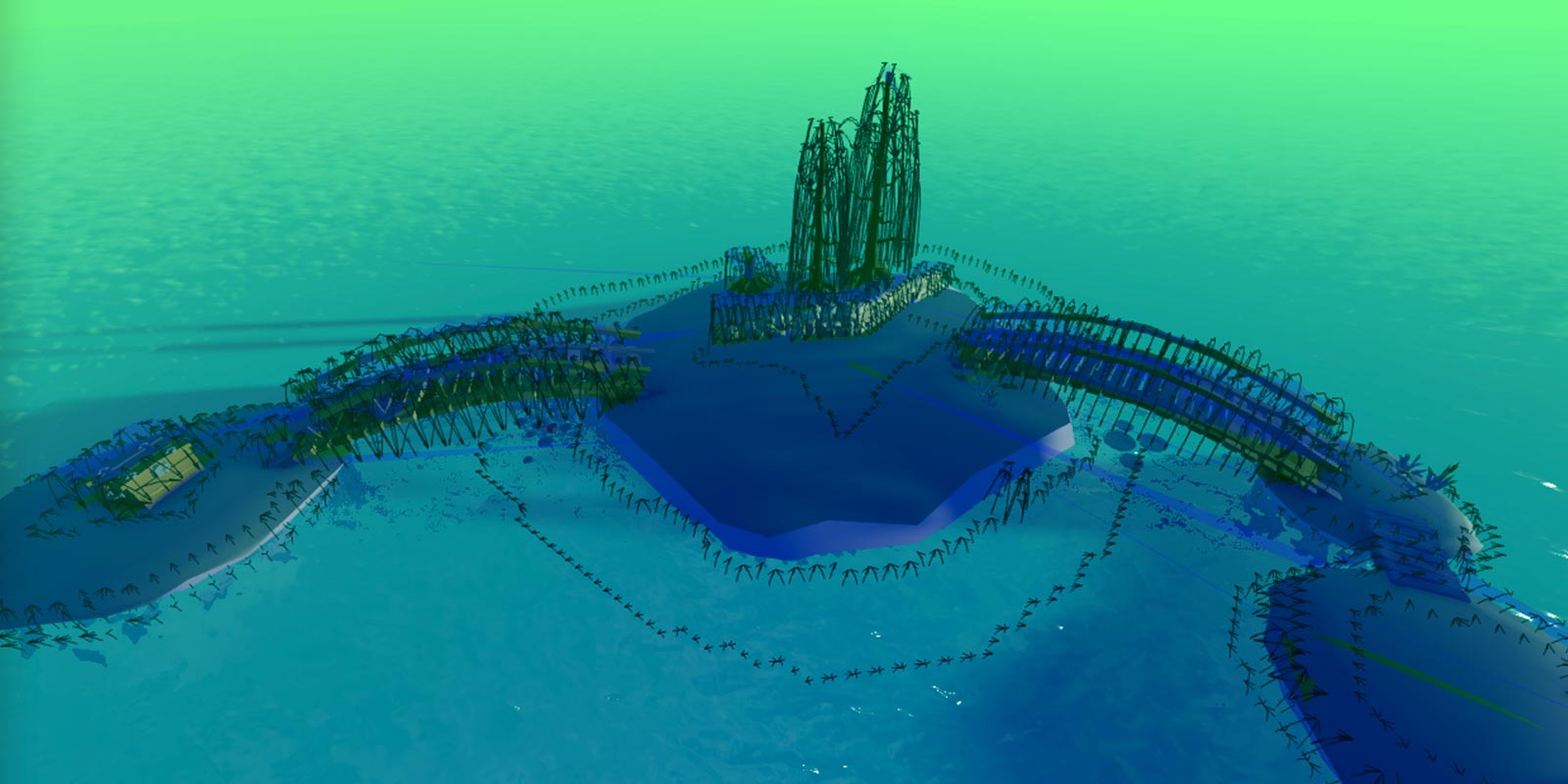
Studio's visualization options can display Navigation Mesh. It helps you see where the system thinks you can walk, rather than just seeing where the surface of the model seems to be connected.
A reliable robot does not need to succeed every time, but it must let you know why it stopped. No available paths, movement timeouts, and blocked paths are all normal situations that need to be handled.
Step by step
Keep the PatrolBot and put a wall in front of it so that at least one of the left and right sides can go around. Don’t stuff your target into a closed box and expect the algorithm to walk through the wall.
Insert Goal waypoint and disable old Patrol. The same Humanoid receives MoveTo from two scripts at the same time, making the results difficult to understand.
Step by step
AgentRadius and AgentHeight in CreatePath describe the space required by the robot. If a passage is too narrow, the planner should not consider it a passable route.
ComputeAsync may go wrong, so wrap it with pcall; after the calculation, you also need to check whether path.Status is Success. The success of pcall only means that the call did not throw an error, but it does not mean that there is a way.
Step by step
Roadpoint contains position and action. When Action is Jump, let Humanoid. Jump=true move to the road point.
Blocked only cares about the current or rear waypoints that will be passed. If the route ahead is blocked, this example stops and prompts for a retest; it does not implement dynamic re-planning to avoid turning the introductory course into chasing AI.
local PathfindingService = game:GetService("PathfindingService")
local bot = workspace:WaitForChild("PatrolBot")
local humanoid = bot:WaitForChild("Humanoid")
local root = bot:WaitForChild("HumanoidRootPart")
local goal = workspace:WaitForChild("Goal")
root:SetNetworkOwner(nil)
humanoid.WalkSpeed = 8
local path = PathfindingService:CreatePath({
    AgentRadius = 2,
    AgentHeight = 5,
    AgentCanJump = true,
})
local ok, message = pcall(function()
    path:ComputeAsync(root.Position, goal.Position)
end)
if not ok or path.Status ~= Enum.PathStatus.Success then
    warn("No usable path:", message, path.Status.Name)
    return
end

local nextIndex = 2
local blocked = false
local connection = path.Blocked:Connect(function(index)
    if index >= nextIndex then
        blocked = true
        humanoid:MoveTo(root.Position)
    end
end)
local finished = true
local waypoints = path:GetWaypoints()
for index = 2, #waypoints do
    nextIndex = index
    if blocked or humanoid.Health <= 0 then finished = false; break end
    local waypoint = waypoints[index]
    if waypoint.Action == Enum.PathWaypointAction.Jump then humanoid.Jump = true end
    humanoid:MoveTo(waypoint.Position)
    local reached = humanoid.MoveToFinished:Wait()
    if not reached or blocked then finished = false; break end
end
connection:Disconnect()
if finished then print("Reached goal") else warn("Route interrupted; test a new route") end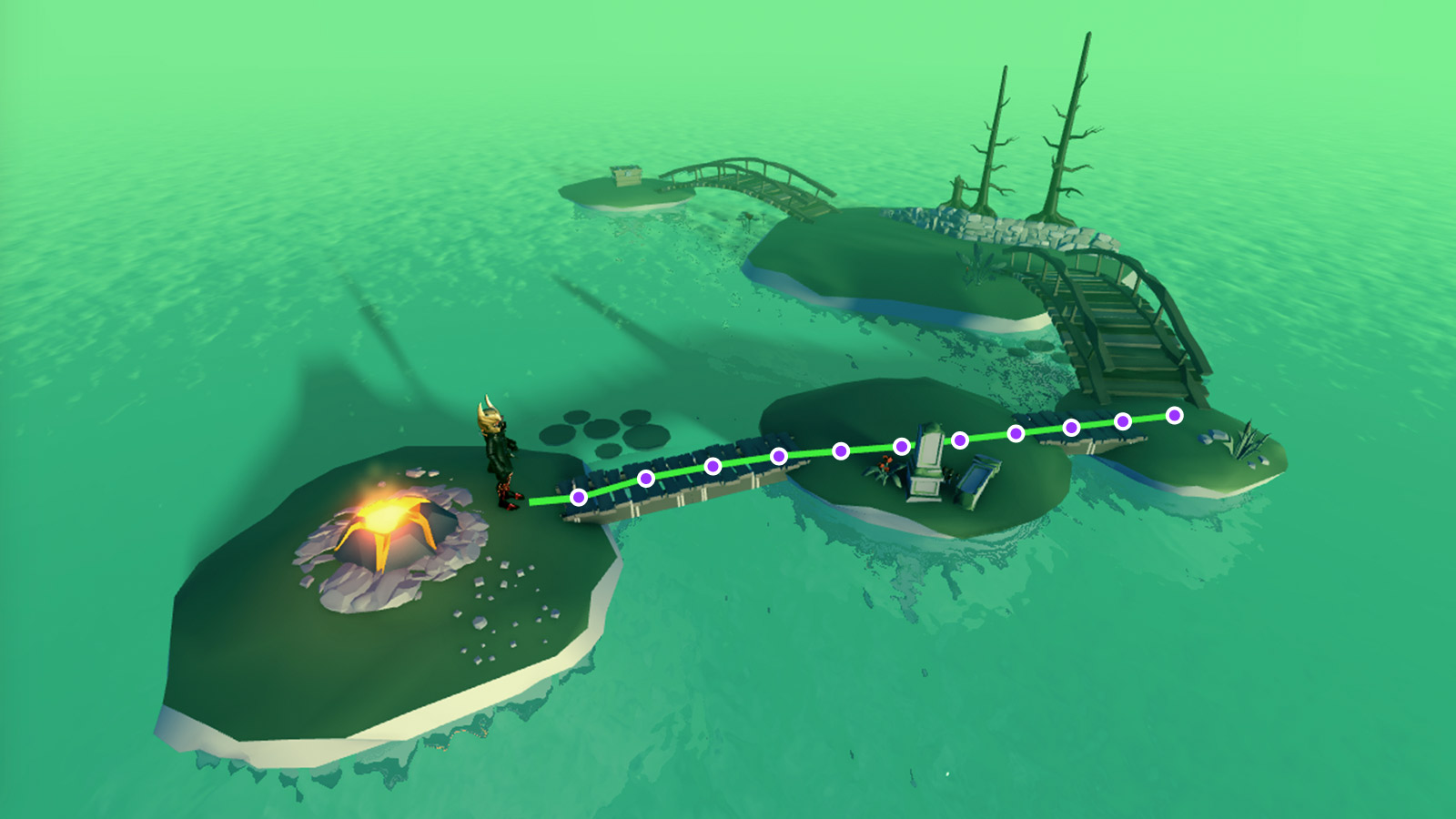
Step by step
Studio's visualization options can display Navigation Mesh. It helps you see where the system thinks you can walk, rather than just seeing where the surface of the model seems to be connected.
The colored areas and waypoints in the picture belong to official pathfinding examples. Your wall is simpler than Goal, but checked in the same way: there's enough room to go around it.
Step by step
A reliable robot does not need to succeed every time, but it must let you know why it stopped. No available paths, movement timeouts, and blocked paths are all normal situations that need to be handled.
This example is suitable for fixed small scenes. Continuously tracking a moving player requires throttling recalculations, canceling old tasks, and handling streaming loads, and you cannot simply call ComputeAsync every frame.
Homework
Leave passages from the left and right sides of the wall respectively, and observe the path selection.
Record a roadless test, a screenshot and an indication of how you repair the map.
Add small steps that can be jumped and observe the Jump waypoint; keep the safe ground below.
Exit questions
No, you also need to check whether path.Status is Success.
Some waypoints require jumping, and only MoveTo may not necessarily complete the action.
No, it will stop and report. Dynamic recalculation is a further feature.
After the task is completed, monitoring is no longer required to avoid retaining expired callbacks.
Explore further
The text code can be copied directly. First confirm the script type, placement, and whether this code is a complete version or a small experiment; do not run multiple versions of the same script superimposed. The source of the interface reference picture has been marked. The object names in the picture may be different from those in this lesson. Please refer to the operation steps.
Download the code and placement instructions for this lesson