Before starting
Explorer, Properties, Output, and Script Editor will open. Create a new Baseplate and save it as Lesson15.
 PixelCraft
Roblox Studio · Lesson 15
Use complete LocalScript to create task cards, digital progress and progress bars, and then use Scale, Offset, AnchorPoint and size constraints to complete mobile phone adaptation.
Course overview
This lesson does not allow you to copy the properties of the concept. You will create a StarterGui, and generate task panels with a complete LocalScript. Press Play and there will be an "Exploration on Energy Island" at the top left corner, target text, progress bar and 1/3.
After completion, you can also change the progress to 0, 2, and 3, and immediately see how the interface changes; then deliberately make a wrong version of the fixed width, and compare the problems solved by Scale, Offset, AnchorPoint, and size constraints.
Explorer, Properties, Output, and Script Editor will open. Create a new Baseplate and save it as Lesson15.
A responsive task HUD created with LocalScript that contains a title, task, progress bar, numeric progress, and completion prompt.
F5 displays 1 / 3 during testing; after changing the code to 3 / 3, the progress bar fills up and displays "Task Complete"; the middle panel of the mobile phone's vertical screen does not exceed the right border.
Learning route
Every time a small step is completed, it is tested. Say what you expect to see first, and then use Play and Output to check it. Don't rush to write all the code at once.
After opening Lesson15 Baseplate, first open Explorer, Properties and Output in the View menu. There is only one acceptance goal today: after pressing F5, a task card will appear in the upper left corner of the player's screen; change the number on the last line from 1 to 3, and the interface will immediately change to the completed state.
ScreenGui and LocalScript are created manually first, and the rest of Frame, TextLabel and progress bar are all generated by code. In this way, you can understand the Explorer hierarchy without getting stuck due to missing a dozen properties.
The following create() is a small factory function: create objects, set properties in batches, and finally specify Parent. The entire HUD is built from this LocalScript, so you can just copy and run it.
Don't continue copying new code now. Make only one change, run it once, and record the results. When engineers adjust the interface, they will push the input to the boundary value, because 0, just completed, and exceeding the total number are most likely to expose errors.
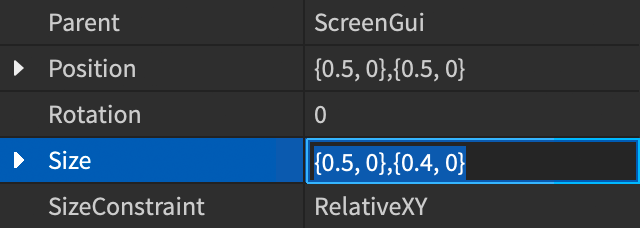
The four numbers of Panel.Size = UDim2.new(0.36, 0, 0, 176) are X Scale, X Offset, Y Scale, Y Offset. The width is taken as 36% of the parent container and the height is fixed at 176 pixels; UISizeConstraint then limits the final width to 280 to 420 pixels.
The normal desktop preview is just the first level. Device Simulator can simulate different screen sizes, orientations and touchscreen environments. During the test, we not only looked at "whether it is displayed", but also checked whether the text was cropped, whether the task card blocked the moving area, and whether the screen went beyond the screen after switching between horizontal and vertical screens.
Step by step
After opening Lesson15 Baseplate, first open Explorer, Properties and Output in the View menu. There is only one acceptance goal today: after pressing F5, a task card will appear in the upper left corner of the player's screen; change the number on the last line from 1 to 3, and the interface will immediately change to the completed state.
Task cards belong to each player's own screen and are therefore placed in the StarterGui. Do not create a Part in the Workspace to pretend to be a HUD; the scene Part will be affected by the camera distance and angle, and the interface in ScreenGui is fixed on the screen.
Step by step
ScreenGui and LocalScript are created manually first, and the rest of Frame, TextLabel and progress bar are all generated by code. In this way, you can understand the Explorer hierarchy without getting stuck due to missing a dozen properties.
LocalScript must be in a location where the player client can run it. In this lesson, we put it into AdventureGui under StarterGui. When Play is pressed, Roblox copies the AdventureGui to the current player's PlayerGui and then runs the HudController.
StarterGui
└─ AdventureGui (ScreenGui)
   └─ HudController (LocalScript)

运行 F5 后,代码会在 PlayerGui 的副本中加入:
AdventureGui
├─ HudController
└─ Panel (Frame)
   ├─ Title (TextLabel)
   ├─ Objective (TextLabel)
   ├─ ProgressTrack (Frame)
   │  └─ ProgressFill (Frame)
   ├─ Count (TextLabel)
   └─ Status (TextLabel)
Step by step
The following create() is a small factory function: create objects, set properties in batches, and finally specify Parent. The entire HUD is built from this LocalScript, so you can just copy and run it.
The renderQuest(1, 3) at the end of the code means "1 has been found, and a total of 3 are needed." renderQuest() updates the task text, numbers, progress bar width and status color at the same time to avoid conflicting displays in the four places.
local gui = script.Parent

-- 方便重复测试:如果旧面板还在,先删除再重建。
local oldPanel = gui:FindFirstChild("Panel")
if oldPanel then
    oldPanel:Destroy()
end

local function create(className, properties, parent)
    local object = Instance.new(className)
    for property, value in pairs(properties) do
        object[property] = value
    end
    object.Parent = parent
    return object
end

local panel = create("Frame", {
    Name = "Panel",
    AnchorPoint = Vector2.new(0, 0),
    Position = UDim2.fromOffset(18, 18),
    Size = UDim2.new(0.36, 0, 0, 176),
    BackgroundColor3 = Color3.fromRGB(16, 24, 40),
    BackgroundTransparency = 0.08,
    BorderSizePixel = 0,
}, gui)

create("UICorner", {
    CornerRadius = UDim.new(0, 14),
}, panel)

create("UIStroke", {
    Color = Color3.fromRGB(93, 126, 180),
    Transparency = 0.35,
    Thickness = 1,
}, panel)

-- 0.36 让宽度跟屏幕变化;约束保证它不会小得难读或大得挡住画面。
local sizeConstraint = create("UISizeConstraint", {
    MinSize = Vector2.new(280, 176),
    MaxSize = Vector2.new(420, 176),
}, panel)

-- 把 false 改成 true,可以故意制造一次“小屏溢出”并观察原因。
local RUN_OVERFLOW_TEST = false
if RUN_OVERFLOW_TEST then
    sizeConstraint.MinSize = Vector2.new(0, 176)
    sizeConstraint.MaxSize = Vector2.new(2000, 176)
    panel.Size = UDim2.fromOffset(700, 176)
end

create("TextLabel", {
    Name = "Title",
    Position = UDim2.fromOffset(18, 12),
    Size = UDim2.new(1, -36, 0, 28),
    BackgroundTransparency = 1,
    Font = Enum.Font.GothamBold,
    Text = "能量岛探险",
    TextColor3 = Color3.fromRGB(255, 255, 255),
    TextSize = 22,
    TextXAlignment = Enum.TextXAlignment.Left,
}, panel)

local objective = create("TextLabel", {
    Name = "Objective",
    Position = UDim2.fromOffset(18, 44),
    Size = UDim2.new(1, -36, 0, 42),
    BackgroundTransparency = 1,
    Font = Enum.Font.Gotham,
    Text = "",
    TextColor3 = Color3.fromRGB(211, 220, 235),
    TextSize = 17,
    TextWrapped = true,
    TextXAlignment = Enum.TextXAlignment.Left,
    TextYAlignment = Enum.TextYAlignment.Top,
}, panel)

local track = create("Frame", {
    Name = "ProgressTrack",
    Position = UDim2.fromOffset(18, 100),
    Size = UDim2.new(1, -92, 0, 14),
    BackgroundColor3 = Color3.fromRGB(48, 61, 82),
    BorderSizePixel = 0,
    ClipsDescendants = true,
}, panel)
create("UICorner", {CornerRadius = UDim.new(1, 0)}, track)

local fill = create("Frame", {
    Name = "ProgressFill",
    Size = UDim2.fromScale(0, 1),
    BackgroundColor3 = Color3.fromRGB(72, 167, 255),
    BorderSizePixel = 0,
}, track)
create("UICorner", {CornerRadius = UDim.new(1, 0)}, fill)

local countLabel = create("TextLabel", {
    Name = "Count",
    AnchorPoint = Vector2.new(1, 0),
    Position = UDim2.new(1, -18, 0, 93),
    Size = UDim2.fromOffset(56, 28),
    BackgroundTransparency = 1,
    Font = Enum.Font.GothamBold,
    Text = "",
    TextColor3 = Color3.fromRGB(255, 255, 255),
    TextSize = 17,
    TextXAlignment = Enum.TextXAlignment.Right,
}, panel)

local statusLabel = create("TextLabel", {
    Name = "Status",
    Position = UDim2.fromOffset(18, 132),
    Size = UDim2.new(1, -36, 0, 26),
    BackgroundTransparency = 1,
    Font = Enum.Font.GothamMedium,
    Text = "",
    TextColor3 = Color3.fromRGB(150, 190, 230),
    TextSize = 15,
    TextXAlignment = Enum.TextXAlignment.Left,
}, panel)

local function renderQuest(current, total)
    total = math.max(total, 1)
    current = math.clamp(current, 0, total)
    local ratio = current / total

    objective.Text = string.format("目标:找到 %d 颗晶石", total)
    countLabel.Text = string.format("%d / %d", current, total)
    fill.Size = UDim2.fromScale(ratio, 1)

    if current == total then
        statusLabel.Text = "任务完成,可以前往出口"
        statusLabel.TextColor3 = Color3.fromRGB(109, 232, 160)
        fill.BackgroundColor3 = Color3.fromRGB(75, 220, 130)
    else
        statusLabel.Text = "继续探索,留意发光的平台"
        statusLabel.TextColor3 = Color3.fromRGB(150, 190, 230)
        fill.BackgroundColor3 = Color3.fromRGB(72, 167, 255)
    end

    print(string.format("[HUD] %d/%d", current, total))
end

renderQuest(1, 3)Step by step
Don't continue copying new code now. Make only one change, run it once, and record the results. When engineers adjust the interface, they will push the input to the boundary value, because 0, just completed, and exceeding the total number are most likely to expose errors.
math.clamp(current, 0, total) limits the abnormal progress to the legal range. Therefore renderQuest(9, 3) will not draw a progress bar that is three times wide, but will be processed as 3 / 3.
-- 只改这一行,然后每次按 F5 检查:
renderQuest(0, 3) -- 空进度
renderQuest(2, 3) -- 三分之二
renderQuest(3, 3) -- 完成状态
renderQuest(9, 3) -- 越界输入会被 math.clamp 修正| Enter | Should see | What does it verify? |
|---|---|---|
| 0, 3 | 0/3, empty progress bar | Start Status |
| 2, 3 | 2 / 3, blue about 67% | Scale can represent proportion |
| 3, 3 | 3/3, green completion prompt | Complete branch |
| 9, 3 | Still 3 / 3 | Transboundary protection |
Step by step
The four numbers of Panel.Size = UDim2.new(0.36, 0, 0, 176) are X Scale, X Offset, Y Scale, Y Offset. The width is taken as 36% of the parent container and the height is fixed at 176 pixels; UISizeConstraint then limits the final width to 280 to 420 pixels.
The progress bar best illustrates the use of Scale. In fill. Size = Udim2. FromScale (rateo, 1) the width of the parent 's chute is two-thirds when it is 2/3. It does not need to know how many pixels there are on a mobile phone. Count uses AncherPoint = (10), so Postion 's X coordinates are fixed to its right edge; when the panel is wide, the number remains on the right side.
-- 完整程序中已有这个实验开关:
local RUN_OVERFLOW_TEST = true
if RUN_OVERFLOW_TEST then
    sizeConstraint.MinSize = Vector2.new(0, 176)
    sizeConstraint.MaxSize = Vector2.new(2000, 176)
    panel.Size = UDim2.fromOffset(700, 176)
end

-- 测完改回 false,再测试正常的响应式方案。| Writing method | Meaning | The location of this lesson |
|---|---|---|
| UDim2.fromOffset(18, 18) | 18 pixels from left and upper | Panel.Position |
| UDim2.new(0.36, 0, 0, 176) | Width 36%, Height 176 pixels | Panel.Size |
| UDim2.fromScale(ratio, 1) | Width is proportional to progress, height is 100% | ProgressFill.Size |
| AnchorPoint = Vector2.new(1, 0) | Align the coordinates with the upper right corner of the object | Count |
Step by step
The normal desktop preview is just the first level. Device Simulator can simulate different screen sizes, orientations and touchscreen environments. During the test, we not only looked at "whether it is displayed", but also checked whether the text was cropped, whether the task card blocked the moving area, and whether the screen went beyond the screen after switching between horizontal and vertical screens.
If you cannot see Device Simulator temporarily in your Studio, search for New Device Simulator in File → Beta Features, enable it and restart Studio as prompted. Roblox will update the Studio interface, so the button location may change. Finding by function name is more reliable than memorizing the icon location.
| Phenomenon | Most likely cause | Check now |
|---|---|---|
| No HUD at all | Script type or location error | It must be LocalScript under AdventureGui and tested with F5 |
| Output reports syntax error | End, brackets or quotation marks are missing when copying | Double-click the red error and check the corresponding line of the complete code |
| Beyond the right side on the mobile phone | Still using 700 pixel failed example | Restore 0.36 width and UISizeConstraint |
| Numbers run outside the panel | Count's AnchorPoint is changed to 0,0 | Restore Vector2.new(1, 0) |
| The progress bar is always empty. | renderQuest is not called or current is 0 | Keep the last line renderQuest(1, 3) |
| Panel disappears after Stop | This is the object created when the code runs. | OK; HudController will be rebuilt on next F5 |
Homework
Change the title to your own game name, replace the "spar" with keys, gold coins or robot parts, and change the total number to 5.
Save a screenshot of Desktop and Phone portrait screens, and circle the panel border, progress bar and right side count.
When current is 0, change the Status to "The crystal has not been found yet" and the color to orange; from 1 to total-1, the exploration prompt is still displayed.
Exit questions
The HUD belongs to the current player's screen. LocalScript will run on the player client and operate on that player's PlayerGui.
0.36 is 36% of the parent container's width; 176 is a fixed height pixel offset.
Position's coordinates are aligned with Count's upper right corner, so when the panel width changes, the count remains attached to the right.
math.clamp clamps current between 0 and total, with a final scale of at most 1.
No. It is created by LocalScript in the PlayerGui copy; it will be regenerated next time you F5. For long-term modification, the HudController in the StarterGui should be modified.
Explore further
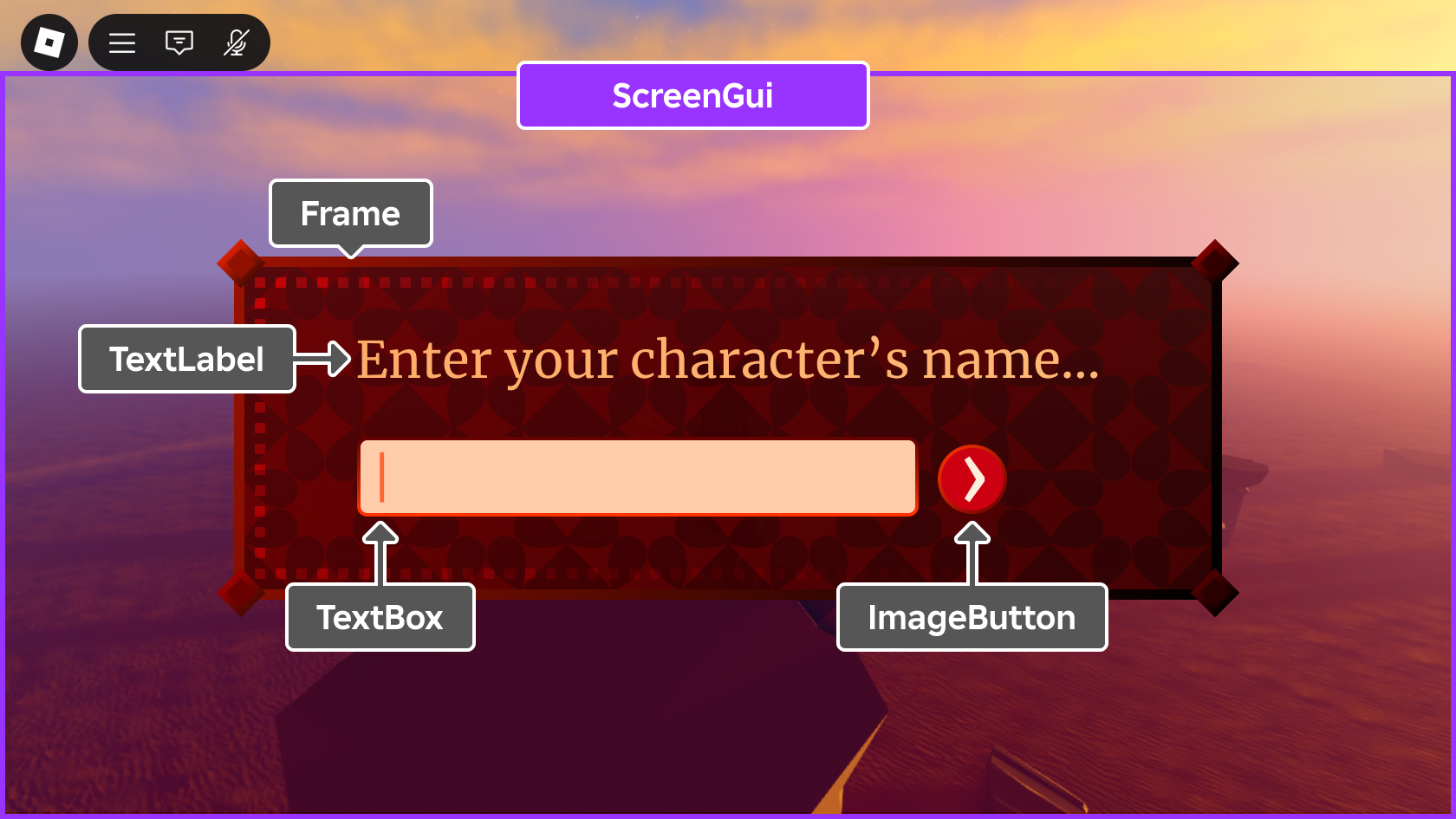
The text code can be copied directly. First confirm the script type, placement, and whether this code is a complete version or a small experiment; do not run multiple versions of the same script superimposed. The source of the interface reference picture has been marked. The object names in the picture may be different from those in this lesson. Please refer to the operation steps.