Before starting
Objects are selected, Properties are modified, and versions are saved. Create a new Lesson14 Baseplate.
 PixelCraft
Roblox Studio · Lesson 14
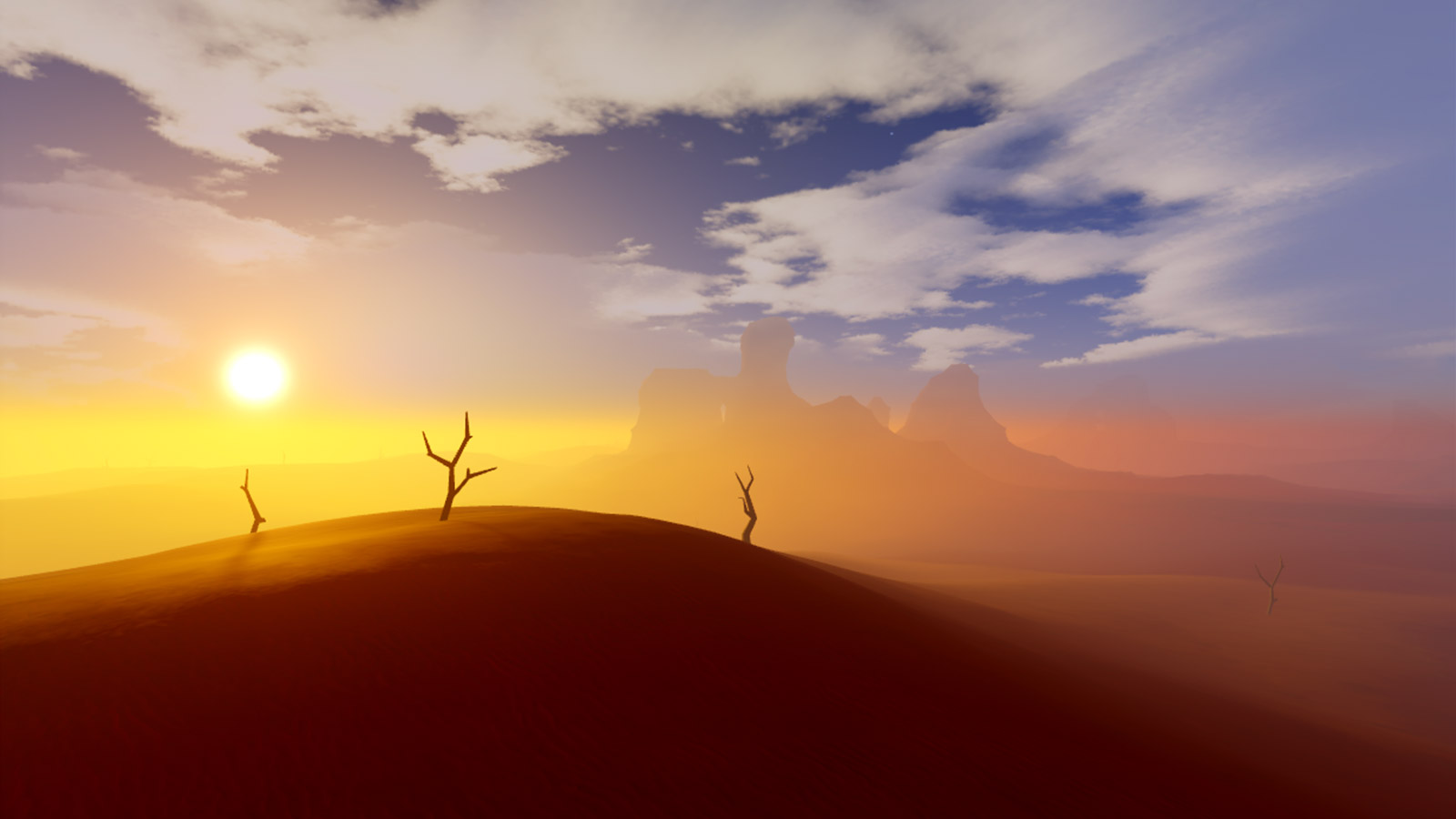
Combined with ClockTime, Atmosphere and PointLight, create a night scene with atmosphere and clear visibility.
Course overview
Lighting is not just decoration, it also tells players where is safe and where to go. In this lesson, we will not write complicated scripts, but use several observable attributes to complete a scene design.
A beautiful screenshot does not equal a fun level. You need to repeatedly look at the path from your character's height to make sure that the night doesn't hide the steps and exits together.
Objects are selected, Properties are modified, and versions are saved. Create a new Lesson14 Baseplate.
Night camp with street lights, soft mist and clear exits.
The difference between global light and local light can be explained; the next road can be seen from the point of birth.
Learning route
Every time a small step is completed, it is tested. Say what you expect to see first, and then use Play and Output to check it. Don't rush to write all the code at once.
Build a cabin, three road signs and the end platform. Make them visible in the daytime first, then start coloring them at night.
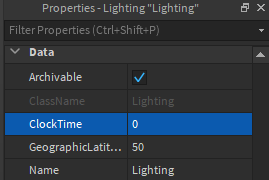
ClockTime uses a number of hours from 0–24. 18 is near evening, and 20 is closer to night; the specific look and feel is also affected by other lighting settings of the scene.
The Neon material makes the lampshade look bright, but to illuminate the road, PointLight is also needed. PointLight emits light in all directions, while SpotLight is more like a flashlight shining in one direction.
Looking for Atmosphere in Lighting. If it already exists, adjust it directly and do not superimpose multiple objects of the same type. Density controls the density of the fog, start with a very light effect.
From God's point of view, it's easy to see the exit, but from a role perspective it can be covered on the roof. Please walk, not just in the editor.
Step by step
Build a cabin, three road signs and the end platform. Make them visible in the daytime first, then start coloring them at night.
This lesson only uses Parts and built-in light objects created by you. There is no need to import external models, skyboxes or paid materials.
Step by step
ClockTime uses a number of hours from 0–24. 18 is near evening, and 20 is closer to night; the specific look and feel is also affected by other lighting settings of the scene.
Brightness affects the intensity of global light, and Ambient affects the ambient color of shadow areas. Do not change ten numbers at the same time, otherwise it will be difficult to know which parameter makes the screen black.
| Properties | Try this value first | What to Observe |
|---|---|---|
| ClockTime | 19 | Sky and Sun Direction |
| Brightness | 2 | Overall light and shade |
| Ambient | 70, 80, 105 | Do the steps in the shadow be identifiable? |
Step by step
The Neon material makes the lampshade look bright, but to illuminate the road, PointLight is also needed. PointLight emits light in all directions, while SpotLight is more like a flashlight shining in one direction.
Place the PointLight inside the lampshade Part. Don't wrap the lights completely in opaque walls and wonder why they can't be seen.
Step by step
Looking for Atmosphere in Lighting. If it already exists, adjust it directly and do not superimpose multiple objects of the same type. Density controls the density of the fog, start with a very light effect.
Set Density to 0.2 and Haze to 1 as a starting point. The effect will be different under different map scales. Your judgment is based on "can you still see the next foothold clearly?"
Step by step
From God's point of view, it's easy to see the exit, but from a role perspective it can be covered on the roof. Please walk, not just in the editor.
Colours can't be the only hint. Add a door frame or arrow with a clear shape to the exit, and you can find directions even if people don't know the difference between red and green.
Homework
Save two versions of evening and night, and compare which one is easier to see the road clearly.
Write a sentence for each light's purpose: to illuminate an entrance, indicate a turn, or mark a destination.
Let the security camp use a warm light and a long road sign a cold light, while retaining a shape tip.
Exit questions
Does not replace actual light objects. Can join PointLight or SpotLight.
Not necessarily, fog may block level information. You should first ensure that the player can see the road clearly.
This would allow the results to be linked to specific parameters and could easily be reversed.
If that's not enough, you have to actually walk from the player's perspective and check for occlusion, turns and footholds.
Explore further
The text code can be copied directly. First confirm the script type, placement, and whether this code is a complete version or a small experiment; do not run multiple versions of the same script superimposed. The source of the interface reference picture has been marked. The object names in the picture may be different from those in this lesson. Please refer to the operation steps.
Download the code and placement instructions for this lesson