Before starting
Touched and busy will be used. Create a new Lesson12 and learn that Position is a Vector3.
 PixelCraft
Roblox Studio · Lesson 12
Use TweenService, TweenInfo and Completed to make a door that can be opened, waited for, and closed.
Course overview
Modifying Position directly will cause the door to jump to the new position instantly. TweenService is responsible for calculating the intermediate process, allowing you to specify "from here to there, complete in one second."
We first use touch to open the door, and then switch to active buttons in the next lesson. The door is just a visual and collision exercise and does not carry passengers, nor does it serve as a safety permission boundary.
Touched and busy will be used. Create a new Lesson12 and learn that Position is a Vector3.
After touching the switch, the door is raised for one second, maintained for two seconds and dropped for one second, during which it will not be activated again.
The switch will not shake; each time the door closes, it returns to the same position and does not rise higher.
Learning route
Every time a small step is completed, it is tested. Say what you expect to see first, and then use Play and Output to check it. Don't rush to write all the code at once.
The door should be Anchored=true, so gravity does not compete to control it. Collapse closes during the opening and closes for a while, avoiding animating the character.
TweenService:Create (object, TweenInfo, target table) You need to know who to change, how to change, and what to change. Keys in the target table must be real property names, such as Position.
Completed:Wait() Wait for this animation to end before starting to maintain or close. It's clearer than randomly guessing the duration of a task.wait.
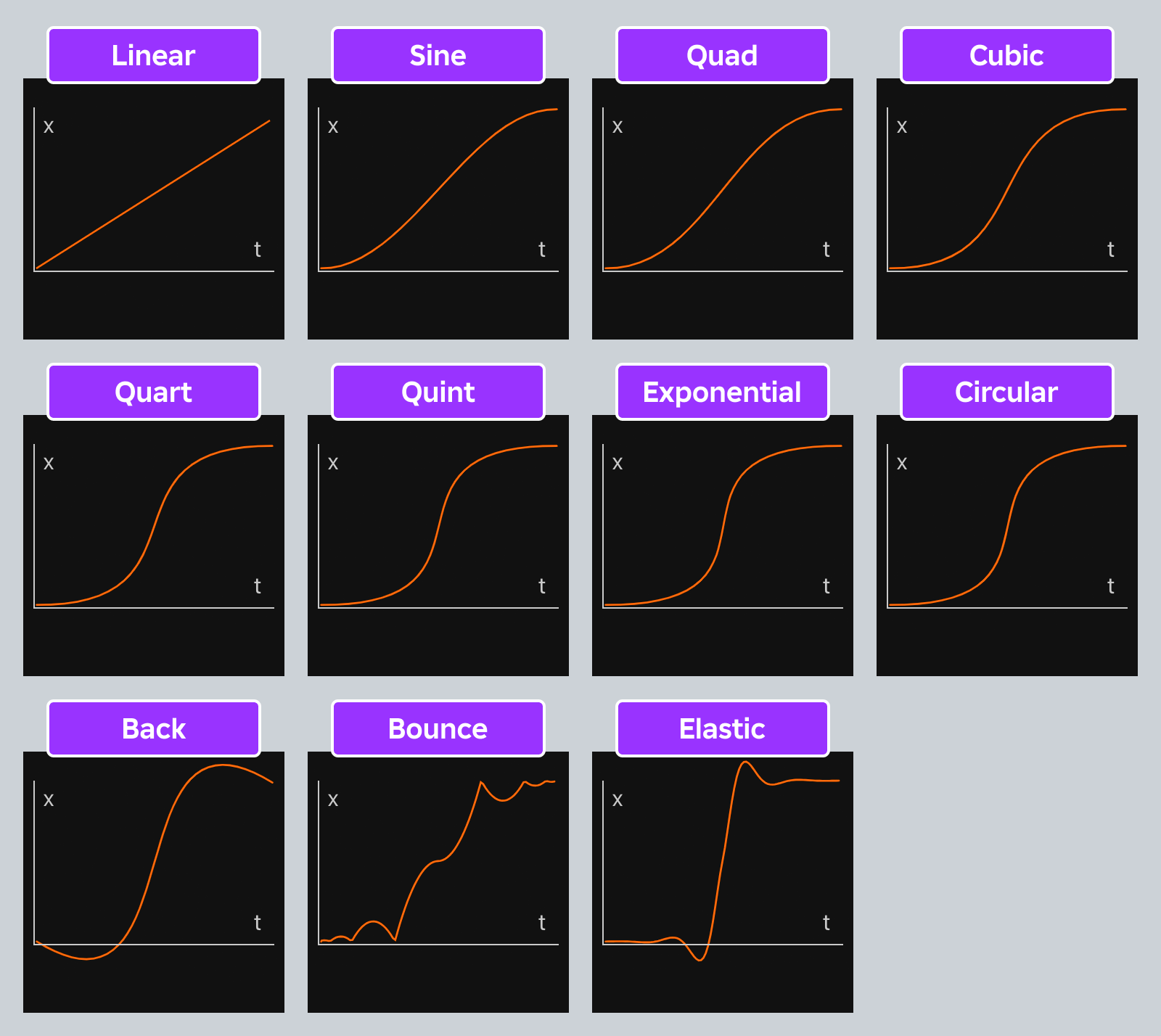
Change the duration from 1 to 2 and the door will be slower. Change Sine to Linear to make the change speed more even. Only change one item at a time and you will know where the difference comes from.
It is not enough to open the door once and look good. It should also return to the correct position after five consecutive runs. The position is getting more and more offset, usually indicating that the starting point or end point is re-accumulated during the cycle.
Step by step
The door should be Anchored=true, so gravity does not compete to control it. Collapse closes during the opening and closes for a while, avoiding animating the character.
Do not stand in the final closing position when practicing. The real door also needs to detect whether there is someone at the door. In this lesson, we will first make the complete animation cycle clear.
Step by step
TweenService:Create (object, TweenInfo, target table) You need to know who to change, how to change, and what to change. Keys in the target table must be real property names, such as Position.
TweenInfo.new(1, Enum.EasingStyle.Sine, Enum.EasingDirection.InOut) means that it takes one second to complete, and the start and end are relatively soft. Create only prepares the animation, and Play will start.
Step by step
Completed:Wait() Wait for this animation to end before starting to maintain or close. It's clearer than randomly guessing the duration of a task.wait.
busy is set to true before any wait and is restored after the entire switching cycle. Another player stepping on the switch at this time will not create a second set of competing animations.
local Players = game:GetService("Players")
local TweenService = game:GetService("TweenService")
local switch = script.Parent
local gate = workspace:WaitForChild("Gate")
local closedPosition = gate.Position
local openPosition = closedPosition + Vector3.new(0, 10, 0)
local info = TweenInfo.new(1, Enum.EasingStyle.Sine, Enum.EasingDirection.InOut)
local busy = false

switch.Touched:Connect(function(hit)
    if busy then return end
    local character = hit:FindFirstAncestorOfClass("Model")
    local player = character and Players:GetPlayerFromCharacter(character)
    local humanoid = character and character:FindFirstChildOfClass("Humanoid")
    if not player or not humanoid or humanoid.Health <= 0 then return end
    busy = true
    gate.CanCollide = false
    local opening = TweenService:Create(gate, info, {Position = openPosition})
    opening:Play()
    opening.Completed:Wait()
    task.wait(2)
    local closing = TweenService:Create(gate, info, {Position = closedPosition})
    closing:Play()
    closing.Completed:Wait()
    gate.CanCollide = true
    busy = false
end)
Step by step
Change the duration from 1 to 2 and the door will be slower. Change Sine to Linear to make the change speed more even. Only change one item at a time and you will know where the difference comes from.
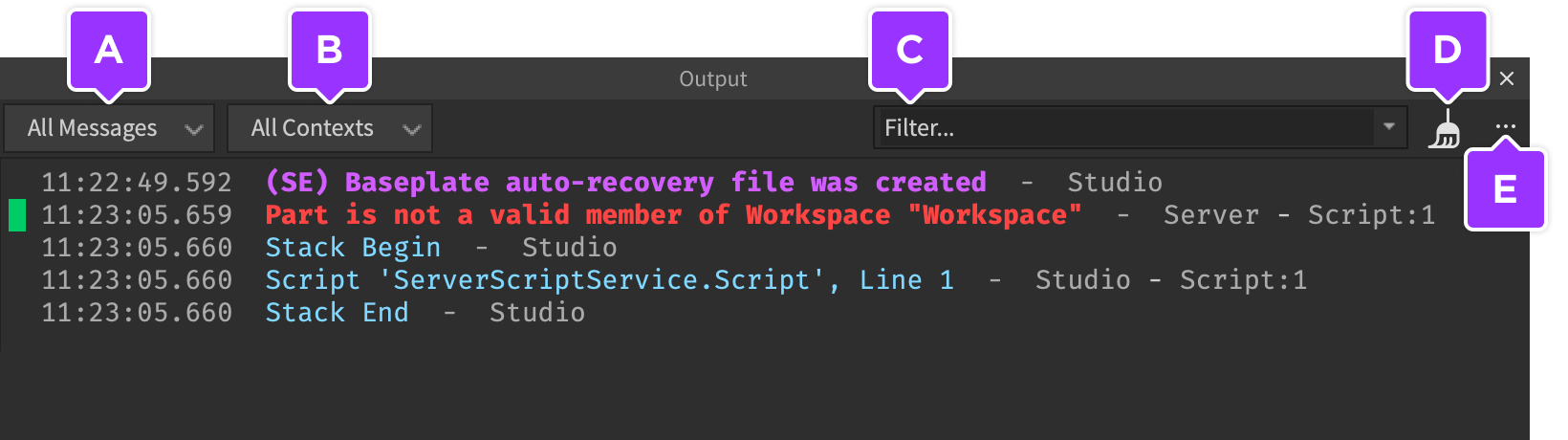
Tweens running simultaneously on the same property will affect each other. Don't keep assigning values to Gate.Position in another script.
Step by step
It is not enough to open the door once and look good. It should also return to the correct position after five consecutive runs. The position is getting more and more offset, usually indicating that the starting point or end point is re-accumulated during the cycle.
Tween moving Anchored platforms are not guaranteed to move the character as reliably as an elevator. Making a manned platform requires additional research on physics and character behavior, so I won’t copy it directly here.
Homework
Change the switch animation to two seconds and the holding time to three seconds.
Turn the switch orange when busy and return to blue when finished.
Change the end point offset to the X direction, making sure there is enough space on the sides.
Exit questions
Also needs to call Play on the generated Tween.
Avoiding each opening of the door from adding up to a further distance from the coordinates after the change, leading to a drift of position.
After opening the door, holding the door, and closing the door are all completed.
It should not be copied directly, moving tweens and reliably transporting characters are not the same problem.
Explore further
The text code can be copied directly. First confirm the script type, placement, and whether this code is a complete version or a small experiment; do not run multiple versions of the same script superimposed. The source of the interface reference picture has been marked. The object names in the picture may be different from those in this lesson. Please refer to the operation steps.
Download the code and placement instructions for this lesson