Before starting
Be able to build a platform and understand Player and Character. Use standalone Lesson11 Baseplate.
 PixelCraft
Roblox Studio · Lesson 11
Use SpawnLocation and RespawnLocation to save the checkpoint of this game and test the difference between rebirth and re-entry.
Course overview
A challenging route can also be player-friendly. Checkpoints remember where you have been in the game, making failure a short retry.
This course does not produce a "regeneration effect" by mobile cameras, but rather uses Roblox's SpawnLocation and player's RespawnLocation.
Be able to build a platform and understand Player and Character. Use standalone Lesson11 Baseplate.
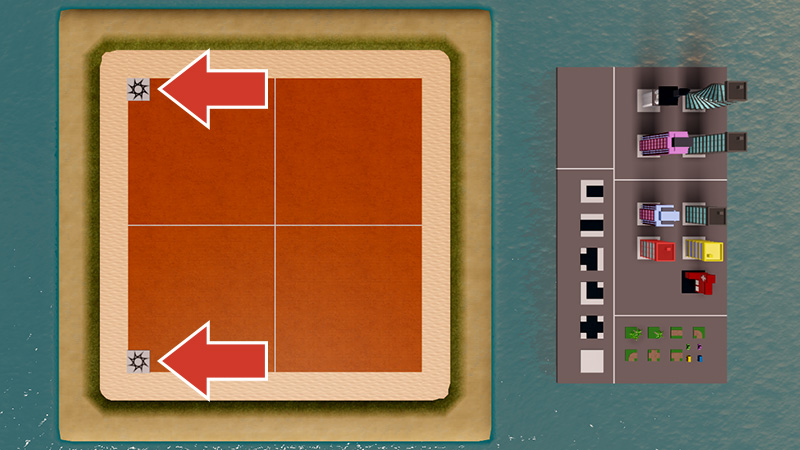
A starting point and an activatable checkpoint, both for correct birth.
Spawn at the starting point first, then respawn at the checkpoint after activation; the other player will not be changed together.
Learning route
Every time a small step is completed, it is tested. Say what you expect to see first, and then use Play and Output to check it. Don't rush to write all the code at once.
Ordinary Part can be used as a visual mark, but cannot be directly assigned to RespawnLocation. You need two real SpawnLocation objects.
player.RespawnLocation saves a spawn point object reference. It belongs to this player and not to the Workspace shared by all players.
If you turn the checkpoint green on the server, everyone will see the green color. This does not mean that everyone has it activated. When determining personal progress, look at the corresponding Player.RespawnLocation.
Now add three more wide platforms and place the checkpoint after completing the first challenge. Make sure the solo respawn feature is reliable before making the level difficult.
Multi-person inspection can best detect the error of "writing one person's progress as a global variable". A activates the checkpoint and B is still at the starting point. The two should respawn at different locations.
Step by step
Ordinary Part can be used as a visual mark, but cannot be directly assigned to RespawnLocation. You need two real SpawnLocation objects.
In order to avoid randomly selecting checkpoints at the first birth, set the starting point Enabled=true and checkpoint Enabled=false. Enable checkpoints when players activate, and give each new player an explicit StartSpawn.
Step by step
player.RespawnLocation saves a spawn point object reference. It belongs to this player and not to the Workspace shared by all players.
Scripts also specify a starting point for new players. So even if someone else has turned on Checkpoint, the player that entered will start with StartSpaawn.
local Players = game:GetService("Players")
local startSpawn = workspace:WaitForChild("StartSpawn")
local checkpoint = workspace:WaitForChild("Checkpoint")

local function setupPlayer(player)
    player.RespawnLocation = startSpawn
end
Players.PlayerAdded:Connect(setupPlayer)
for _, player in ipairs(Players:GetPlayers()) do setupPlayer(player) end

checkpoint.Touched:Connect(function(hit)
    local character = hit:FindFirstAncestorOfClass("Model")
    local player = character and Players:GetPlayerFromCharacter(character)
    local humanoid = character and character:FindFirstChildOfClass("Humanoid")
    if not player or not humanoid or humanoid.Health <= 0 then return end
    if player.RespawnLocation == checkpoint then return end
    checkpoint.Enabled = true
    player.RespawnLocation = checkpoint
    print(player.Name, "Checkpoint activated")
end)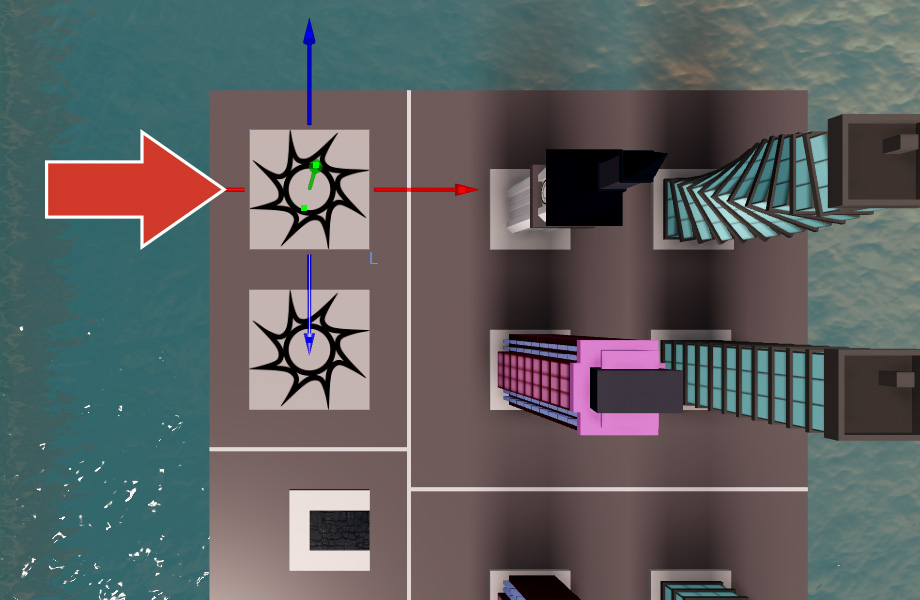
Step by step
If you turn the checkpoint green on the server, everyone will see the green color. This does not mean that everyone has it activated. When determining personal progress, look at the corresponding Player.RespawnLocation.
Therefore, this lesson does not regard the entire scene turning green as evidence of "I have saved". Read Output and Player Properties first; once you learn LocalScript, you can create prompts that are only visible to you.
Step by step
Now add three more wide platforms and place the checkpoint after completing the first challenge. Make sure the solo respawn feature is reliable before making the level difficult.
There should be space above the spawn point, not against a low roof or caught in a wall. The character needs to stand safely when it appears, and cannot fall down immediately after being born.
Step by step
Multi-person inspection can best detect the error of "writing one person's progress as a global variable". A activates the checkpoint and B is still at the starting point. The two should respawn at different locations.
This is just a record of this session. Stop re-enters after it, and the new Player continues to start with StarSpawon; this is similar to the life cycle of the 10th class gold coin.
Homework
Add a wide platform and obvious road signs to the checkpoint to ensure that it is not blocked after birth.
Record the birth position before activation, after activation, and re-Play respectively.
Copy a new SpawnLocation and add independent touch processing to it; first draw the order of the two checkpoints.
Exit questions
No, SpawnLocation is required.
No, it determines the location of the next rebirth.
To avoid other places of birth where new players can be born randomly to midway.
Not necessarily, the shared color and each player's RespawnLocation are two states.
Explore further
The text code can be copied directly. First confirm the script type, placement, and whether this code is a complete version or a small experiment; do not run multiple versions of the same script superimposed. The source of the interface reference picture has been marked. The object names in the picture may be different from those in this lesson. Please refer to the operation steps.
Download the code and placement instructions for this lesson