WHAT YOU WILL MAKE
Check models, textures, names and drops independently, making a block you can obtain, place and mine back.
Complete the resource chain in a fixed order so each file has a clear role and a clear way to debug it.
Before you start: Complete lesson 4 with a registered lamp and working properties.
01 / 7
Complete resources and drops
Follow the model in the world all the way back to the player inventory.
Lesson 4 gave the block its properties. Now complete its resources and drops. Java registration tells the game that it exists; a model, inventory icon and mining drops still need the full resource chain.
- Understand the reference direction: blockstates → block model → texture.
- Provide the BlockItem with an item model and localized names.
- Use a loot table to decide what drops when the block breaks.
- Blockstates
- Block model
- Texture
- Item model
- Loot table
02 / 7
Locate resources in IntelliJ
Both assets and data are inside src/main/resources.
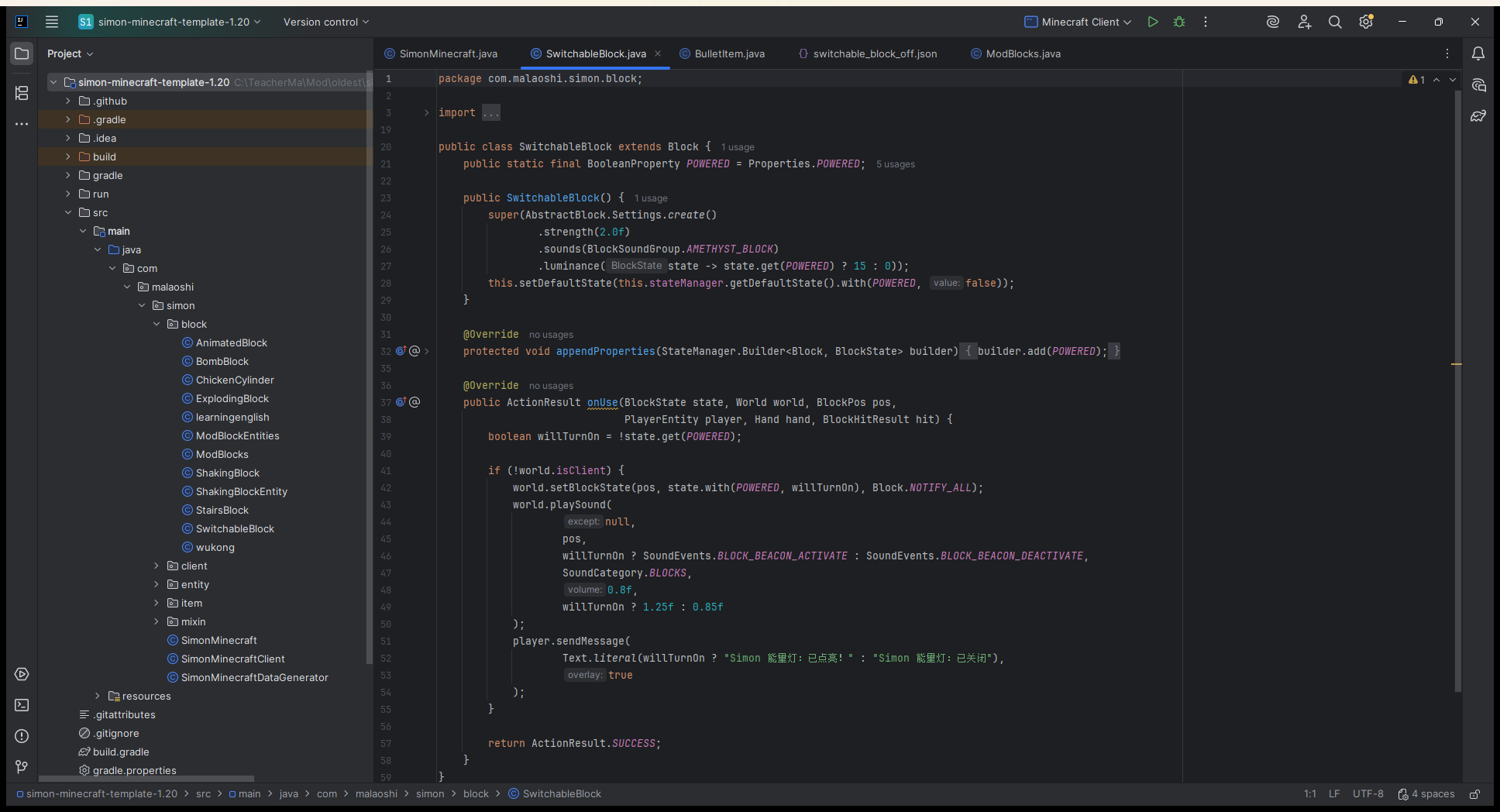
Paths relative to src/main/resources
assets/simon-minecraft/blockstates/light.json
assets/simon-minecraft/models/block/light.json
assets/simon-minecraft/textures/block/light_texture.png
assets/simon-minecraft/models/item/light.json
data/simon-minecraft/loot_tables/blocks/light.json
Models and textures belong in assets. Loot tables belong in data, not assets. Continue using lang/zh_cn.json and lang/en_us.json for names.
03 / 7
World and item models have different jobs
These are two separate JSON files.
assets/simon-minecraft/blockstates/light.json
{
  "variants": {
    "": { "model": "simon-minecraft:block/light" }
  }
}
assets/simon-minecraft/models/item/light.json
{
  "parent": "simon-minecraft:block/light"
}
Read each line, then save the files separately. blockstates selects the model for the placed block; the item model selects its inventory and hand appearance. Both can share simon-minecraft:block/light, which resolves to models/block/light.json.
04 / 7
Make mining return an item
Match the loot table namespace and name to the Java registration.
data/simon-minecraft/loot_tables/blocks/light.json
{
  "type": "minecraft:block",
  "pools": [
    {
      "rolls": 1,
      "entries": [
        {
          "type": "minecraft:item",
          "name": "simon-minecraft:light"
        }
      ],
      "conditions": [
        { "condition": "minecraft:survives_explosion" }
      ]
    }
  ]
}05 / 7
The six links in the resource chain
Use the symptom to find the relevant link, then trace its references.
- Registration ID
- simon-minecraft:light is the starting point for the references.
- blockstates
- Selects a block model for the block state.
- block model
- Defines elements, a parent model and texture variables.
- texture
- PNG paths, capitalization and alpha must be correct.
- item model + lang
- Control the inventory appearance and display name respectively.
- loot table
- Determines the dropped item and whether explosion conditions allow a drop.
06 / 7
Verify the whole chain in game
Test the world, inventory, drops and saved data.
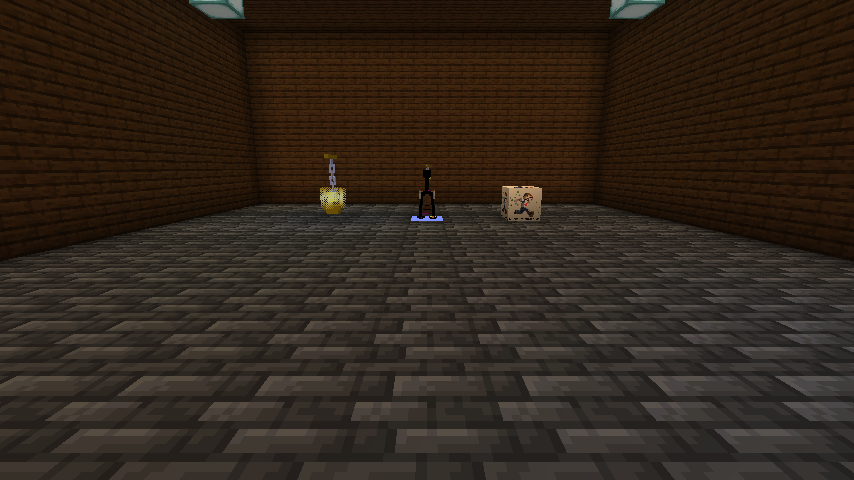
- The placed block has the correct model and textures.
- The inventory icon and hand model are correct.
- Mine with the correct tool in Survival and obtain the expected item.
- Save and reopen the world, then check the block and drops again.
The original image came from a copied test world in runClient and was saved by Minecraft ScreenshotRecorder. Temporary capture code was removed and the project rebuilt at that time. Repeat all four checks in your own project.
07 / 7
Troubleshooting and the final challenge
Use the symptom to find the missing connection.
- Missing world texture
- Start with blockstates and trace the model and texture references.
- Missing inventory icon
- Check parent in models/item/light.json.
- Mining produces no drop
- Check the data namespace and loot_tables/blocks path, then verify Survival mode and tool conditions.
- Missing display name
- Check block.simon-minecraft.light in the file for the selected game language: en_us for English or zh_cn for Chinese.
Next, use BooleanProperty to make the same block remember whether it is on or off.
TAKE IT WITH YOU
Take the lesson offline
The complete illustrated lesson and code, in your preferred language.
Further reading
The tutorial uses the supplied Fabric 1.20 template. Check documentation for the same version.