WHAT YOU WILL MAKE
Make a glowing lamp with correct transparent edges that plays a sound or your own recording on right-click.
Start with material experiments, import a recording, then play a different sound from each of six faces.
Before you start: Complete lesson 3 with a working lamp model, textures, registration and client rendering.
01 / 16
Start with properties, then add sound
Build on the lamp from lesson 3, adding one testable behavior at a time.
The model controls appearance; Settings control material behavior, light and opacity. First compare properties, then make the lamp play a sound on right-click. Test a vanilla sound before connecting your recording.
- Compare hardness, light and transparency while keeping the model and textures from lesson 3.
- Distinguish material sounds from interaction sounds and trigger playback once per right-click.
- Connect a mono OGG file, sounds.json and a SoundEvent.
- Hardness
- Correct tools
- Material sounds
- Light level
- Transparency
02 / 16
Locate the files in IntelliJ
Continue in the same Fabric 1.20 project.
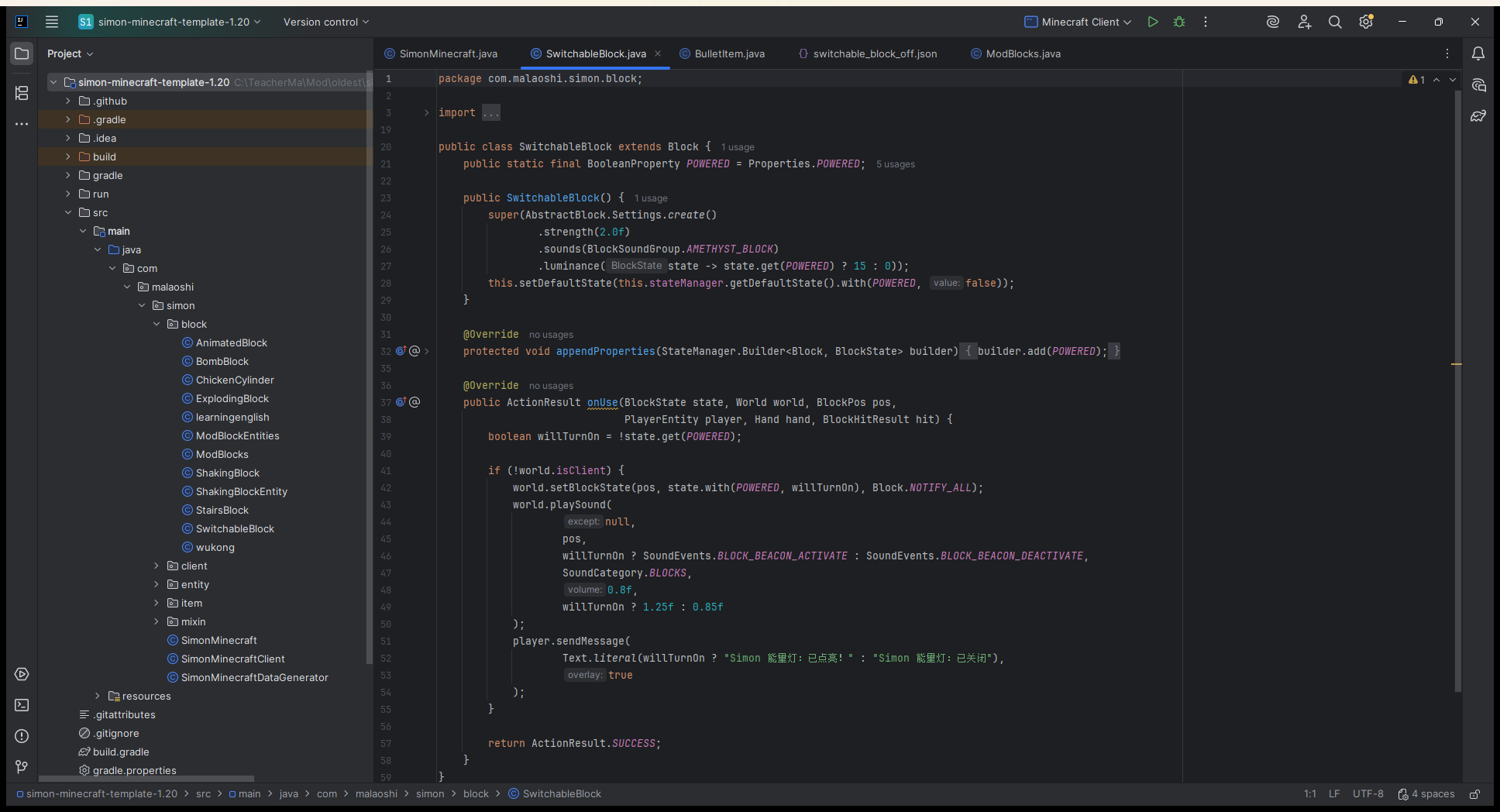
Lesson files · relative to the project root
src/main/java/com/malaoshi/simon/block/ModBlocks.java
src/main/java/com/malaoshi/simon/SimonMinecraftClient.java
src/main/resources/assets/simon-minecraft/models/block/light.json
src/main/resources/assets/simon-minecraft/textures/block/light_texture.png
src/main/resources/assets/simon-minecraft/textures/block/light_upper.png03 / 16
Describe basic behavior with Settings
Inspect the existing lamp registration; do not register light again.
ModBlocks.java · LIGHT_BLOCK
LIGHT_BLOCK = registerBlock("light",
        new Block(FabricBlockSettings.create()
                .strength(1.0f)
                .luminance(state -> 15)
.nonOpaque()));- strength(1.0f)
- Sets breaking hardness.
- luminance(state -> 15)
- Returns a light level from 0 to 15; this lamp always returns 15.
- nonOpaque()
- Declares that this is not an opaque full block, working with client-side transparency.
04 / 16
Choose Cutout for transparent edges
Keep client rendering in the client initializer.
SimonMinecraftClient.java · class structure example
public class SimonMinecraftClient
        implements ClientModInitializer {
    @Override
    public void onInitializeClient() {
        BlockRenderLayerMap.INSTANCE.putBlock(
                ModBlocks.LIGHT_BLOCK,
                RenderLayer.getCutout());
    }
}
Merge putBlock into the existing onInitializeClient() and keep other initialization. Import ClientModInitializer, BlockRenderLayerMap, RenderLayer and ModBlocks; the rendering imports are the same as in lesson 3.
05 / 16
A reference for common properties
Keep material behavior, lighting and interaction sounds distinct.
- strength(hardness)
- Controls breaking time. The two-argument version sets hardness and blast resistance separately.
- requiresTool()
- Requires the correct tool. Tool tags and loot tables must also match or the block may break without dropping.
- sounds(...)
- Sets material sounds such as placement, footsteps and breaking. It does not implement right-click playback.
- luminance(...)
- Returns 0–15 and can use BlockState to choose the light level.
- nonOpaque() + Cutout
- Handle non-full-block opacity and transparent-pixel rendering.
06 / 16
Compare properties in game
Compare stone, the lamp and glass.

- Observe the lamp in a dark area to check its illumination.
- Check for black artifacts around transparent edges and compare with glass.
- Compare breaking speed with different strength values in Survival mode.
- Reload after resource changes and restart after Java changes before comparing results.
The original screenshot was captured in a real Fabric client. Temporary capture code was removed and the template was rebuilt successfully at that time. This preserves the original evidence; verify your own changes separately.
07 / 16
Property troubleshooting and experiments
Confirm the basic properties before adding sound.
- The lamp does not light up
- Check that luminance returns 15 and restart the client after Java changes.
- Transparent areas look black
- Check PNG alpha, nonOpaque() and Cutout.
- No drop when broken by hand
- Check requiresTool(), tool tags and the loot table.
- RenderLayer error
- Keep rendering code in ClientModInitializer, outside the server initializer.
08 / 16
Sound workshop: materials and interactions
Start with a reliable vanilla sound to isolate the interaction logic.
- Settings.sounds(...)
- Controls material sounds for placement, footsteps and breaking.
- Block.onUse(...)
- Handles right-click interaction and can play a chosen sound. Both mechanisms can coexist.
- The player triggers onUse
- The server triggers playback once
- Nearby clients play their local sound resource
Test right-click with the amethyst chime first, then replace it with a recording. This separates interaction failures from audio path or encoding problems. The onUse signature below targets the supplied Minecraft 1.20 template.
09 / 16
Create the right-click lamp class
Create SoundLampBlock.java using the complete class below.
Save it to src/main/java/com/malaoshi/simon/block/SoundLampBlock.java.
SoundLampBlock.java · complete file
package com.malaoshi.simon.block;

import net.minecraft.block.Block;
import net.minecraft.block.BlockState;
import net.minecraft.entity.player.PlayerEntity;
import net.minecraft.sound.SoundCategory;
import net.minecraft.sound.SoundEvent;
import net.minecraft.util.ActionResult;
import net.minecraft.util.Hand;
import net.minecraft.util.hit.BlockHitResult;
import net.minecraft.util.math.BlockPos;
import net.minecraft.world.World;

public class SoundLampBlock extends Block {
    private final SoundEvent sound;

    public SoundLampBlock(Settings settings, SoundEvent sound) {
        super(settings);
        this.sound = sound;
    }

    @Override
    public ActionResult onUse(BlockState state, World world,
            BlockPos pos, PlayerEntity player, Hand hand,
            BlockHitResult hit) {
        if (hand != Hand.MAIN_HAND) return ActionResult.PASS;
        if (!world.isClient) {
            world.playSound(null, pos, sound,
                    SoundCategory.BLOCKS, 0.8f, 1.0f);
        }
        return ActionResult.success(world.isClient);
    }
}10 / 16
Choose a sound in the existing registration
Replace new Block with SoundLampBlock in the existing registration.
ModBlocks.java · replace the existing registration
// Import at the top of ModBlocks.java:
import net.minecraft.sound.SoundEvents;

// Replace the existing LIGHT_BLOCK registration; do not add a second one.
LIGHT_BLOCK = registerBlock("light",
        new SoundLampBlock(FabricBlockSettings.create()
                .strength(1.0f)
                .luminance(state -> 15)
                .nonOpaque(),
                SoundEvents.BLOCK_AMETHYST_BLOCK_CHIME));
Keep the registerBlock helper and creative tab callback. Replace the constructor in the existing light registration instead of adding a second one. SoundLampBlock and ModBlocks are in the same package.
- BLOCK_AMETHYST_BLOCK_CHIME
- A bright amethyst chime.
- ENTITY_PLAYER_LEVELUP
- The level-up sound.
- BLOCK_ANVIL_LAND
- An anvil landing.
- ENTITY_CAT_AMBIENT
- A cat meow.
- BLOCK_CHEST_OPEN
- A chest opening.
11 / 16
Turn your recording into a game resource
Start with a short, clear mono recording.
Record 1–3 seconds, such as “Welcome to my base.” Listen back, trim leading and trailing silence and obvious noise, and keep a suitable distance from the microphone to avoid clipping. Save the editable audio project, then export a separate game file.
- Record and listen
- Trim and make mono
- Export Ogg Vorbis
- Save welcome_01.ogg
In Audacity, use File → Export → Export Audio, choose Ogg Vorbis and export in Mono. A sample rate of 44.1 kHz is suitable; menu labels can vary by version.
Name the file welcome_01.ogg using lowercase letters, digits and underscores, without spaces or non-ASCII characters. Start with your own short recording; explore long audio and streaming later.
12 / 16
Connect the event to the audio file
The sound event ID, resource name and file path have different roles.
Resource layout
src/main/resources/
  assets/simon-minecraft/
    sounds.json
    sounds/
      voice/
        welcome_01.ogg
    lang/
      zh_cn.json
      en_us.json
assets/simon-minecraft/sounds.json
{
  "my_voice": {
    "subtitle": "subtitles.simon-minecraft.my_voice",
    "sounds": [
      {
        "name": "simon-minecraft:voice/welcome_01",
        "stream": false
      }
    ]
  }
}- Event ID
- Java uses simon-minecraft:my_voice; the key in sounds.json is my_voice.
- Resource name
- name is simon-minecraft:voice/welcome_01, not a Windows path.
- Actual file
- This resolves to sounds/voice/welcome_01.ogg. Do not include sounds/ or .ogg in name.
13 / 16
Register and initialize the SoundEvent
Create the class, then call it once from the existing initializer.
src/main/java/com/malaoshi/simon/sound/ModSounds.java
package com.malaoshi.simon.sound;

import net.minecraft.registry.Registries;
import net.minecraft.registry.Registry;
import net.minecraft.sound.SoundEvent;
import net.minecraft.util.Identifier;

public final class ModSounds {
    private static final Identifier VOICE_ID =
            new Identifier("simon-minecraft", "my_voice");
    public static final SoundEvent MY_VOICE = Registry.register(
            Registries.SOUND_EVENT, VOICE_ID,
            SoundEvent.of(VOICE_ID));

    private ModSounds() {}

    public static void registerModSounds() {
        // Calling this method initializes the static sound event.
    }
}
SimonMinecraft.java · merge into the existing initializer
// Import at the top of SimonMinecraft.java:
import com.malaoshi.simon.sound.ModSounds;

// In the existing onInitialize(), before registering blocks:
ModSounds.registerModSounds();
ModBlocks.registerModBlocks();
// Keep the other initialization calls already in this template.14 / 16
Make the lamp play your welcome message
Replace the sound argument and add localized subtitles.
ModBlocks.java · use your recording
// Import at the top of ModBlocks.java:
import com.malaoshi.simon.sound.ModSounds;

// Replace the sound argument in the same LIGHT_BLOCK registration:
LIGHT_BLOCK = registerBlock("light",
        new SoundLampBlock(FabricBlockSettings.create()
                .strength(1.0f)
                .luminance(state -> 15)
                .nonOpaque(), ModSounds.MY_VOICE));
lang/zh_cn.json · merge the subtitle key
{
  "subtitles.simon-minecraft.my_voice": "\u540a\u706f\uff1a\u6b22\u8fce\u6765\u5230\u6211\u7684\u57fa\u5730"
}
lang/en_us.json · merge the subtitle key
{
  "subtitles.simon-minecraft.my_voice": "Lamp: Welcome to my base"
}
The Chinese escapes display the localized lamp greeting. Enable subtitles in Minecraft accessibility settings to see the text in the selected game language. Subtitles do not synthesize speech; the sound comes from your exported OGG file.
- Register MY_VOICE
- Connect the OGG in JSON
- Right-click to play
15 / 16
Advanced: six faces, six sounds
Replace the entire onUse method and keep the class, field and constructor.
SoundLampBlock.java · additional imports
import com.malaoshi.simon.sound.ModSounds;
import net.minecraft.sound.SoundEvents;
SoundLampBlock.java · replace the complete onUse method
@Override
public ActionResult onUse(BlockState state, World world,
        BlockPos pos, PlayerEntity player, Hand hand,
        BlockHitResult hit) {
    if (hand != Hand.MAIN_HAND) return ActionResult.PASS;
    if (!world.isClient) {
        SoundEvent chosen = switch (hit.getSide()) {
            case UP -> ModSounds.MY_VOICE;
            case DOWN -> SoundEvents.ENTITY_PLAYER_LEVELUP;
            case NORTH -> SoundEvents.BLOCK_AMETHYST_BLOCK_CHIME;
            case SOUTH -> SoundEvents.ENTITY_CAT_AMBIENT;
            case WEST -> SoundEvents.BLOCK_CHEST_OPEN;
            case EAST -> SoundEvents.BLOCK_ANVIL_LAND;
        };
        world.playSound(null, pos, chosen,
                SoundCategory.BLOCKS, 0.8f, 1.0f);
    }
    return ActionResult.success(world.isClient);
}
The top plays your recording, the bottom the level-up sound, north the amethyst chime, south the cat, west the chest and east the anvil. hit.getSide() is the block face in world directions, not left or right on your screen. Use F3 to check directions.
16 / 16
Verify and troubleshoot the sound
Test the resource first, then the interaction.
In-game chat · test the event directly
/playsound simon-minecraft:my_voice block @s ~ ~ ~ 0.8 1Once the command works, right-click the lamp with both hands empty so held-item interactions or sneaking do not affect the test.
- The event is unknown
- Check that ModSounds is called from initialization, then restart the client.
- Vanilla works, recording does not
- Check sounds.json, the resource name and the OGG path.
- Reload or decoding fails
- Validate JSON syntax and confirm the audio was exported as Ogg Vorbis.
- One click plays twice
- Check the hand and server conditions and remove the old playback call.
- No sense of distance
- Use mono audio and check block volume and sound settings.
- A friend cannot hear it
- Check that their client has the mod with the same event and sound resource.
- Test with another nearby player; both the clicker and the other player should hear it.
- Click all six faces and compare expected and actual sounds.
- After resource changes, update build output and try F3+T. After Java changes, stop and restart the client.
TAKE IT WITH YOU
Take the lesson offline
The complete illustrated lesson and code, in your preferred language.
Further reading
The tutorial uses the supplied Fabric 1.20 template. Check documentation for the same version.