WHAT YOU WILL MAKE
Convert 45 model elements and two embedded textures into a transparent lamp that emits light level 15.
Follow the model from inspection to in-game tests, with file paths and troubleshooting at each stage.
Before you start: Complete the two registrations in lesson 2 and prepare light.bbmodel and the lesson converter script.
01 / 10
The model is only the beginning
Connect your Blockbench creation to the game.
Simon has created light.bbmodel in Blockbench. Connect its geometry, textures, resource JSON, Java registration and client rendering so the lamp can be obtained with /give, placed in the world and emit light level 15.
- Explain why a .bbmodel cannot simply be copied into Fabric resources.
- Export blockstates, a block model, an item model and separate PNG textures.
- Complete registration, creative tab integration, transparent rendering, building and client troubleshooting.

- Inspect the bbmodel
- Bake transforms
- Generate resources
- Register LIGHT_BLOCK
- Set Cutout
- Build and test
02 / 10
Inspect light.bbmodel
Check format, geometry, rotations and textures.
- Format: free
- It is not in Minecraft Java Block format and cannot be used by simply renaming the file.
- Geometry: 45 elements
- Includes cubes and zero-thickness planes. Inspect the structure from several angles.
- Embedded textures: 2
- Two PNG images, 128 × 128 and 64 × 64 pixels.
- Special rotations: 90°
- These editor rotations cannot be used directly as Java block model rotations and must be baked by the converter.

03 / 10
Run the model converter
Convert editor data into Minecraft resources.
Run the supplied tools/import-bbmodel.mjs from the mod project root. Replace the input file and output directory with your own paths; this script is not a built-in Minecraft command.
PowerShell · mod project root
$modelFile = "C:\TeacherMa\Student\SimonJF2027\light.bbmodel"
$resourceDir = "C:\TeacherMa\Mod\simon-minecraft-template-1.20\src\main\resources"
node tools/import-bbmodel.mjs $modelFile $resourceDir "simon-minecraft" "light"- Read the hierarchy
- Read elements, groups, outliner and textures.
- Bake geometry
- Combine rotations, origins and coordinate offsets.
- Process textures
- Extract PNG images and convert UV coordinates to the 0–16 scale.
- Write resources
- Write the blockstate, block model and item model.
04 / 10
Give each resource its job
These paths are relative to assets/simon-minecraft/.
- blockstates/light.json
- The block state entry point, referencing simon-minecraft:block/light.
- models/block/light.json
- The world model, containing 45 elements and two texture references.
- models/item/light.json
- The inventory model, inheriting block/light.
- textures/block/light_texture.png
- The body texture extracted from the bbmodel.
- textures/block/light_upper.png
- The upper texture has transparency and needs Cutout rendering.
- lang/zh_cn.json + en_us.json
- Provide the Chinese and English display names for Light.
The full registration ID is simon-minecraft:light. Omit file extensions from resource references, and omit textures/ from texture IDs.
05 / 10
Register the lamp in IntelliJ
Reuse the block-and-item registration helpers from lesson 2.
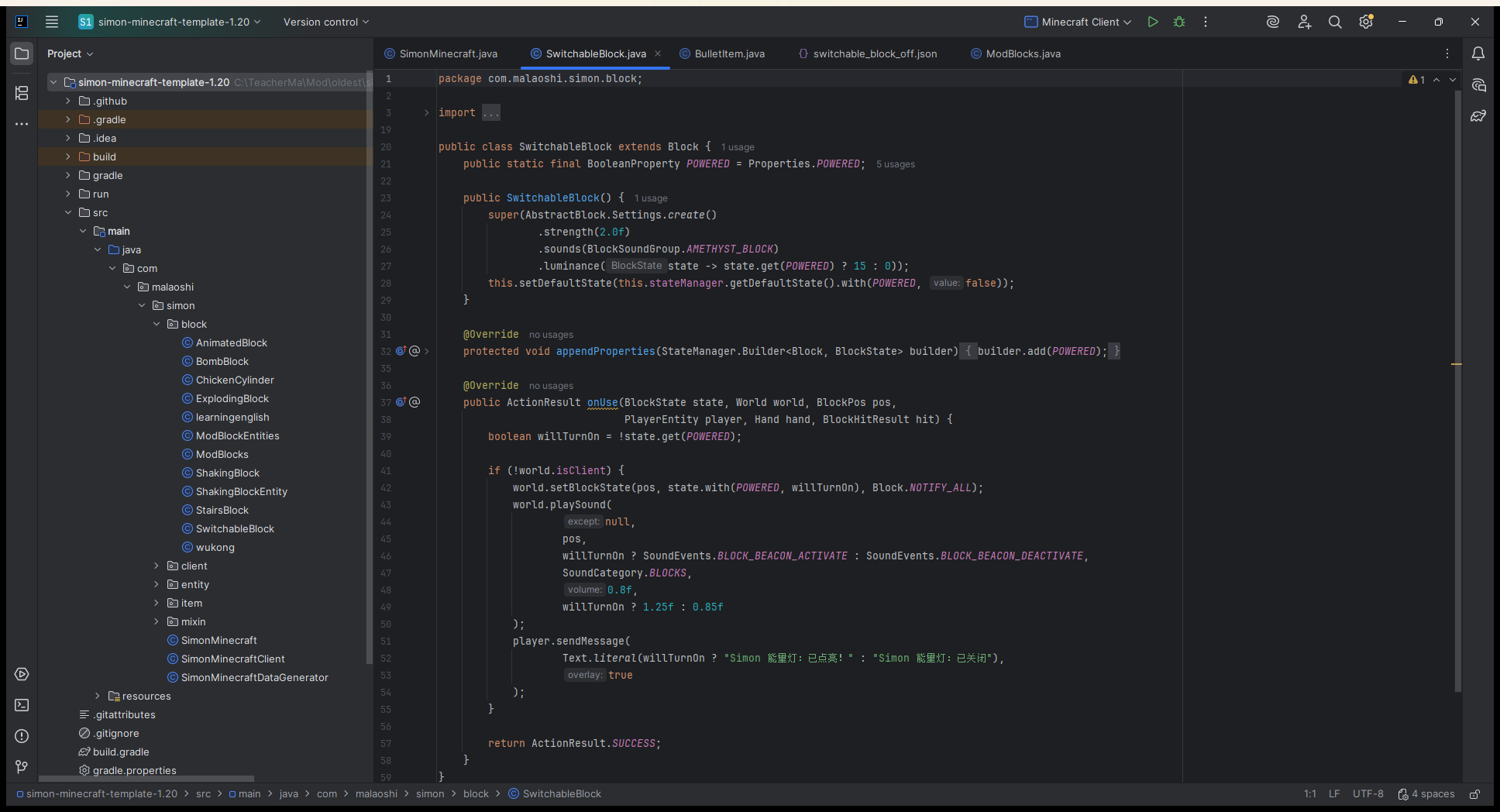
ModBlocks.java · LIGHT_BLOCK
public static Block LIGHT_BLOCK;

public static void registerModBlocks() {
    LIGHT_BLOCK = registerBlock("light",
            new Block(FabricBlockSettings.create()
                    .strength(1.0f)
                    .luminance(state -> 15)
                    .nonOpaque()));
    ItemGroupEvents.modifyEntriesEvent(ItemGroups.FUNCTIONAL)
            .register(entries -> entries.add(LIGHT_BLOCK));
}- registerBlock("light")
- Calls the template helper to register both the block and its BlockItem.
- strength(1.0f)
- Sets breaking hardness.
- luminance(state -> 15)
- Makes the placed lamp emit the maximum light level of 15.
- nonOpaque()
- Tells the lighting system that it is not an opaque full block.
- ItemGroups.FUNCTIONAL
- Adds the item to the functional blocks creative tab.
06 / 10
Transparency and display names
Use a client render layer together with the opacity setting.
SimonMinecraftClient.java · excerpt from the existing method
public void onInitializeClient() {
    BlockRenderLayerMap.INSTANCE.putBlock(
            ModBlocks.LIGHT_BLOCK,
            RenderLayer.getCutout()
    );
}
Client-side imports
import net.fabricmc.fabric.api.blockrenderlayer.v1.BlockRenderLayerMap;
import net.minecraft.client.render.RenderLayer;
import com.malaoshi.simon.block.ModBlocks;
Merge the call into the existing client initializer and keep its other initialization code. Both textures contain fully transparent pixels. Cutout discards those pixels and keeps sharp edges; nonOpaque() does not replace the render layer. Keep client rendering classes out of the server initializer.
assets/simon-minecraft/lang/zh_cn.json · merge this key
{ "block.simon-minecraft.light": "\u540a\u706f" }assets/simon-minecraft/lang/en_us.json · merge this key
{ "block.simon-minecraft.light": "Light" }Get the lamp
/give @s simon-minecraft:light07 / 10
Follow the JSON chain to the textures
Distinguish complete files from a structural outline.
blockstates/light.json
{
  "variants": {
    "": { "model": "simon-minecraft:block/light" }
  }
}
models/item/light.json
{
  "parent": "simon-minecraft:block/light"
}
models/block/light.json · outline, not complete JSON
{
  "ambientocclusion": false,
  "textures": {
    "0": "simon-minecraft:block/light_texture",
    "1": "simon-minecraft:block/light_upper",
    "particle": "simon-minecraft:block/light_texture"
  },
  "elements": [ ... 45 elements ... ]
}08 / 10
Test the glowing lamp in game
After a successful build, verify the rendered result.
PowerShell · mod project root
.\gradlew.bat build
.\gradlew.bat runClient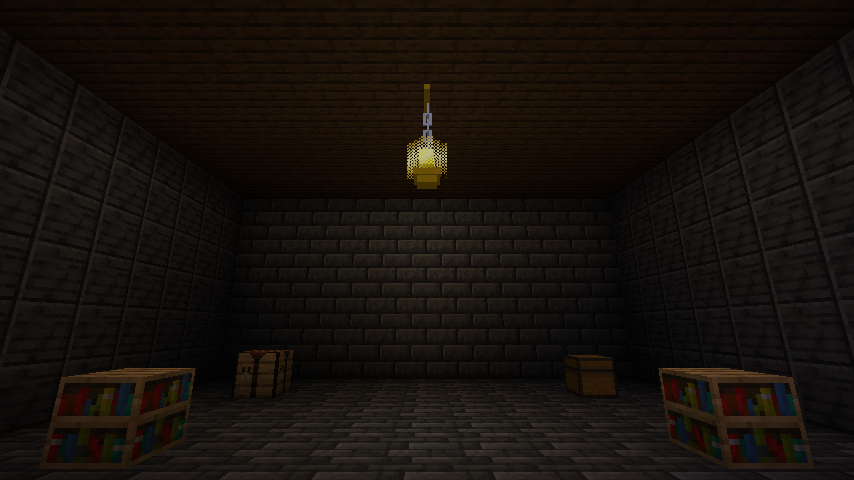
- Model: the wooden frame, chains and shade are complete.
- Transparency: no black background or purple-and-black missing textures.
- Lighting: the dark room walls and floor are lit, with the registered light level set to 15.
- Resources: the log contains no model or texture loading errors for light.
The original lesson recorded a successful Gradle build, entry into an existing world with runClient, and a screenshot saved by Minecraft ScreenshotRecorder. Repeat these checks in your own project.
09 / 10
Fix an IntelliJ launch configuration
If the command line works but the IDE fails, check the run module first.
Error message
ClassNotFoundException: net.fabricmc.devlaunchinjector.MainIn the original lesson, command-line runClient worked, but IntelliJ Minecraft Client was bound to the root module without the runtime dependencies. Check the classpath before changing Java code or reinstalling textures.
.idea/runConfigurations/Minecraft_Client.xml · module entry
<module name="simon-minecraft-template-1.20.main"/>Regenerate launch files and verify
.\gradlew.bat ideaSyncTask
.\gradlew.bat build
Reload all Gradle projects, then select Minecraft Client again. The module name must match your actual project; the example name belongs to the supplied template.
10 / 10
Make the import workflow your own
Choose a challenge and keep a repeatable test.
- A · Model
- Change one frame dimension in Blockbench, convert again and verify the result.
- B · Lighting
- Change the light level to 10 and compare nighttime illumination.
- C · Resource debugging
- Intentionally break a texture path, then use the log to find and fix the missing texture.
- D · Interaction
- Try a BooleanProperty to toggle the lamp on right-click; lesson 6 develops this idea.
- E · Converter
- Add a size report and out-of-range warnings to import-bbmodel.mjs.
- Explain how bbmodel, blockstates, block model, item model, textures and Java registration connect.
- Build successfully after converting again, then obtain and place the lamp with the expected transparency and lighting.
TAKE IT WITH YOU
Take the lesson offline
The complete illustrated lesson and code, in your preferred language.
Further reading
The tutorial uses the supplied Fabric 1.20 template. Check documentation for the same version.