
WHAT YOU WILL MAKE
Make a starter block with its own ID, working icon and display name that you can place and save.
Keep the original template and connect registration to resources with a simple cube.
Before you start: Complete lesson 1 and confirm that the template launches into a world.
01 / 11
One creation, two identities
Separate the block in the world from the item in your inventory.
Create simon-minecraft:starter_block using the vanilla emerald block texture. It is a separately registered ordinary block. Later lessons add a lamp model, properties and drops.
- Block
- Describes the block type and behavior. Each position in the world stores a BlockState.
- BlockItem
- The inventory item places the corresponding block in the world. Registering a Block does not automatically register its BlockItem.
- Creative inventory
- Controls which tab lists the item, independently of ITEM registration. A working /give command does not mean the item is in a creative tab.
- Read the template
- Choose an ID
- Register block and item
- Connect resources
- Test in game
Suggested timing: 15 minutes for concepts, 25 for Java, 25 for resources, 20 for game tests, and 15–35 for challenges.
02 / 11
Read the existing best block
Reuse the template structure without creating a second registration class.
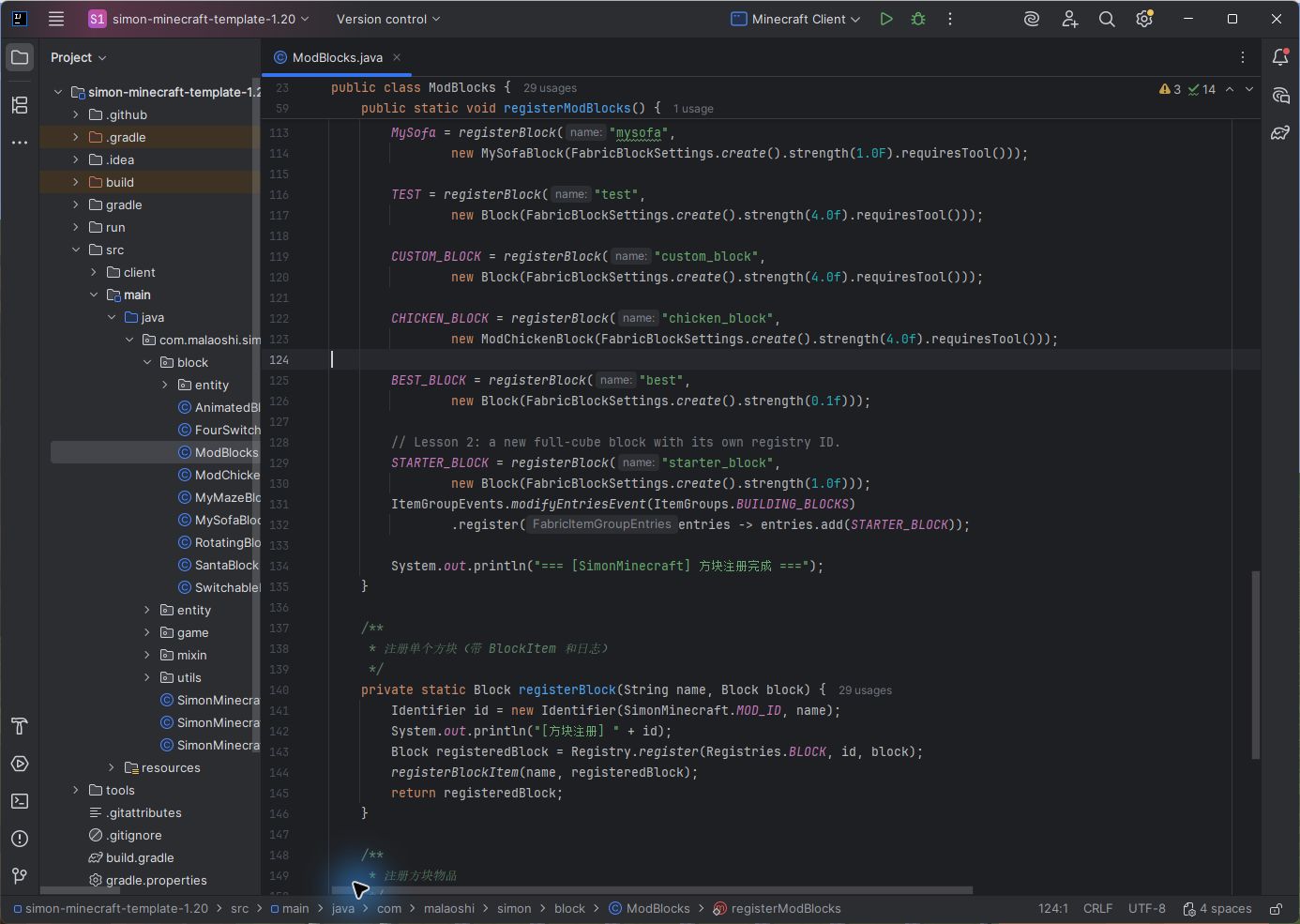
Open C:\TeacherMa\Mod\simon-minecraft-template-1.20. In ModBlocks.java, find BEST_BLOCK, best, and the existing registerModBlocks, registerBlock and registerBlockItem methods.
03 / 11
Declare and register the starter block
Declare the field in the class and assign it in the existing registration method.
ModBlocks.java · class field
public static Block STARTER_BLOCK;Place the field inside the class but outside all methods, next to BEST_BLOCK. Add the assignment below inside the existing registerModBlocks() method.
ModBlocks.java · registerModBlocks()
STARTER_BLOCK = registerBlock(
        "starter_block",
        new Block(FabricBlockSettings.create()
                .strength(1.0f))
);- starter_block
- The lowercase registration name combines with MOD_ID to form the full ID. The Java variable STARTER_BLOCK is not the resource ID.
- new Block(...)
- Use Block directly for an ordinary static block. No subclass is needed in this lesson.
- strength(1.0f)
- Sets hardness. Lesson 4 compares hardness and other material properties.
Existing imports · check before adding
import net.minecraft.block.Block;
import net.fabricmc.fabric.api.object.builder.v1.block.FabricBlockSettings;
04 / 11
Understand the two registration helpers
The same ID can exist once in each of two different registries.
ModBlocks.java · registerBlock
private static Block registerBlock(
        String name, Block block) {
    Identifier id = new Identifier(
            SimonMinecraft.MOD_ID, name);
    Block registeredBlock = Registry.register(
            Registries.BLOCK, id, block);
    registerBlockItem(name, registeredBlock);
    return registeredBlock;
}
ModBlocks.java · registerBlockItem
private static void registerBlockItem(
        String name, Block block) {
    Identifier id = new Identifier(
            SimonMinecraft.MOD_ID, name);
    Item blockItem = new BlockItem(
            block, new Item.Settings());
    Registry.register(Registries.ITEM, id, blockItem);
}
The first helper adds the Block to Registries.BLOCK, calls the second helper to register its BlockItem, and returns the block for assignment to STARTER_BLOCK. Using simon-minecraft:starter_block once in each registry is correct. Registering it twice in the same registry is not.
05 / 11
Connect initialization and the creative tab
Register the item before adding it to a tab.
SimonMinecraft.java · existing initialization call
ModBlocks.registerModBlocks();Check that the existing onInitialize() calls this exactly once. Do not create another initialization method.
ModBlocks.java · after assigning STARTER_BLOCK
ItemGroupEvents.modifyEntriesEvent(
        ItemGroups.BUILDING_BLOCKS)
        .register(entries -> entries.add(STARTER_BLOCK));
Creative tab imports
import net.fabricmc.fabric.api.itemgroup.v1.ItemGroupEvents;
import net.minecraft.item.ItemGroups;
Put the tab code inside the existing registerModBlocks(), after assigning STARTER_BLOCK. BUILDING_BLOCKS is the building blocks tab. Changing it to FUNCTIONAL changes the tab only, not the ID, model or /give result.
06 / 11
Create four resource files
All paths below are relative to src/main/resources/assets/simon-minecraft/.
- blockstates/starter_block.json
- The model entry point for the block state in the world.
- models/block/starter_block.json
- Defines the world model and references its textures.
- models/item/starter_block.json
- Defines the appearance in the inventory and in your hand.
- lang/zh_cn.json
- Provides the Chinese display name; use en_us.json for the English name.
07 / 11
Connect the three model files
Save the three code blocks as three separate files.
blockstates/starter_block.json
{
  "variants": {
    "": { "model": "simon-minecraft:block/starter_block" }
  }
}
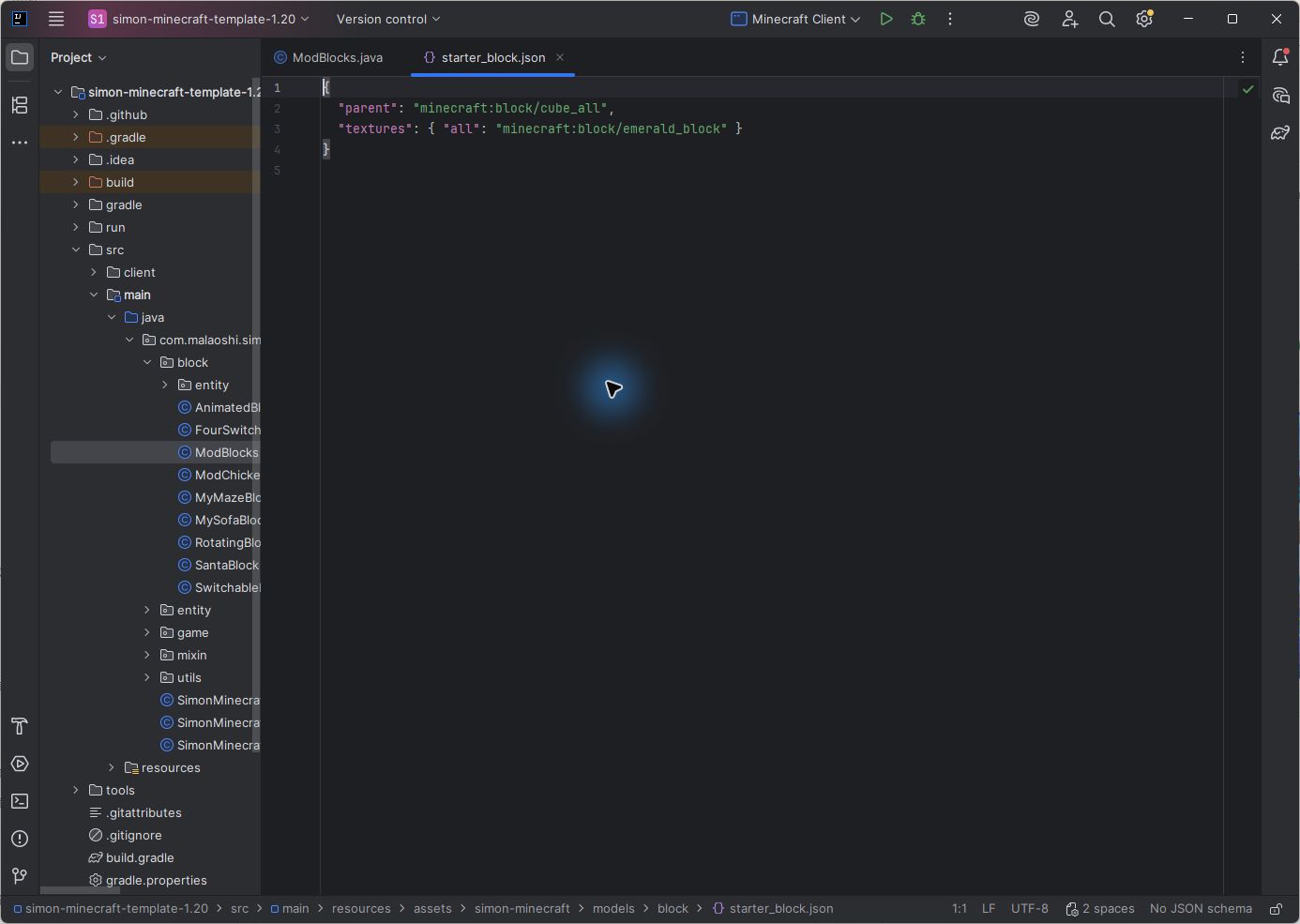
models/block/starter_block.json
{
  "parent": "minecraft:block/cube_all",
  "textures": {
    "all": "minecraft:block/emerald_block"
  }
}
models/item/starter_block.json
{
  "parent": "simon-minecraft:block/starter_block"
}
The empty-string variant selects the static block model because this block has no extra properties. cube_all uses one texture on all six faces. minecraft:block/emerald_block reuses a built-in resource, so no new PNG is needed. The item model inherits the block model through parent.
08 / 11
Add names and reload correctly
Merge language keys without replacing existing entries.
lang/zh_cn.json · merge example
{
  "block.simon-minecraft.light": "\u540a\u706f",
  "block.simon-minecraft.starter_block": "\u5165\u95e8\u65b9\u5757"
}
lang/en_us.json · English equivalents
{
  "block.simon-minecraft.light": "Light",
  "block.simon-minecraft.starter_block": "Starter Block"
}
The Unicode escapes in the Chinese example display the Chinese names for Light and Starter Block. Keep other entries, separate them with commas and omit a trailing comma. The in-game language selects zh_cn or en_us; changing the website language does not change Minecraft settings.
09 / 11
Find the block in your inventory
Check registration and the icon before placing the block.
In-game chat
/give @s simon-minecraft:starter_block 16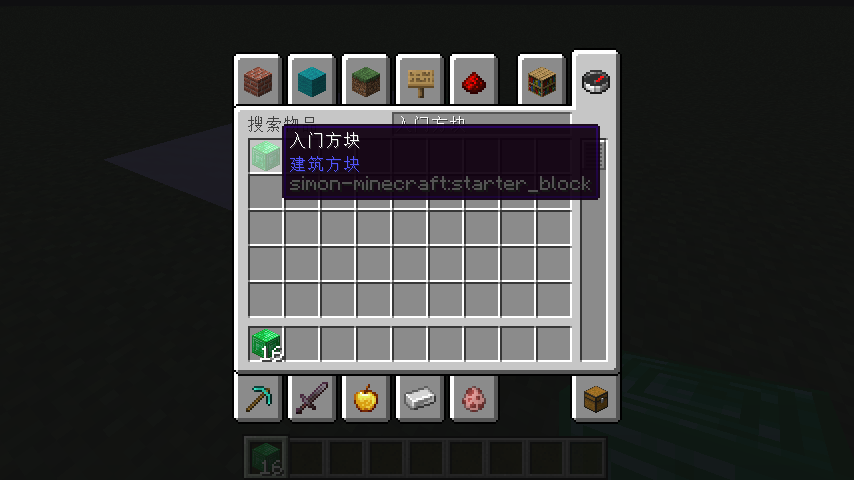
- Press E to open the creative inventory. Search for Starter Block in English, or its localized name in Chinese.
- Hover to check the display name and icon; there should be no purple-and-black missing texture.
- Press F3+H for advanced tooltips and check the full ID: simon-minecraft:starter_block.
Looking like an emerald block does not give it all vanilla emerald block behavior. The texture controls appearance; our registered Block and Settings control behavior.
10 / 11
Place it and test persistence
Check all six faces, collision and the saved world.
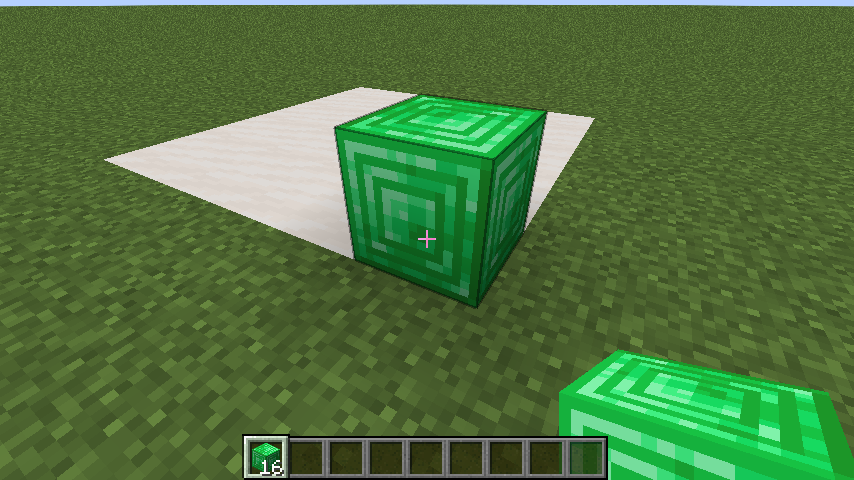
- Hold the new block, right-click the ground and inspect all six faces in good light.
- Walk into it and inspect the selection outline to confirm the expected full cube.
- Save, exit and reopen the world. Confirm the block remains and its name and texture are unchanged.
11 / 11
Troubleshooting and challenges
Check one connection at a time and verify an observable result.
- Unknown item
- Check BlockItem registration, initialization and the full ID; restart after Java changes.
- Missing from the creative tab
- Use /give to check registration, then inspect the tab callback and assignment order.
- World looks right, icon is missing
- Check parent in models/item/starter_block.json.
- Both models are missing
- Follow blockstates → block model → texture and read resource-loading errors.
- A translation key is shown
- Check the language JSON, translation key and game language. English Minecraft needs en_us.json.
- Duplicate registration ID
- Look for repeated registration of the same ID or initialization called twice.
- Challenge A: replace emerald_block with gold_block. Predict and test the world and inventory appearance. The ID and display name should stay the same.
- Challenge B: create copper_starter with its own registration, three model files and language names.
- Explain the roles of Block, BlockItem and creative tabs in your own words. Next, connect a Blockbench lamp to this workflow.
TAKE IT WITH YOU
Take the lesson offline
The complete illustrated lesson and code, in your preferred language.
Further reading
The tutorial uses the supplied Fabric 1.20 template. Check documentation for the same version.