WHAT YOU WILL MAKE
Run the supplied template and add a startup message that you verify in a real game launch.
Get your workspace ready today. In lesson 2, you will register a new block of your own.
Before you start: Comfortable with a keyboard, mouse and folders
01 / 11
Run it first. Then change one line.
You do not need to memorize Java or build a mod project from scratch.
Use the project template supplied by your teacher. First, run it unchanged to establish a working baseline. Then add just one log message to check that your Java code really runs. Keep the mod ID, block code and dependency versions unchanged.
- IntelliJ IDEA
- Edit and locate files and read the Run console. The IDE is separate from the Minecraft game.
- JDK 21
- Provides the Java development and runtime tools. Use the JDK required by this template; installing only a JRE is not enough.
- Gradle Wrapper
- Uses the build-tool configuration bundled with the project to download dependencies, compile the code and launch the development client.
- Fabric
- Fabric Loader discovers and loads mods. Fabric API provides interfaces used when developing mods.
- Open the project
- Check the JDK
- Run it unchanged
- Find the log
- Edit and test again
Predict before you start: does opening the game prove that the line of Java you changed has run?
02 / 11
Open the whole project
Extract the ZIP into a normal folder before opening it.
Example template project root
C:\TeacherMa\Mod\simon-minecraft-template-1.20In IntelliJ, choose File → Open and select the project folder. Your folder may be elsewhere, but its root must contain build.gradle and gradlew.bat. Opening only a .java file does not load the complete Gradle project.
- First time opening it
- Let IntelliJ load the Gradle project. Wait for dependency downloads and synchronization to finish.
- Returning to the project
- Open the same project from Recent Projects. Do not create a second, empty project with New Project.
- Signs that sync worked
- The Gradle tool window and project tasks appear, and widespread red errors in the source disappear.
- Downloads still running
- The first sync needs an internet connection. Download time depends on the network. If it fails, read the specific error instead of repeatedly clicking Run.
Folder map: edit src, inspect run, leave build alone
project root/
  build.gradle, gradle.properties, gradlew.bat
  src/main/java/          Java source
  src/main/resources/     JSON and textures
  run/                    game data and logs
  build/                  generated output
Edit the source and resources under src. Files under build are generated output, not your original source files.
03 / 11
Check the template’s JDK 21 settings
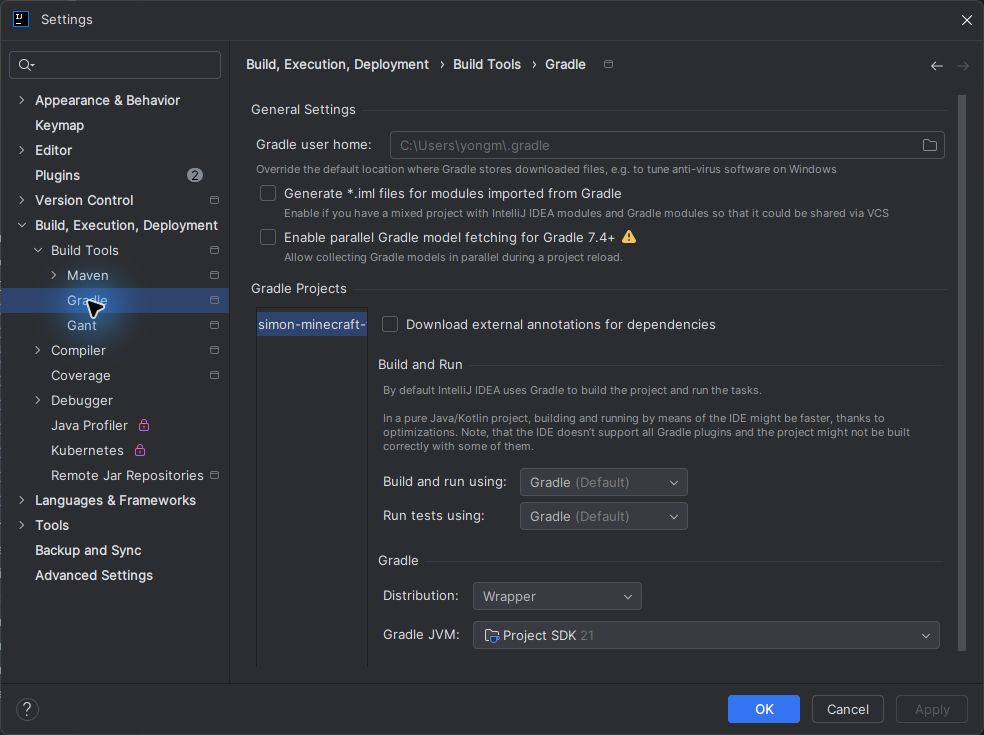
Runtime requirements and compilation targets are different. Check both settings.
- Project SDK
- Open File → Project Structure → Project and choose an installed JDK 21 as the SDK.
- Gradle JVM
- Open Settings → Build, Execution, Deployment → Build Tools → Gradle. Choose JDK 21, or a Project SDK that points to 21. Keep Distribution set to Wrapper.
04 / 11
Find the Java entrypoint
Look first. Do not replace the entire class.
Open this file
src/main/java/com/malaoshi/simon/SimonMinecraft.java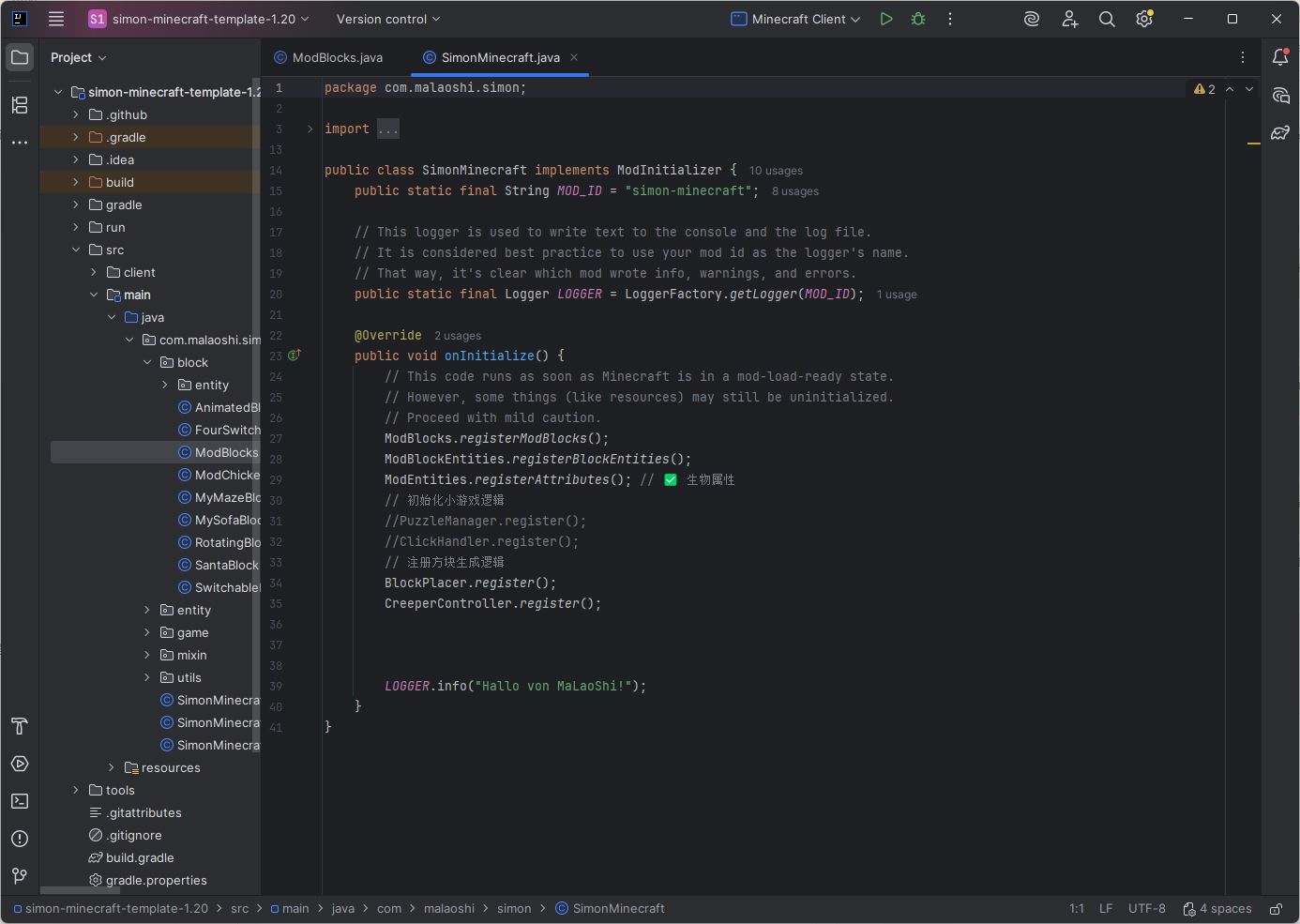
Two existing lines in different places: locate them only
public static final String MOD_ID = "simon-minecraft";
LOGGER.info("Hallo von MaLaoShi!");
These lines are in different parts of the file. MOD_ID identifies the mod; LOGGER.info writes a log message. Find the braces of onInitialize() and locate the existing startup message near the bottom of that method.
05 / 11
How Fabric finds the entrypoint
Open src/main/resources/fabric.mod.json. Read it without changing it.
Reading excerpt from fabric.mod.json, not the complete file
{
  "id": "simon-minecraft",
  "environment": "*",
  "entrypoints": {
    "main": [
      "com.malaoshi.simon.SimonMinecraft"
    ],
    "client": [
      "com.malaoshi.simon.SimonMinecraftClient"
    ]
  }
}
This is an excerpt for reading, not a complete configuration file. Keep the original schemaVersion, version, depends, mixins and all other fields. Do not edit the JSON in this lesson.
- main
- Points to the common entrypoint implementing ModInitializer. This also loads when the client starts.
- client
- Points to a client-only entrypoint implementing ClientModInitializer, for features such as rendering. It is separate from the common entrypoint.
- Fully qualified class name
- The package com.malaoshi.simon and class name SimonMinecraft combine to form the full class name in main.
06 / 11
Launch runClient
Gradle → project name → Tasks → fabric → runClient
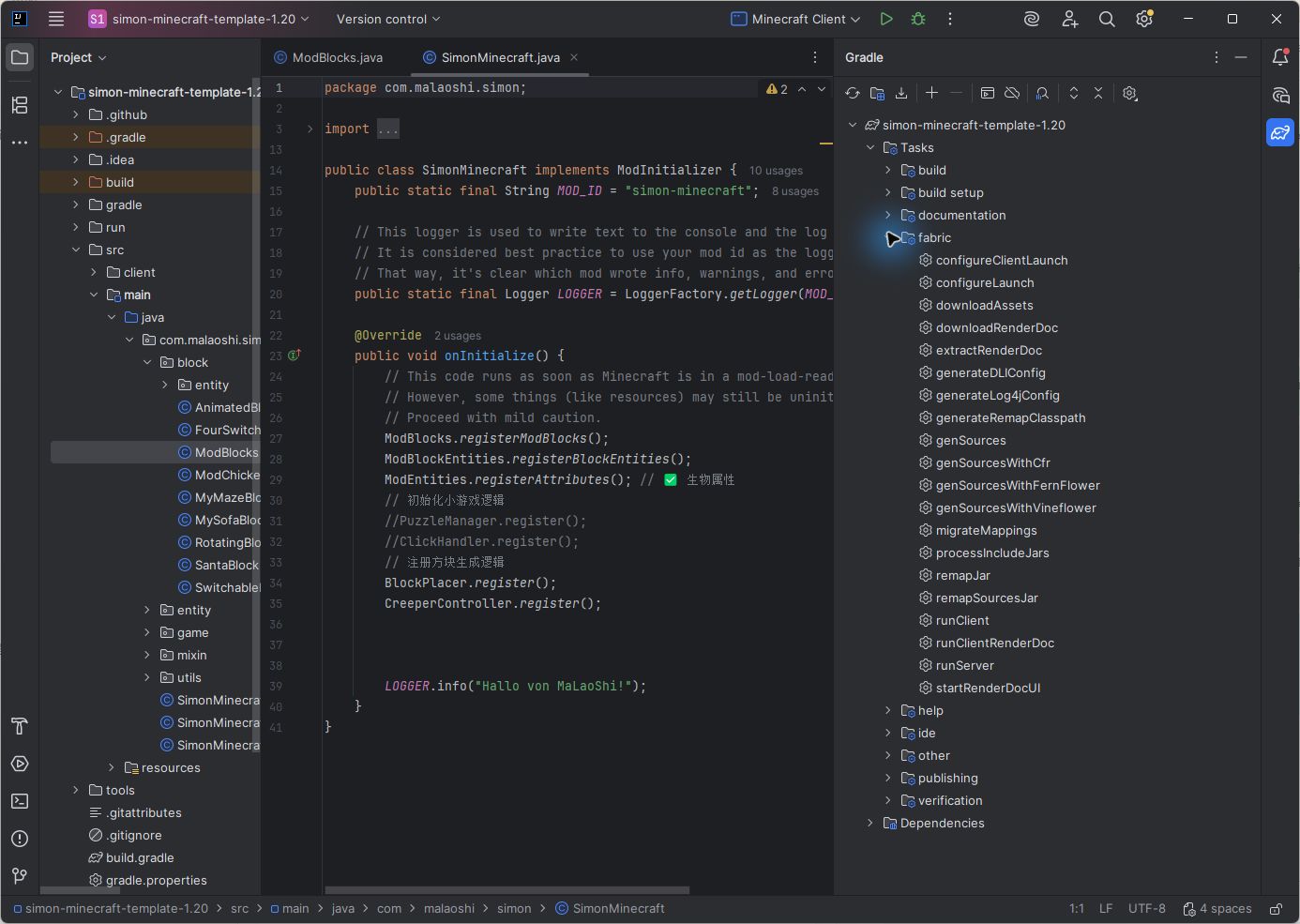
Double-click runClient, wait for compilation and resource loading, then switch to the Minecraft window. The task continues running while the game is open. This is normal; do not repeatedly launch extra clients.
Alternative: PowerShell in the project root
.\gradlew.bat runClient07 / 11
Find the original startup message
Open the Run console at the bottom and use Ctrl+F to search for the full message.
Search the console for Hallo von MaLaoShi!. Find the line from simon-minecraft before entering a world. If output is scrolling quickly, use search rather than scanning by eye.

Actual log content, with timestamp and thread prefix omitted
(simon-minecraft) Hallo von MaLaoShi!- INFO
- An information-level message, not an error. Log lines may also include a timestamp, thread name and source.
- simon-minecraft
- The logger name, which helps identify which mod produced the message.
- What the log proves
- It proves execution reached this line. It does not prove that every block model or texture is complete.
08 / 11
Enter a separate test world
Use Creative mode, cheats enabled, Peaceful difficulty and a Superflat world.
- Create
- Choose Singleplayer → Create New World and name it Lesson01Test. Keep experiments separate from important existing saves.
- Observe
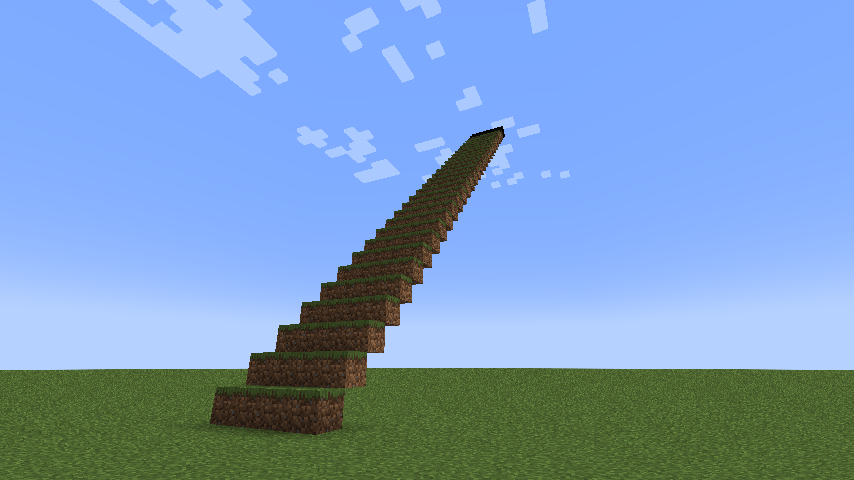
- Move with W/A/S/D, look with the mouse and jump with Space. This template automatically creates grass-block steps when a player joins.
- Record
- Record the world name and screenshot location. F2 saves screenshots to run/screenshots. These are actual game captures, not 3D illustrations.
09 / 11
Add your own startup message
Exit the game normally, then return to SimonMinecraft.java.
Inside the existing onInitialize(): keep the old line and add the new one
LOGGER.info("Hallo von MaLaoShi!");
LOGGER.info("Lesson 1 ready!");
Keep the first line. Add the second line below it, before the closing brace of onInitialize(). Do not create another class, add imports or delete other registration calls.
- LOGGER.info(...)
- Calls the info method on the template’s existing logger and writes the text in parentheses to the log.
- "Lesson 1 ready!"
- The text inside double quotes is a string. Use straight ASCII double quotes, not typographic curly quotes.
- Semicolon ;
- Ends this Java statement. A missing semicolon causes a compilation error, usually highlighted in red.
- Case and placement
- Use uppercase LOGGER and lowercase info. Put the new line inside the method braces, not outside the class.
Try it: change the string to your own English startup message. Keep the method call, quotes and semicolon intact.
10 / 11
Restart and verify the change
After the second launch, search for Lesson 1 ready!.
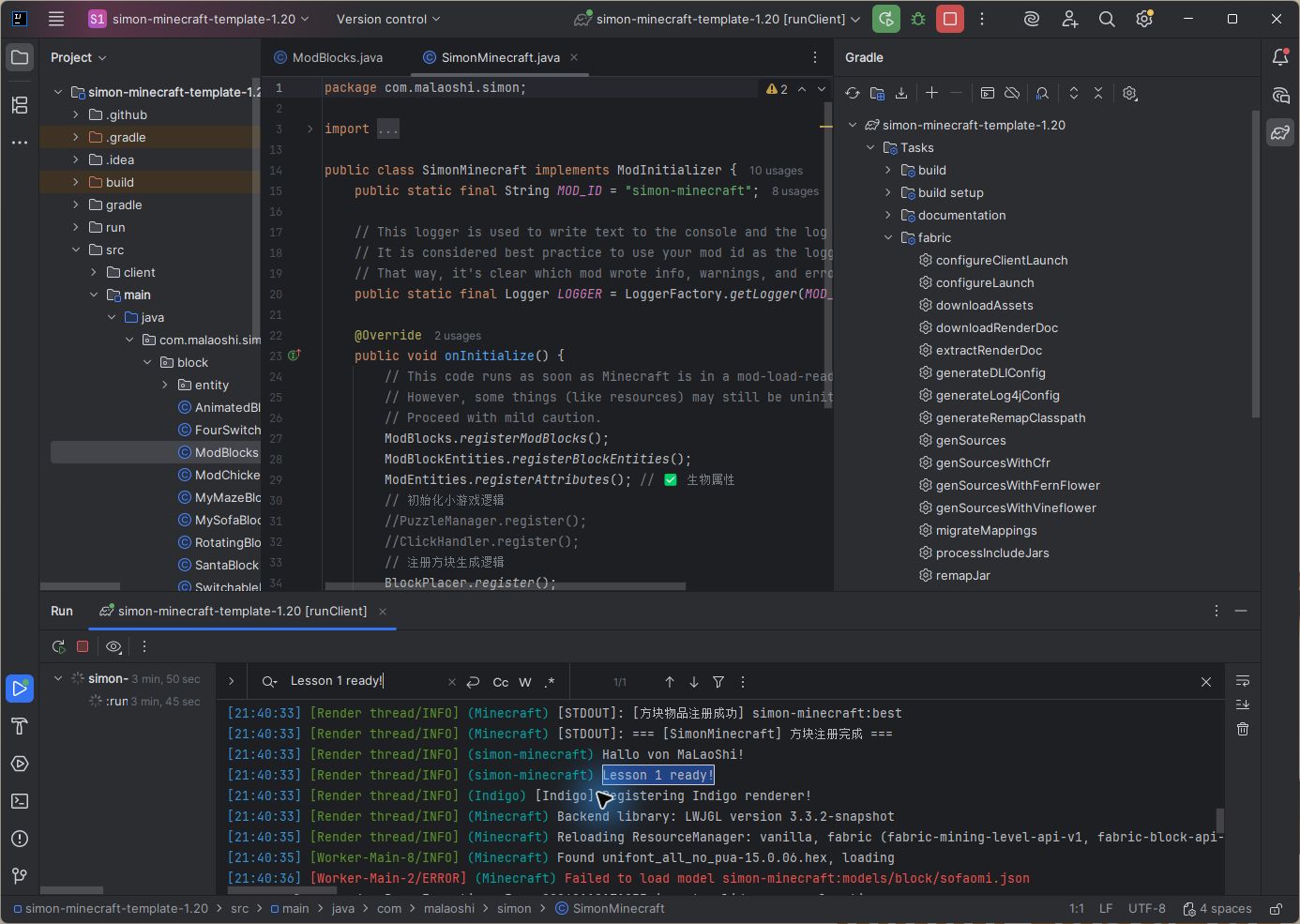
Actual second-launch log, with the timestamp prefix omitted
(simon-minecraft) Lesson 1 ready!- After editing Java
- Close the old client, save the source and run runClient again to recompile and load the change.
- F3+T
- Reloads client resources. It does not recompile Java or rerun the entrypoint.
- Leaving and rejoining a world
- Usually keeps the same client process running. It is not the same as restarting the mod entrypoint.
11 / 11
Troubleshooting and completion checklist
Locate the stage that failed. Avoid changing several versions or files at once.
- No Gradle tasks
- Check that you opened the root folder containing build.gradle. Check the Gradle sync result.
- Dependency download fails
- Read the specific network or repository error. Restore connectivity and sync again; do not start by upgrading every dependency.
- Wrong Java version
- Check Project SDK and Gradle JVM. Command-line launches also need a JDK that matches the template requirements.
- New message missing
- Check that you edited onInitialize() in this project. Close the old client, save and restart.
- Compilation error or crash
- Start with errors that show a source line number. Follow the exception chain to the relevant Caused by message and keep the full log.
- A model is missing
- The original handout’s screenshots show a pre-existing missing sofaomi model; that run could still enter the world. Investigate other ERROR messages on their own merits.
Complete these five checks before moving on
- Find the project root and src.
- Explain how main points to the entrypoint class.
- Find the original startup message.
- Enter a separate test world.
- Find your own message after restarting, and explain the difference between restarting Java and reloading resources.
Next lesson: reuse this project and launch method to register a separate starter_block. Give it a working inventory icon and a Chinese display name, then obtain and place it.
TAKE IT WITH YOU
Take the lesson offline
The complete illustrated lesson and code, in your preferred language.
Further reading
Use these official references for concepts and settings. This lesson follows the versions in the supplied template.